 A Yottamaster guide
Yottamaster HC1 Offline Clone vs Software Clone: Which Should You Use?
The Yottamaster HC1 clones M.2 NVMe drives offline or through software. Here is how each method works and which one suits your job.
Use the offline clone on the Yottamaster HC1 when you want an exact copy of an M.2 NVMe SSD with no computer involved, and use cloning software through the HC1 when you need to resize partitions or copy only part of a drive. The HC1 is a dual-bay M.2 NVMe docking station that does both jobs: it has a one-button offline clone function and it also works as a 10Gbps enclosure for your PC. Below we explain the difference and how to choose. Our Yottamaster discount code page lists the current code and how to use it.
Duplicator and cloner: two names, two methods
Shoppers use “SSD duplicator” and “SSD cloner” for the same kind of device, so it helps to think in terms of the method rather than the name:
- Offline cloning (duplicating): the device copies the source drive to the target drive by itself. No computer, no software.
- Software cloning: the device acts as an enclosure connected to your computer, and a cloning program on the computer does the copying.
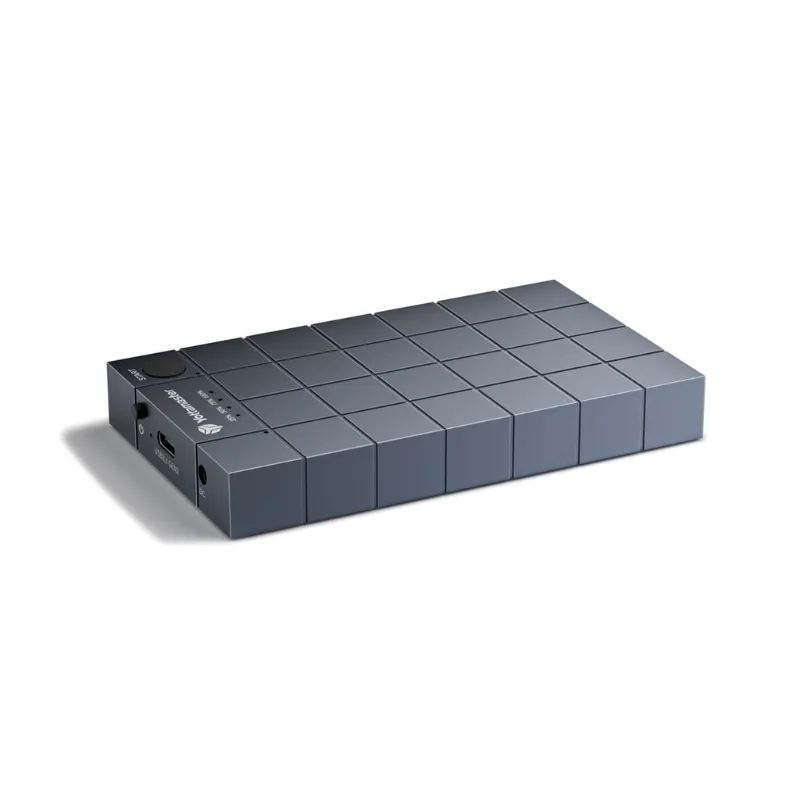
The Yottamaster HC1 dual-bay M.2 NVMe cloner supports both. Yottamaster’s own FAQ on the product page confirms you can clone from an SSD inside your computer to an M.2 drive in the HC1 with third-party software, and that you can use the HC1 as an external SSD enclosure to access data.
How the HC1 offline clone works
Yottamaster’s steps on the product page are short:
- Put the target drive and the source drive in the slots marked TARGET and SOURCE. Yottamaster warns not to mix them up.
- Connect the power adapter. Do not connect the HC1 to a computer while it clones.
- Hold the start button while you power on, and keep holding until all four lights come on and go off and the 25% light flashes. Then release.
- Watch the progress lights (25%, 50%, 75%, 100%). All four stay on when the clone is complete.
- Power off, connect the HC1 to your computer, power on, and set the new drive to “Online” in Disk Management (Windows) or Disk Utility (Mac). Yottamaster explains that the target drive is left in offline mode after a clone, so the computer will not show it until you do this.
Three rules from Yottamaster matter before you press the button. The target drive must be equal to or larger than the source. Everything on the target drive is overwritten. And if the source SSD has a bad sector, the copy may stop, so scan the source first.
Offline clone vs software clone
| Question | Offline clone | Software clone through the HC1 |
|---|---|---|
| Needs a computer? | No (only to bring the new drive online afterwards) | Yes |
| Needs software? | No | Yes, a cloning program of your choice |
| Copy type | Exact copy of the whole drive | Depends on the program |
| Resizes partitions to a bigger drive? | No. Yottamaster says the clone will not change or resize the partition | Possible if your program supports it |
| Target size | Equal to or larger than the source | Depends on the program and the data |
| Can clone the drive inside your PC? | No, both drives must be in the HC1 | Yes, Yottamaster confirms this works |
Which method to use
- Same-size swap or a spare backup copy: use the offline clone. It is the simplest route and leaves your computer free.
- Moving to a bigger drive: the offline clone works, but the extra space is left unused until you extend the partition yourself afterwards. If you would rather do it in one step, clone with software that resizes.
- Upgrading a laptop’s internal SSD: put the new drive in the HC1, connect it to the laptop and clone with software, since the old drive stays inside the laptop. Or remove the old drive and use the offline clone.
- Copying only some partitions: use software.
Whichever you pick, keep the original drive untouched until you have booted from the new one and checked your files.
What comes with the HC1
The box holds the HC1, a power adapter with four plug types, a USB-A to USB-C cable, a USB-C to USB-C cable and a user manual. Two removable fasteners hold drives of different lengths, and two silicone pads are included for heat. The top cover slides open and closes with one screw, and four non-slip pads keep the unit in place. The connection uses USB 3.1 Gen 2 (10Gbps). If you need to house SATA hard drives rather than M.2 SSDs, that is a different product: Yottamaster’s Y-Pioneer enclosures take 2.5 and 3.5 inch drives.
Questions
What is the difference between an SSD duplicator and an SSD cloner?
The names overlap. What matters is the method: a duplicator copies one drive to another on its own without a computer, while software cloning runs a program on your PC with the drives in an enclosure. The Yottamaster HC1 can do both.
Does the Yottamaster HC1 resize partitions when cloning to a bigger drive?
No. Yottamaster says the offline clone does not change or resize the partition, so you extend it afterwards or use cloning software that resizes.
Can the target drive be smaller than the source on the HC1?
No. Yottamaster says the target must be equal to or larger than the source, and all data on the target is overwritten.
Why can I not see the new drive after an HC1 clone?
Yottamaster explains the target drive is left offline after cloning. Set it to Online in Disk Management or Disk Utility.
Can I use the HC1 as a normal external SSD enclosure?
Yes. Yottamaster says it works as an external SSD enclosure as well as a cloner, over USB 3.1 Gen 2 (10Gbps).
Products in this guide
Shopping at Yottamaster? See the discount code
5% OFF All Orders
More in this series
Yottamaster NVMe Duplicator Troubleshooting: What to Do When Cloning Fails19 Aug 20263 min Can M.2 NVMe Enclosures Handle Heat During Long File Transfers?19 Aug 20264 min
 How to Set Up the Yottamaster PS500C3 5 Bay Enclosure and Pick a RAID Mode19 Aug 20263 min
 Yottamaster 4 Bay vs 5 Bay Enclosure: Which Should You Buy?19 Aug 20263 minHow to Clone an M.2 NVMe SSD Without a Computer19 Aug 20264 min