 A Yottamaster guide
How to Clone an M.2 NVMe SSD Without a Computer
An nvme m.2 ssd cloner lets you duplicate NVMe drives offline without booting software or connecting to a PC.
An NVMe M.2 SSD cloner lets you duplicate a drive offline, without booting software or connecting to a PC. A standalone hardware duplicator copies everything, the OS, partitions and boot sectors, directly between two drives, which makes upgrades, backups and system deployments faster than cloning through a computer.
How standalone cloners work
A hardware duplicator has two or more M.2 slots and an onboard controller that reads from the source drive and writes to the target. You insert both drives, press a button, and the unit handles the rest, no drivers, no BIOS, no operating system required.
Advantages over PC-based cloning:
- No host overhead. The controller writes directly at the drive’s own sequential speed rather than being limited by a USB connection or host software.
- Offline operation. You can clone a drive before installing it, useful for field technicians and system builders.
- Sector-accurate copying. Hidden partitions, recovery environments and exact boot structures transfer along with everything else.
- One-button simplicity. No software licenses, no USB boot drives, no risk of picking the wrong disk in a menu.
Many duplicators also support SATA M.2 (B+M key) drives alongside NVMe, so you can clone an older SATA SSD in the same form factor. Check the specific model’s slot type before buying if you need this.
What to check before buying a cloner
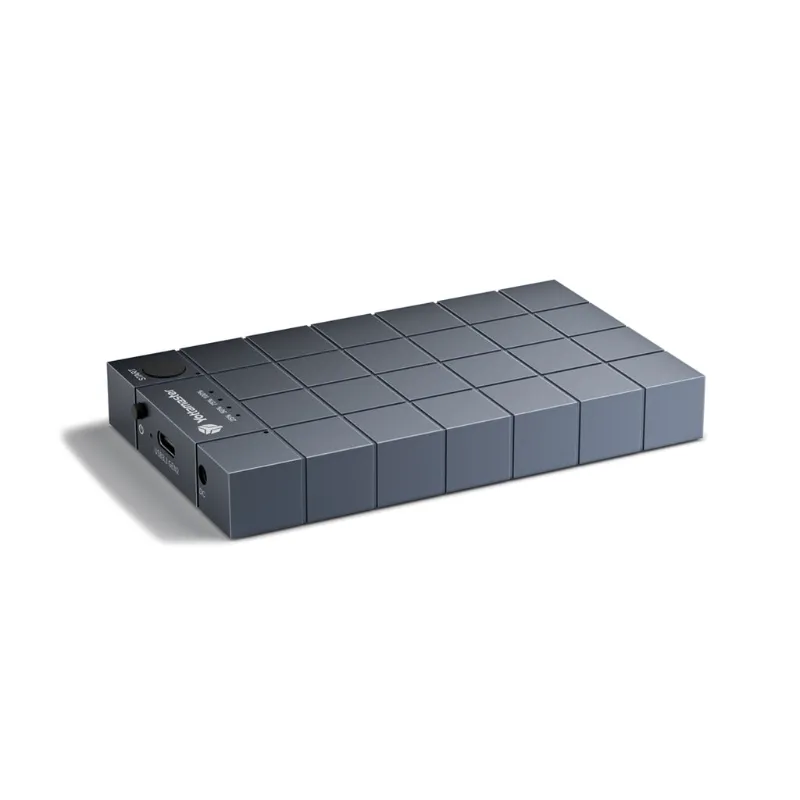
Look for a duplicator that handles both NVMe and SATA M.2, matches the PCIe generation of the drives you actually use, and includes offline clone functionality without needing a host computer. A dual-bay offline cloner or an NVMe duplicator covers the core use case. PCIe Gen 4 hardware supports meaningfully higher throughput than Gen 3, so if you regularly work with the newest drives, confirm the cloner’s generation support on the product page before you buy.
Also check the supported M.2 lengths. Drives come in a few standard sizes, and higher-end cloners include adjustable standoffs or tool-free caddies to fit more than one, while budget models may require moving a screw. Measure your drives before ordering if you are not sure which length you have.
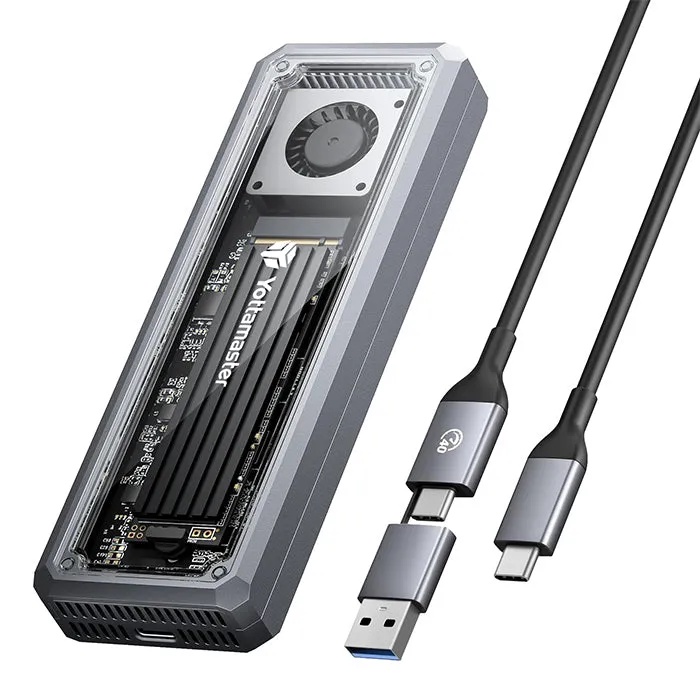
If you already own an M.2 NVMe enclosure, you can pair it with cloning software on a PC instead, but you give up the offline convenience and the target drive can appear in your file explorer mid-clone if you are not careful.
Step by step: cloning without a computer
- Power off and remove both drives. Disconnect the source SSD from your laptop or desktop and have your new, blank target drive ready.
- Insert the source into slot A and the target into slot B. Most duplicators label the slots clearly. The target drive must be equal to or larger than the source in capacity.
- Connect power and press the clone button. The unit verifies both drives, then begins a sector-by-sector copy.
- Wait for the completion indicator. Clone time depends on the drive’s capacity and the cloner’s PCIe generation, so check the manufacturer’s estimate for your specific drive size.
- Remove the cloned drive and install it. It should boot like the original, generally without needing to reinstall drivers.
Always confirm the target drive is blank or holds nothing you need, since cloning overwrites everything on it. See the current Yottamaster discount code if you are considering a Gen 4 capable model.
When a multi-bay enclosure makes more sense
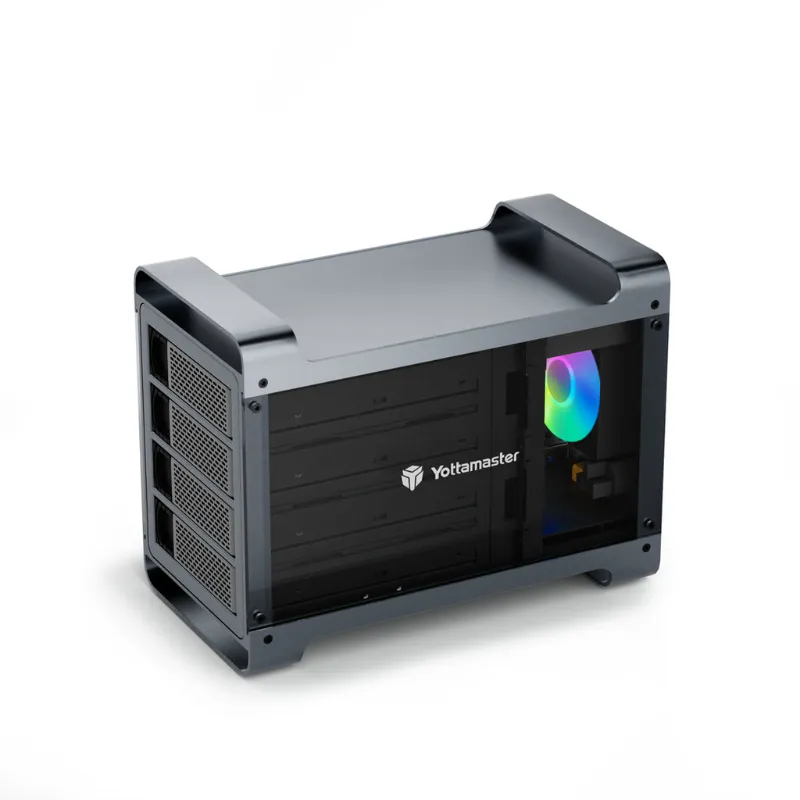
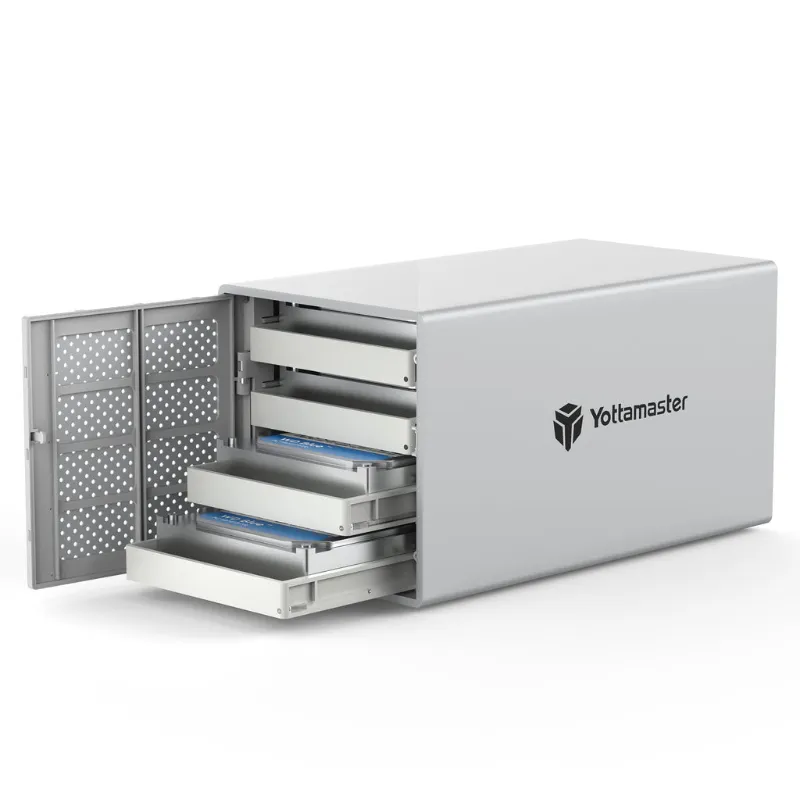
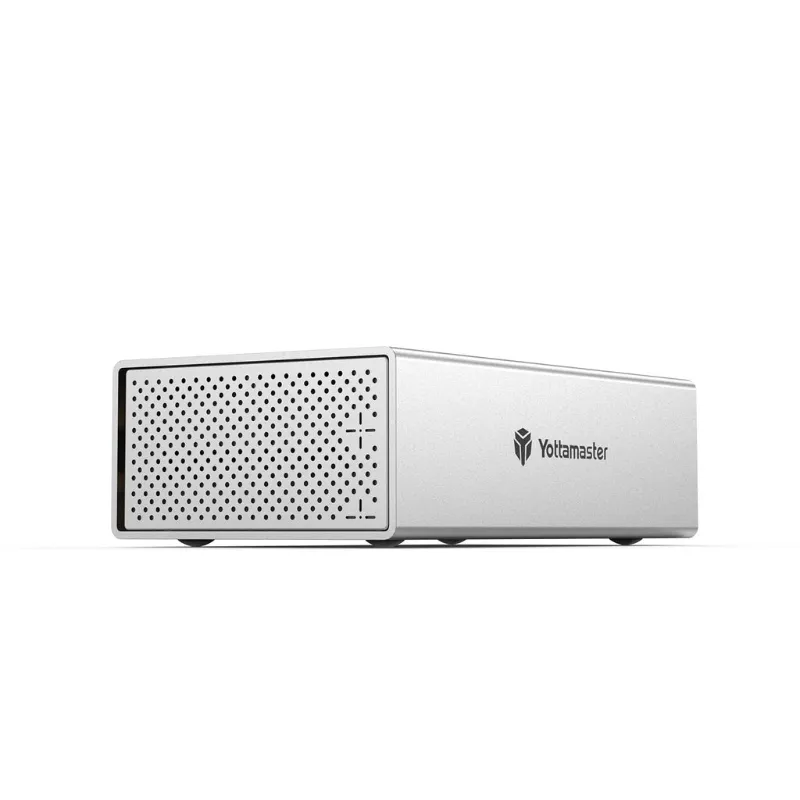
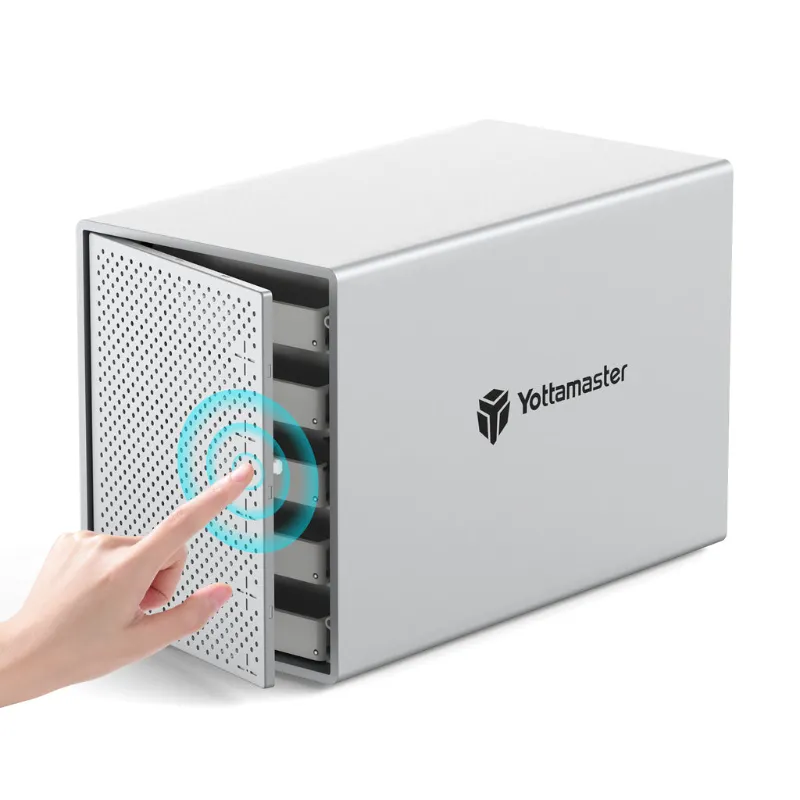
If cloning is occasional rather than routine, a multi-bay hard drive enclosure or a 4 bay disk enclosure paired with cloning software can handle the job. These connect over USB and turn multiple M.2 or SATA drives into external storage between clone jobs, so you gain flexibility at the cost of needing a host computer and software.
A multi-bay external enclosure or 5-bay drive enclosure can mix NVMe and SATA drives in the same unit, useful if you manage a mixed fleet or want one dock for both cloning and everyday storage. See the current Yottamaster discount code if an enclosure suits your workflow better than a dedicated cloner.
Choose a standalone cloner if you:
- Clone drives often or handle multiple systems
- Need offline operation in the field or a workshop
- Want to copy at the drive’s own speed without USB overhead
Choose a multi-bay enclosure if you:
- Clone only occasionally
- Already own cloning software you are comfortable with
- Want the hardware to double as a backup dock or expandable storage
Compatibility and limitations
Most hardware cloners support M.2 NVMe (M-key) and M.2 SATA (B+M key), but check the slot type before buying. All NVMe SSDs use the M-key; older SATA M.2 drives use B+M, and a cloner with only M-key slots will not physically accept a SATA M.2 module.
Capacity rule: the target drive must be equal to or larger than the source. Cloning a larger source to a smaller target will fail. Some cloners support partition-based cloning of only the used space, but most perform a full sector copy, so check which your model supports.
Operating system agnostic: hardware cloners copy raw sectors, so Windows, macOS, Linux and custom bootloaders should all transfer correctly without you needing to worry about partition schemes or file systems.
Our take
A dedicated NVMe M.2 SSD cloner is a fast, simple tool for laptop upgrades, backup swaps and system deployment, and it avoids the host-computer bottlenecks that software-based cloning can run into. Match the cloner’s PCIe generation and slot types to the drives you actually use, and confirm the target drive is equal to or larger than the source before you start.
For lighter, occasional use, pairing an M.2 NVMe enclosure with cloning software saves money, at the cost of needing a computer and a bit more patience. Either way, offline cloning tends to be more reliable than online migration tools, which can hang mid-copy or miss hidden recovery partitions.
Check current pricing and the latest Yottamaster code if their hardware fits your setup.
Questions
Can I clone a larger SSD to a smaller one?
Only if the used space on the source fits within the target's capacity and your cloner specifically supports partition-based cloning. Most hardware duplicators perform a full sector copy, which requires the target to be equal or larger.
Do I need to format the new SSD before cloning?
No. The cloner overwrites every sector on the target drive, so any existing data or partitions are replaced automatically during the clone.
Will a cloned drive boot immediately in a different laptop?
Usually, though Windows may ask for reactivation if the hardware signature changes significantly. macOS and Linux typically boot without additional steps.
What is the difference between a dedicated duplicator and a multi-bay enclosure?
A duplicator clones offline with one button and no computer required. A multi-bay enclosure connects to a computer and needs cloning software, but it also doubles as external storage between clone jobs.
Does a PCIe Gen 4 cloner clone faster than a Gen 3 model?
Gen 4 hardware supports higher throughput than Gen 3, so cloning a Gen 4 drive on Gen 4 capable hardware is generally faster. Check the manufacturer's specific throughput and time estimates for your drive size.
Can I use a hardware cloner with SATA M.2 SSDs?
Many cloners support both NVMe (M-key) and SATA M.2 (B+M key), but check the slot type listed for your specific model before buying, since a cloner with only M-key slots cannot accept a SATA M.2 drive.
Products in this guide
 Shopping at Yottamaster? See the discount code
5% OFF All Orders
Shopping at Yottamaster? See the discount code
5% OFF All Orders
More in this series
Troubleshooting Your Yottamaster NVMe Duplicator When Cloning Fails19 Aug 20265 minCan M.2 NVMe Enclosures Handle Heat During Long File Transfers?19 Aug 20264 minSetting Up a Yottamaster PS500C3 Hard Drive Enclosure: Complete Guide19 Aug 20265 minDo You Need an SSD Duplicator or an SSD Cloner? Understanding the Difference19 Aug 20264 minYottamaster 4 Bay vs. Syba 5 Bay: Which Drive Enclosure for Home Storage?19 Aug 20265 min