 A Yottamaster guide
Troubleshooting Your Yottamaster NVMe Duplicator When Cloning Fails
An nvme duplicator that fails mid-clone usually struggles with capacity mismatches, loose connections, outdated firmware, or insufficient power delivery.
An nvme duplicator that won’t complete a cloning job is typically failing due to capacity mismatches, poor contact between drive and slot, outdated firmware, or inadequate power supply. This guide walks you through diagnosing and fixing the most common problems with Yottamaster and similar hardware.
Why Your M.2 NVMe Cloner Stops Mid-Clone
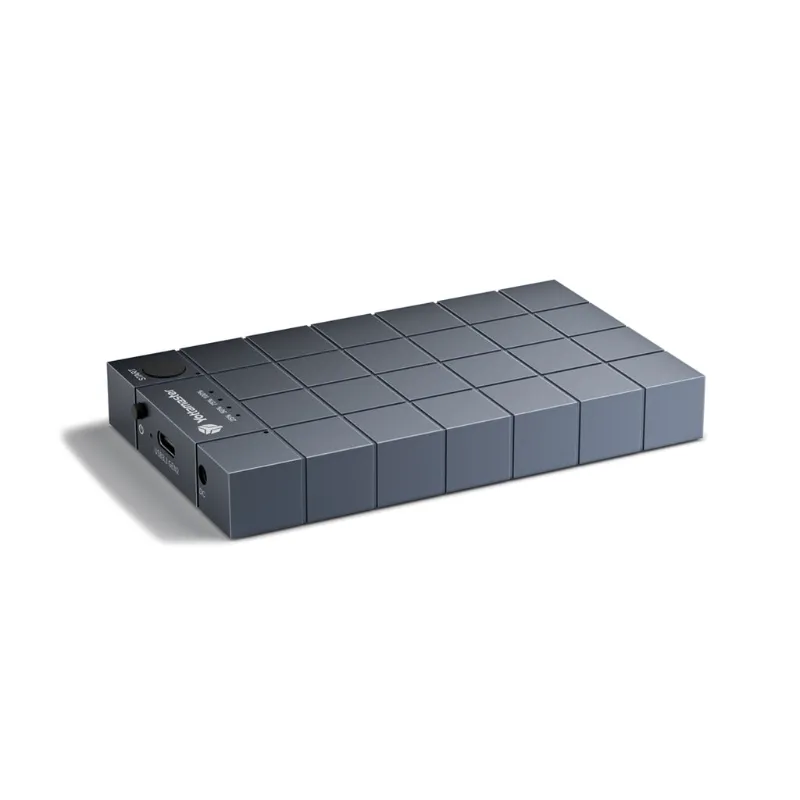
When a nvme duplicator or m.2 cloner hangs at 15%, 50%, or 99%, the source and target drives are usually incompatible in size or health status. Check these first:
- Target drive smaller than source – you cannot clone a 1 TB drive onto a 512 GB drive, even if actual data usage is low
- Bad sectors on source – run a health check with CrystalDiskInfo before attempting to clone
- Mixed protocol drives – some units only support NVMe-to-NVMe cloning, not SATA M.2 to NVMe
- Incorrect capacity detection – older firmware may misread drives over 2 TB
If your device still uses factory firmware from 2022 or earlier, update before troubleshooting further.
Check Physical Connection and Thermal Contact
M.2 slots rely on precise alignment. A drive seated at even a slight angle will cause intermittent read errors that abort the clone. Remove both drives, inspect the gold contacts for debris, and reseat firmly until you hear or feel the latch engage.
Overheating is the second-most-common physical issue. NVMe drives throttle at 70 to 80°C, and cloning operations generate sustained heat. If your m 2 nvme cloner docking station lacks a heatsink or fan:
- Clone in a cool room or near a desk fan
- Allow 10 minutes of cooling between retry attempts
- Consider upgrading to a model with active cooling
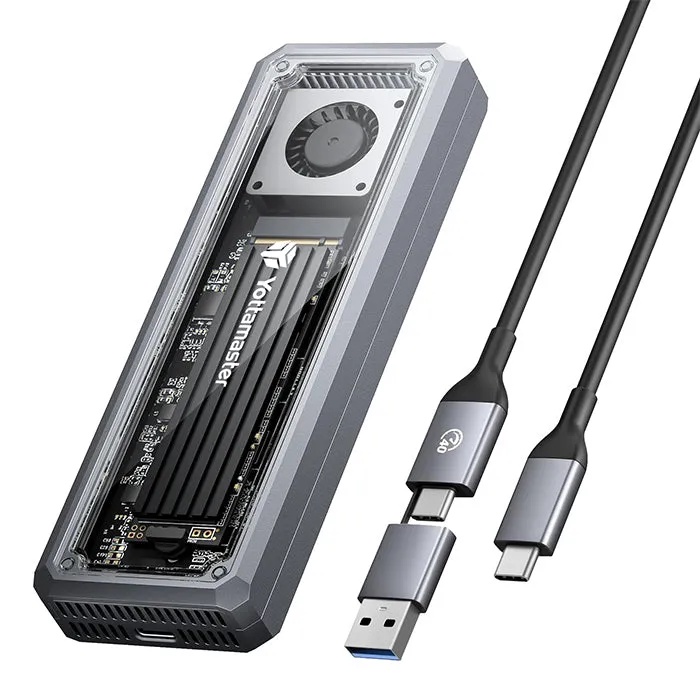
We’ve seen successful clones on the same hardware simply by adding airflow. If you’re using an m 2 nvme enclosure for one of the drives, thermal throttling is even more likely since enclosures trap heat.
Firmware and Driver Updates for Duplicators
Many nvme to nvme cloner devices ship with firmware that predates the NVMe 1.4 and 2.0 spec. Drives using newer power states or security features may not initialize correctly. Visit the manufacturer’s support page and search for your model number.
For Yottamaster devices, firmware updates typically come as a Windows executable. Download, run, and follow the on-screen prompts with the duplicator connected via USB (if it offers USB management mode). After updating:
- Power-cycle the duplicator completely (unplug for 30 seconds)
- Insert the target drive first, wait for LED confirmation
- Insert the source drive and start the clone
We also recommend updating your PC’s chipset and USB drivers if you’re using a docking station that connects over USB-C. Outdated USB drivers cause random disconnects that look like hardware failures. Check current pricing and grab our code for the best deal on Yottamaster hardware.
Power Supply Issues with Multi-Bay Devices
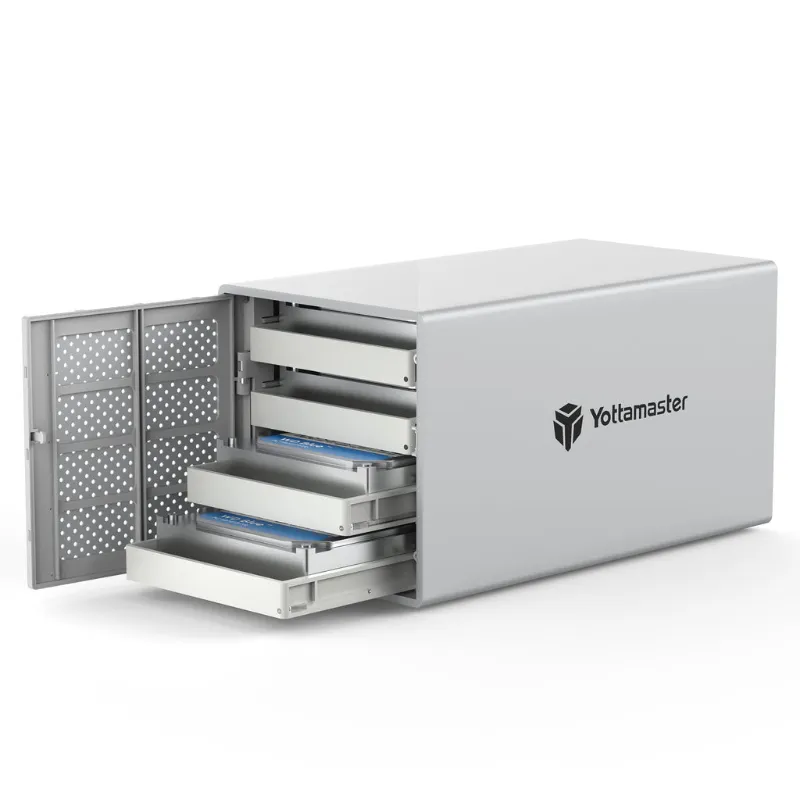
A 4 bay hard drive enclusure or 4 bay disk enclosure draws significantly more power than a simple two-slot duplicator. If your unit powers on but fails during intensive operations:
- Use the included power adapter – USB bus power (5 V / 0.9 A per port) is insufficient for two NVMe drives under load
- Check adapter amperage – a 12 V / 3 A adapter is minimum for dual-NVMe cloning; 12 V / 5 A is better
- Test with one drive first – if a single-drive clone succeeds, power delivery is the bottleneck
The yottamaster ps500c3 and similar units often include a 60 W adapter, which is adequate for four SATA drives but marginal for multiple high-performance NVMe drives. If you’re cloning Gen4 NVMe drives that pull 8 to 10 W each, consider a higher-wattage replacement adapter with the same voltage and barrel size.
Compare: Standalone Duplicator vs. Docking Station
Not every device handles cloning the same way. Here’s how the two main form factors differ in reliability:
| Feature | Standalone Duplicator | Docking Station |
|---|---|---|
| Power delivery | Dedicated 12 V adapter, stable | Often USB bus-powered, inconsistent |
| Clone speed | Hardware offload, 500+ MB/s | Controller-dependent, 300 to 450 MB/s |
| Firmware updates | Rare, sometimes unavailable | Common, via USB management mode |
| Thermal management | Passive heatsinks, limited | Better airflow, some have fans |
Standalone units like the StarTech 1:1 M.2 NVMe drive duplicator clone without a PC, so there’s no driver or OS conflict. Docking stations offer more flexibility (you can also use them as enclosures), but they depend on host chipset compatibility.
If you’re deciding which style suits your workflow, standalone models are best for frequent, high-volume cloning. Docking stations work well for occasional jobs and double as external storage via an m 2 nvme enclosure mode.
When the Target Drive Won’t Initialize
If your duplicator powers on but the target slot LED never lights, the drive may not be detected at all. Try these steps in order:
- Swap the drives – put the source in the target slot to rule out a bad slot
- Test the target drive in a PC – confirm the drive is recognized in BIOS or Disk Management
- Check for write-protection – some enterprise SSDs ship with software write-locks
- Format the target – initialize as GPT in Windows Disk Management, then retry
Occasionally, a m 2 nvme duplicator will only recognize certain brands. We’ve encountered units that clone Samsung and WD drives flawlessly but fail to detect certain Inland or off-brand models. Firmware updates usually resolve this, but if your specific combination isn’t supported, you may need a different duplicator or a PC-based cloning tool.
Verify Clone Success and Drive Health
Once the clone completes and the LED shows 100%, do not assume success. Remove the target drive, install it in your PC, and verify:
- The drive appears in BIOS and boots (if cloning a system drive)
- All partitions are present and readable
- File count and total size match the source
Run CrystalDiskInfo on both drives to confirm identical capacity and check the target’s health status. A successful clone should show zero reallocated sectors on the target.
If you plan to clone multiple drives regularly, document which firmware version, drive brands, and capacities work reliably together. This log saves hours when a new drive model causes unexpected issues. And if you’re shopping for a new duplicator or multi-bay enclosure, check the latest Yottamaster pricing and use our code for an additional discount.
Alternative Cloning Methods When Hardware Fails
When troubleshooting doesn’t resolve the issue, PC-based software offers a reliable fallback. Macrium Reflect (free edition) and Clonezilla handle partition alignment, resizing, and bad-sector recovery better than most hardware duplicators. Connect both drives using a 4 bay disk enclosure or dual m 2 nvme enclosure setup, then clone via software.
This approach is slower but gives you detailed logs, retry options, and the ability to clone only specific partitions. For one-time migrations or problem drives, software is often less frustrating than repeatedly power-cycling a balky hardware duplicator.
Questions
Why does my nvme duplicator stop at 50% every time?
A clone that consistently halts at 50% usually indicates a bad sector cluster on the source drive or a target drive that's slightly smaller than the source. Run a disk health check on both drives and ensure the target capacity equals or exceeds the source.
Can I clone a larger NVMe drive to a smaller one?
No, hardware duplicators perform sector-by-sector copies and require the target to be equal or larger in capacity. Even if your actual data fits, the partition table size determines compatibility. Use PC software like Macrium Reflect to resize partitions during cloning.
How do I update firmware on a Yottamaster duplicator?
Visit the Yottamaster support page, download the firmware file for your model, and run the installer on Windows with the duplicator connected via USB. Power-cycle the device after the update completes before attempting another clone.
Will a docking station clone as fast as a standalone duplicator?
Standalone duplicators usually clone faster because they use dedicated hardware controllers and stable 12V power. Docking stations rely on USB chipset performance and may throttle if bus-powered, resulting in 100 to 200 MB/s slower speeds.
What's the difference between an m.2 cloner and an m.2 enclosure?
An m.2 cloner duplicates one drive to another without a PC, using onboard clone logic. An m.2 enclosure turns the drive into external storage via USB but requires PC software to clone. Some docking stations offer both modes.
Can I use a 4 bay hard drive enclosure for NVMe cloning?
Only if the enclosure has M.2 NVMe slots or adapters. Most 4-bay enclosures are designed for 3.5-inch SATA drives. Check the spec sheet for M.2 support or use a dedicated NVMe duplicator for reliable results.
Products in this guide
 Shopping at Yottamaster? See the discount code
5% OFF All Orders
Shopping at Yottamaster? See the discount code
5% OFF All Orders
More in this series
Can M.2 NVMe Enclosures Handle Heat During Long File Transfers?19 Aug 20264 min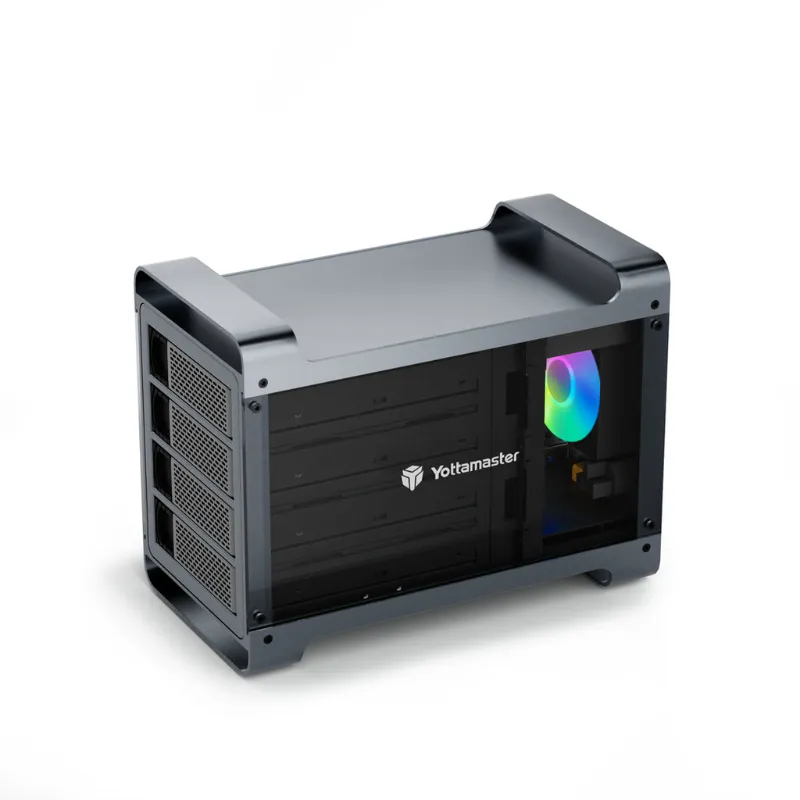 Setting Up a Yottamaster PS500C3 Hard Drive Enclosure: Complete Guide19 Aug 20265 minDo You Need an SSD Duplicator or an SSD Cloner? Understanding the Difference19 Aug 20264 minYottamaster 4 Bay vs. Syba 5 Bay: Which Drive Enclosure for Home Storage?19 Aug 20265 minHow to Clone an M.2 NVMe SSD Without a Computer19 Aug 20264 min