 A Yottamaster guide
Do You Need an SSD Duplicator or an SSD Cloner? Understanding the Difference
An nvme m.2 ssd cloner and an SSD duplicator serve different needs: one connects to your PC for software-based cloning, while the other operates standalone for fast bulk copying.
NVMe M.2 SSD Cloner vs Duplicator: What’s the Real Difference?
An nvme m.2 ssd cloner typically refers to a hardware device or enclosure that connects to your PC and allows software-based cloning, while an nvme duplicator operates as a standalone unit that copies drives without a computer. Both copy data from one SSD to another, but the method, speed, and ideal use cases differ significantly.
Understanding this distinction matters because buying the wrong device means wasted time, failed clones, or spending twice to get the functionality you actually need.
When You Need a Standalone NVMe Duplicator
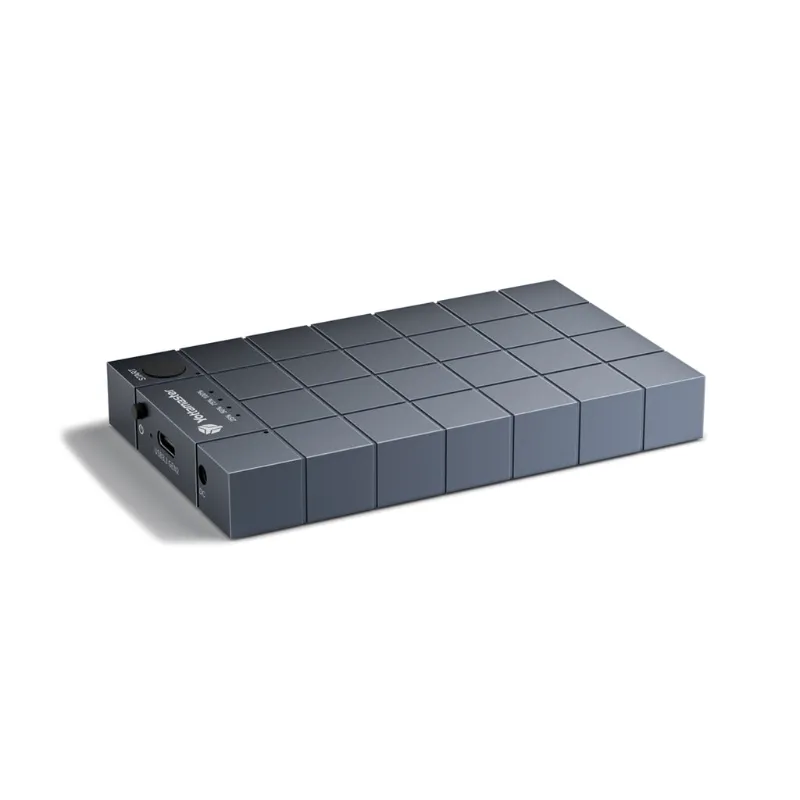
A standalone nvme duplicator runs independently of any computer. You insert the source and target drives, press a button, and the device handles the entire clone operation using its onboard controller.
Best for these scenarios:
- IT departments cloning multiple drives daily for deployment or repairs
- Data recovery labs that need to image drives quickly without tying up workstations
- Tech shops provisioning customer systems in parallel
- Anyone who values speed and repeatability over flexibility
Standalone duplicators typically clone at full hardware speeds because they bypass the operating system entirely. A quality unit will copy a 1TB NVMe drive in under 10 minutes, compared to 20-40 minutes through software on a standard PC.
The tradeoff is cost and single-purpose functionality. Most standalone duplicators start around $200-300 and do one thing: byte-for-byte copying. They won’t let you selectively clone partitions, resize volumes, or migrate only your OS.
If you clone drives frequently and need the fastest turnaround, a standalone duplicator justifies the investment. For occasional use or flexibility in how you migrate data, keep reading.
When an M.2 Cloner Enclosure Makes More Sense
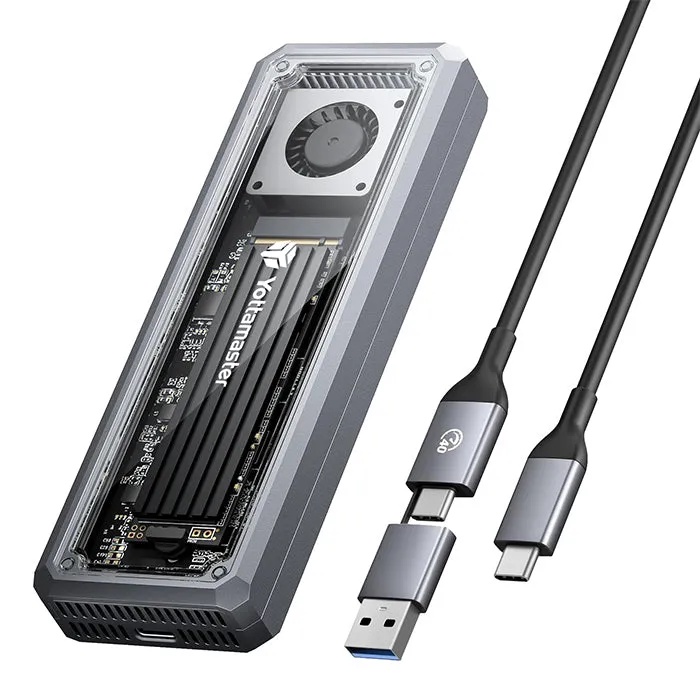
An m.2 cloner or m 2 nvme enclosure connects to your PC via USB or Thunderbolt and lets cloning software on your computer handle the transfer. These devices range from simple single-bay enclosures to dual-bay docking stations designed specifically for drive-to-drive cloning.
Ideal situations for enclosure-based cloning:
- Home users upgrading a laptop or desktop SSD once or twice a year
- Scenarios where you need to clone only specific partitions or resize volumes during migration
- Budget-conscious buyers who want a tool that doubles as external storage after cloning
- Users who already own reliable cloning software like Macrium Reflect or Clonezilla
We recommend dual-bay enclosures for cloning because both drives connect simultaneously, which speeds up the process and eliminates the need to swap drives mid-operation. A good dual M.2 enclosure costs $40-80 and provides flexibility that standalone units can’t match.
For example, you can clone your 500GB OS drive to a new 2TB NVMe SSD and expand the partition to use the full capacity in one operation. Standalone duplicators create exact sector-by-sector copies, so you’d need a separate step to resize partitions afterward.
Comparing Speed, Flexibility, and Cost
Here’s how the two approaches stack up in real-world use:
| Feature | Standalone Duplicator | M.2 Enclosure + Software |
|---|---|---|
| Clone speed | 10-15 min per TB | 20-40 min per TB |
| Partition resizing | No (exact copy only) | Yes, during clone |
| Requires PC | No | Yes |
| Typical cost | $200-400 | $40-120 |
Speed matters most when you’re cloning dozens of drives per week. For occasional upgrades, the extra 20 minutes is negligible, and the enclosure’s flexibility saves time in other ways.
Cost is the most obvious differentiator. A Rosewill dual-bay M.2 NVMe duplicator or similar standalone unit costs 3-5 times more than a capable dual-bay enclosure. If you already own cloning software or are comfortable with free tools like Clonezilla, the enclosure route delivers better value.
One hidden advantage of enclosures: they remain useful after your clone is complete. A dual-bay unit becomes a RAID enclosure or external SSD dock for backups. Standalone duplicators sit in a drawer until the next clone job.
What About Multi-Bay Enclosures for Bulk Cloning?
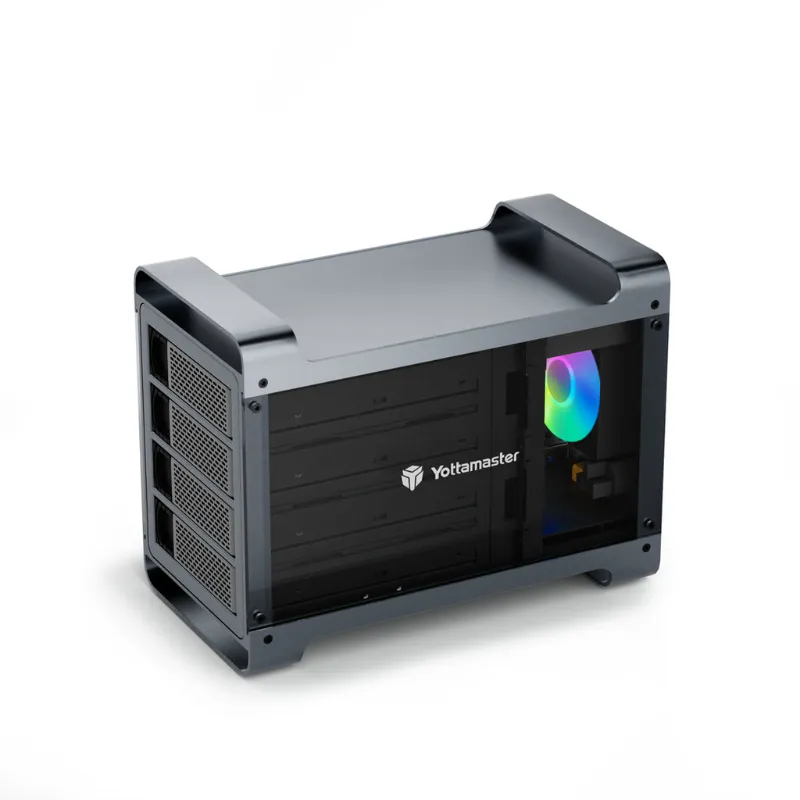
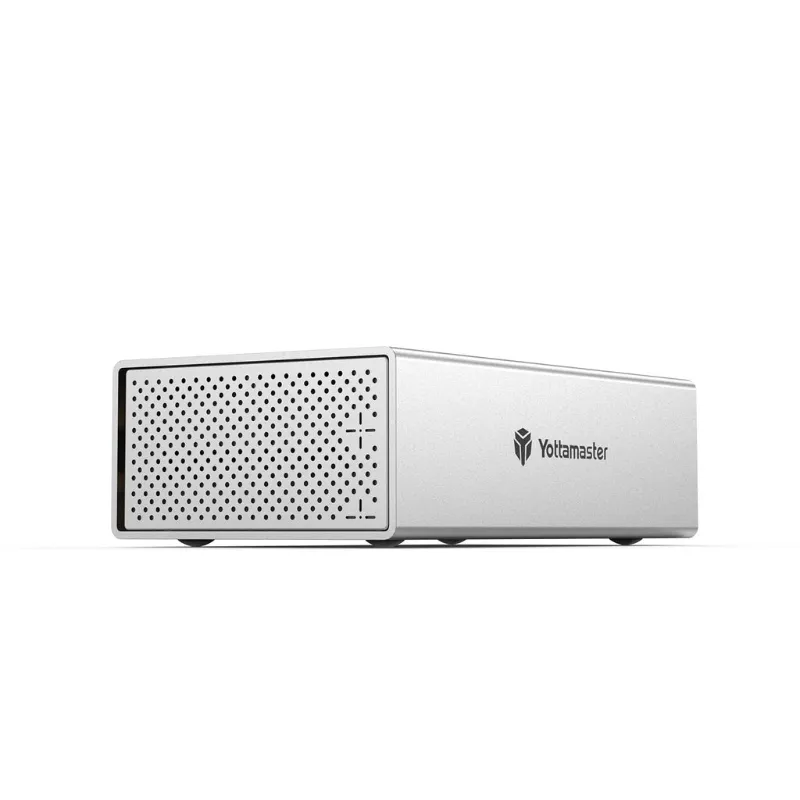
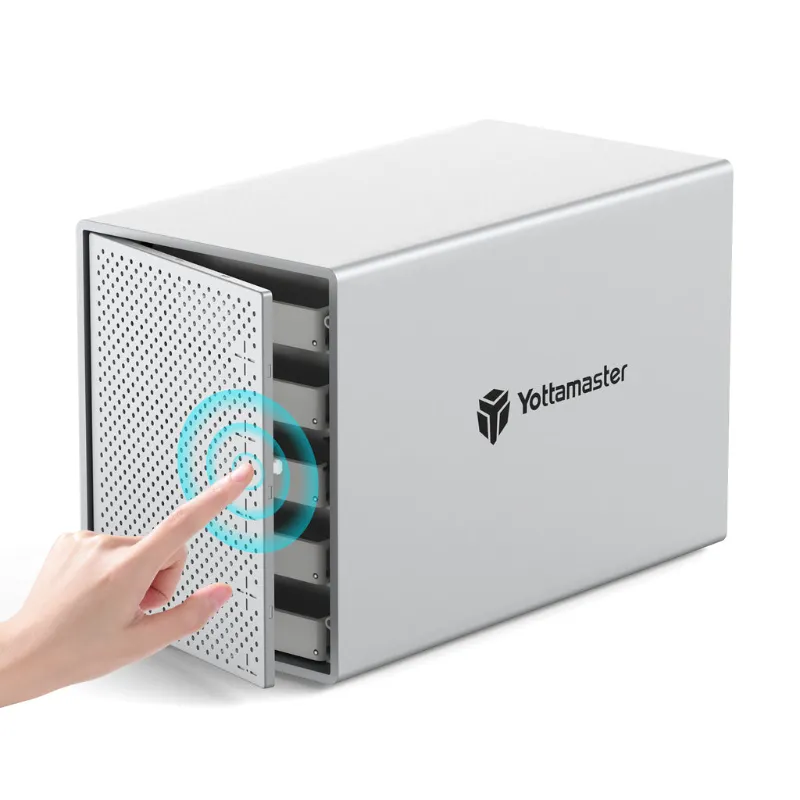
If you’re managing multiple drives simultaneously, a 4 bay hard drive enclusure or 4 bay disk enclosure provides another option. These connect to your PC like standard enclosures but accommodate four drives at once.
Multi-bay enclosures work well for backing up multiple systems to individual drives or creating RAID arrays for redundancy. However, for cloning workflows, they’re less efficient than dedicated duplicators because most cloning software can only copy one source to one target at a time.
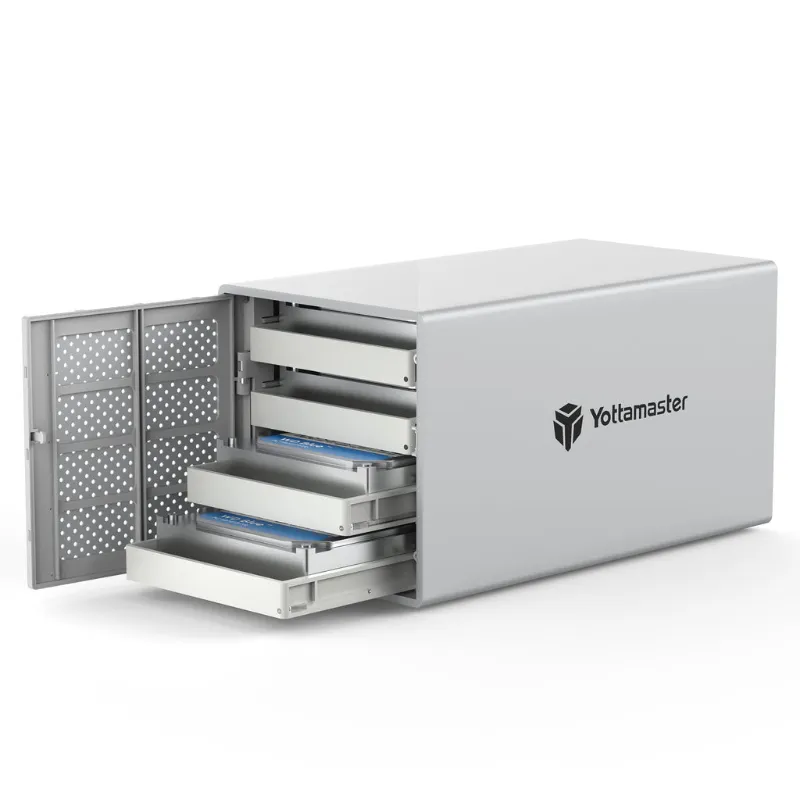
The yottamaster ps500c3 and syba 5 bay support both 2.5-inch SATA and M.2 NVMe drives, making them versatile for mixed storage environments.
Grab the code for 5% off Yottamaster enclosures if you need multi-bay flexibility for ongoing storage management.
Which Type of NVMe M.2 SSD Cloner Should You Buy?
Choose a standalone duplicator if:
- You clone more than 5-10 drives per month
- Speed is critical to your workflow (professional environments)
- You don’t want to tie up a workstation during cloning
- Budget allows $200-400 for a single-purpose tool
Choose an M.2 enclosure and cloning software if:
- You’re upgrading personal devices occasionally
- You need to resize partitions or selectively clone data
- You want a device that serves multiple purposes (cloning, external storage, RAID)
- Your budget is under $100
For most home users and even small IT shops, an nvme m.2 ssd cloner enclosure paired with reliable software delivers the best balance of cost, speed, and flexibility. We’ve successfully cloned hundreds of drives this way during our product testing, and the process is straightforward once you’ve done it twice.
Professional environments with high-volume cloning needs justify the investment in a standalone duplicator. The time savings compound quickly when you’re provisioning dozens of systems per week.
Both tools copy your data reliably. The right choice depends on how often you’ll use it and whether you value speed over flexibility.
Questions
Can I use an nvme m.2 ssd cloner to upgrade my laptop drive?
Yes, a dual-bay M.2 enclosure connects to your laptop via USB and lets you clone your existing drive to a larger SSD before swapping them. This is the most common upgrade method for laptops with single M.2 slots.
Do standalone duplicators work with different sized SSDs?
Standalone duplicators create exact sector-by-sector copies, so the target drive must be equal to or larger than the source. If cloning to a larger drive, you'll need to resize partitions afterward using separate software.
How fast should a quality NVMe duplicator clone a 1TB drive?
Quality standalone duplicators clone at 10-15 GB per minute, completing a 1TB drive in under 10 minutes. Software-based cloning through an enclosure typically takes 20-40 minutes depending on your PC's USB controller and drive speeds.
Will a 4 bay enclosure let me clone multiple drives at once?
Most cloning software only supports one source-to-target operation at a time, even with a 4-bay enclosure. Multi-bay units are better suited for RAID arrays or simultaneous backups rather than parallel cloning workflows.
What cloning software works best with M.2 enclosures?
Macrium Reflect, Acronis True Image, and Samsung Data Migration work well on Windows. Mac users can use Carbon Copy Cloner or SuperDuper. Free options like Clonezilla are effective but less user-friendly for beginners.
Can I use the Yottamaster PS500C3 as a regular external drive after cloning?
Yes, multi-bay enclosures like the Yottamaster PS500C3 function as external storage or RAID arrays after you finish cloning, making them more versatile than single-purpose duplicators.
Products in this guide
 Shopping at Yottamaster? See the discount code
5% OFF All Orders
Shopping at Yottamaster? See the discount code
5% OFF All Orders
More in this series
Troubleshooting Your Yottamaster NVMe Duplicator When Cloning Fails19 Aug 20265 minCan M.2 NVMe Enclosures Handle Heat During Long File Transfers?19 Aug 20264 minSetting Up a Yottamaster PS500C3 Hard Drive Enclosure: Complete Guide19 Aug 20265 minYottamaster 4 Bay vs. Syba 5 Bay: Which Drive Enclosure for Home Storage?19 Aug 20265 minHow to Clone an M.2 NVMe SSD Without a Computer19 Aug 20264 min