 A MOKiN guide
USB-C Adapter vs DisplayLink Docking Station: Which MOKiN Solution Is Right for You?
A displaylink docking station powers multi-monitor setups with advanced driver support, while a USB-C adapter offers plug-and-play simplicity for single displays.
A displaylink docking station delivers multi-monitor support and advanced display management through software drivers, while a USB-C adapter provides straightforward video output for single or dual screens without additional software. Your choice depends on how many displays you need to run, whether your laptop supports native video output over USB-C, and whether you’re willing to install drivers for expanded compatibility.
Understanding the technical differences (and how they affect your Mac, Windows, or Linux setup) will save you from buying the wrong tool for your workflow.
What Makes a DisplayLink Docking Station Different
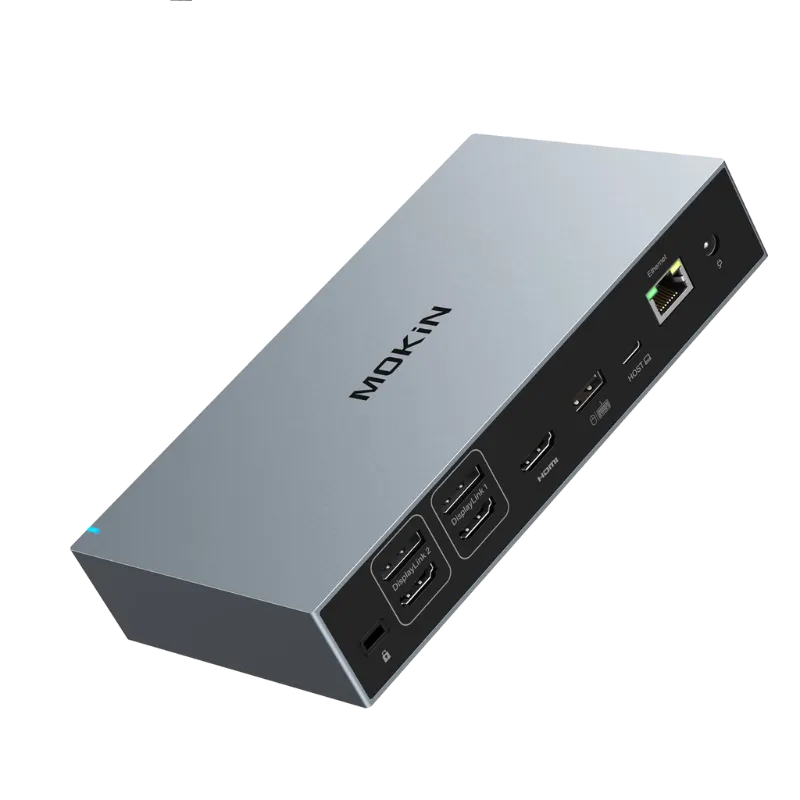
A displaylink docking station uses compression technology and dedicated drivers to send video signals over USB, bypassing your computer’s native graphics output limits. This approach lets you connect multiple monitors even when your laptop’s GPU or USB-C ports don’t natively support that many displays.
DisplayLink docking stations require you to install displaylink docking station driver software on Windows, macOS, or Linux. Once installed, the dock appears as an additional graphics adapter in your system. That’s why many professionals rely on DisplayLink docks when they need three, four, or even six monitors from a single USB-C connection.
Key advantages of DisplayLink technology:
- Supports more monitors than your laptop’s GPU allows natively
- Works across Windows, macOS, and Linux with displaylink docking station software
- Enables video output even on USB-C ports without DisplayPort Alt Mode
- Handles mixed resolutions and refresh rates across multiple screens
The trade-off is that you’re running video through compression, so DisplayLink isn’t ideal for color-critical work or high-refresh gaming. For typical office productivity, spreadsheets, and web browsing, the difference is negligible.
When a USB-C Adapter Is All You Need
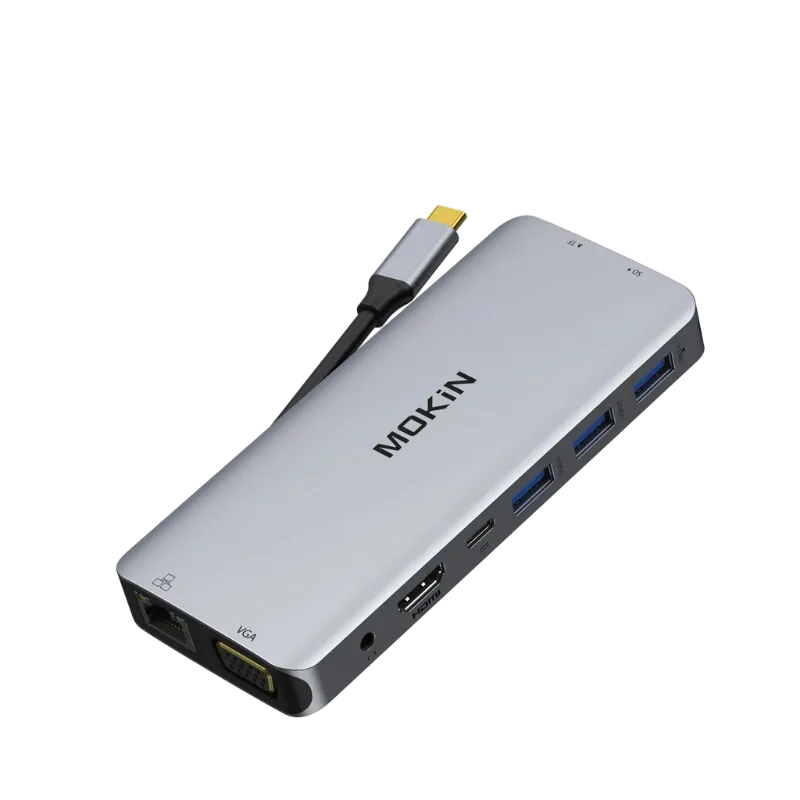
A usb c adapter relies on your laptop’s native DisplayPort Alt Mode to send video directly through the USB-C port. No drivers, no software, just plug in your HDMI or DisplayPort cable and your monitor lights up.
Most modern laptops with USB-C or Thunderbolt ports support Alt Mode, which means they can output video without additional processing. A simple adapter converts that signal to HDMI, VGA, or DisplayPort, and you’re done.
Best scenarios for a USB-C adapter:
- You need one or two external monitors and your laptop supports them natively
- You want zero software installation or driver updates
- You’re connecting to projectors or conference room displays on the go
- You prioritize low latency for video editing or gaming
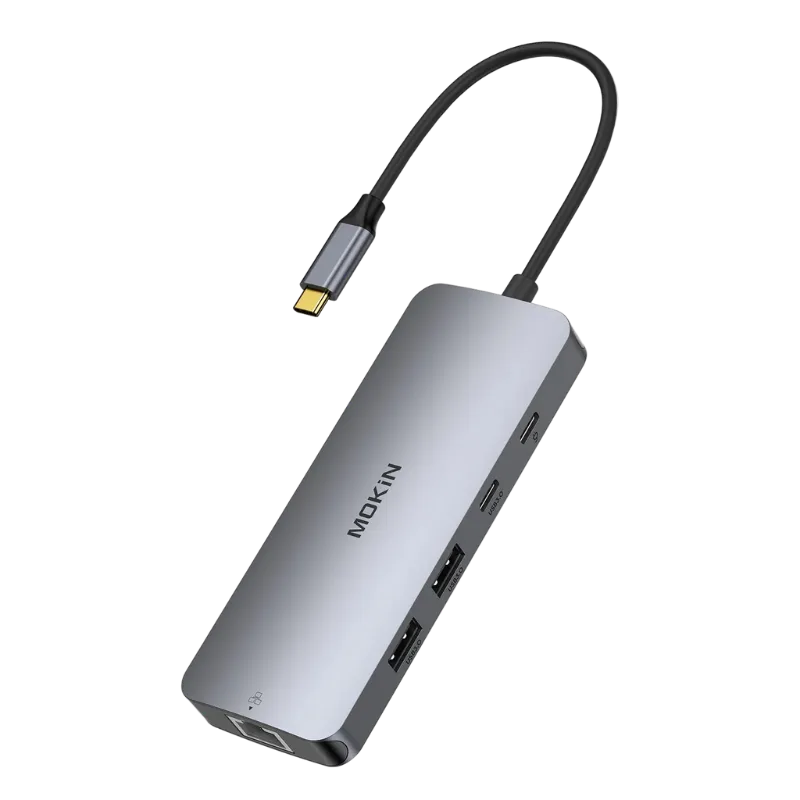
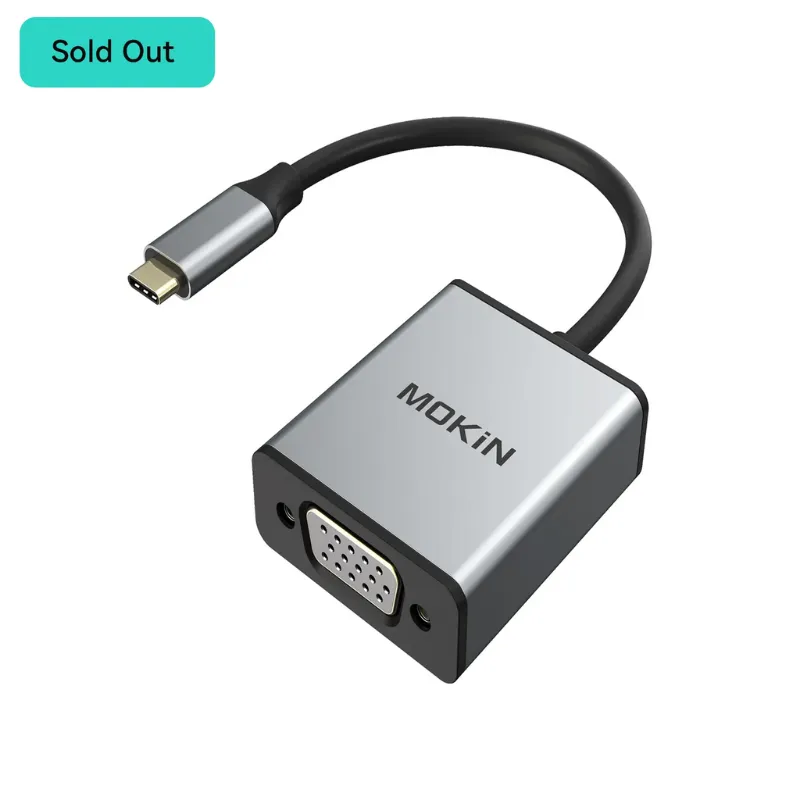
If you also need legacy connections, a d-port to hdmi adapter or a mokin usb to hdmi vga driver windows option can bridge older displays. Just confirm your laptop’s USB-C port supports video output, some charging-only ports won’t work.
DisplayLink Docking Station Setup and Compatibility
Setting up a displaylink docking station usb-c model requires a few extra steps compared to a basic adapter, but the process is straightforward.
For Windows users:
- Download the latest displaylink docking station driver windows 11 installer from the DisplayLink website or the included USB drive
- Run the installer and restart your computer
- Connect the dock via USB-C and plug in your monitors
- Windows will detect the new displays in Settings > System > Display
For Mac users:
The displaylink docking station mac setup is similar, though macOS security settings require you to grant permissions for the kernel extension. You’ll need to open System Preferences > Security & Privacy and click “Allow” after installation. Some users ask whether DisplayLink is necessary for dual monitors on Mac: the answer depends on whether your Mac’s ports natively support the number of monitors you want.
Linux compatibility:
Most distributions include DisplayLink drivers in their repos, or you can compile the open-source `evdi` module. Ubuntu and Fedora users typically find the setup easiest.
Once installed, your docking station will reconnect automatically each time you plug it in. Driver updates arrive through the DisplayLink software updater or your OS package manager.
Comparing MOKiN’s Solutions Side by Side
Here’s how the two approaches stack up for common workflows:
| Feature | DisplayLink Docking Station | USB-C Adapter |
|---|---|---|
| Max monitors | 3 to 6 depending on model | 1 to 2 via Alt Mode |
| Driver required | Yes (Windows/Mac/Linux) | No |
| Latency | Slight compression delay | Native, zero added latency |
| Best for | Multi-monitor office setups | Single display or travel |
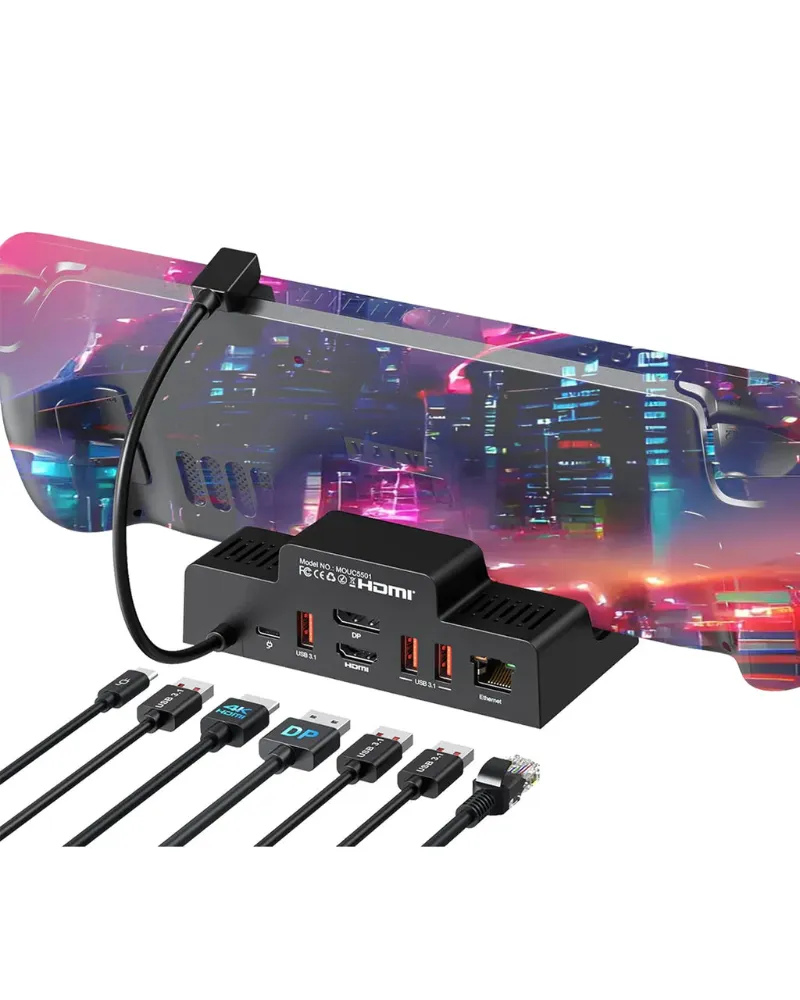
If you’re powering a steam deck dock setup for gaming on the go, a USB-C adapter makes more sense because it preserves low latency and doesn’t require driver installations on a handheld device. For a permanent home office with three or four displays, a DisplayLink solution removes the guesswork around GPU limits.
You can grab the code for 10% off either option right now, which makes testing both configurations more affordable if you’re unsure.
Ports, Power Delivery, and Peripheral Support
Both docking stations and adapters often include extra USB ports, Ethernet, and audio jacks. The main difference is how they allocate bandwidth.
A DisplayLink dock compresses all video data into the USB connection, leaving USB 3.0 or 3.1 bandwidth for peripherals. High-speed file transfers and video output share the same pipe, so you may notice slower USB speeds when all displays are active.
A USB-C adapter using Alt Mode dedicates specific lanes in the USB-C cable to video, leaving the rest for data. This typically results in faster peripheral performance, but you’re limited by how many displays your laptop’s GPU can drive.
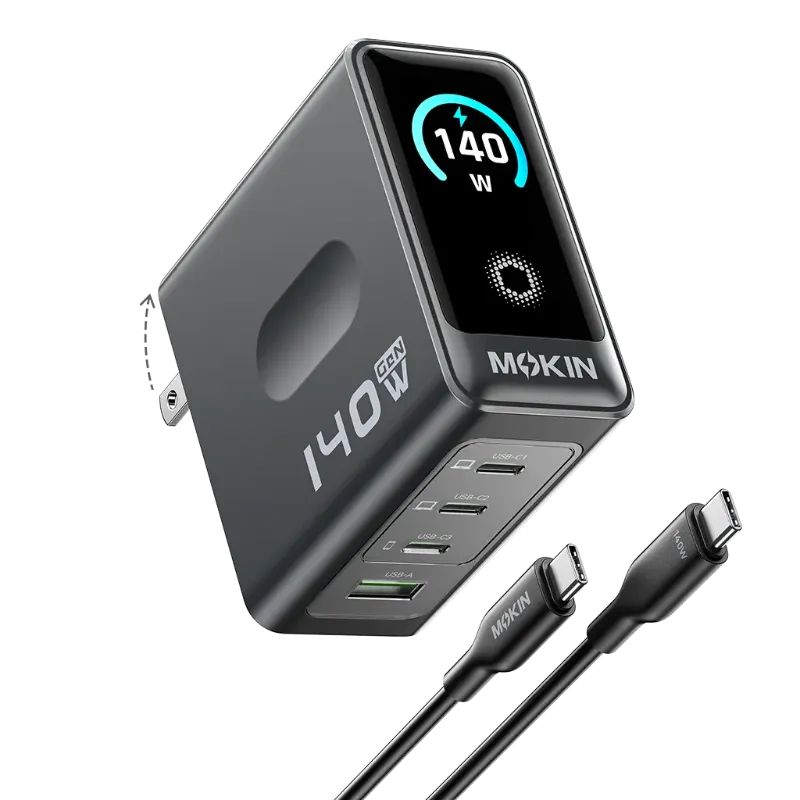
Power delivery is another consideration. Many DisplayLink docks supply 85W or 100W to charge your laptop, while simple adapters often pass through only 60W or provide no charging at all. Check the specs and current pricing at MOKiN to confirm power delivery for your model.
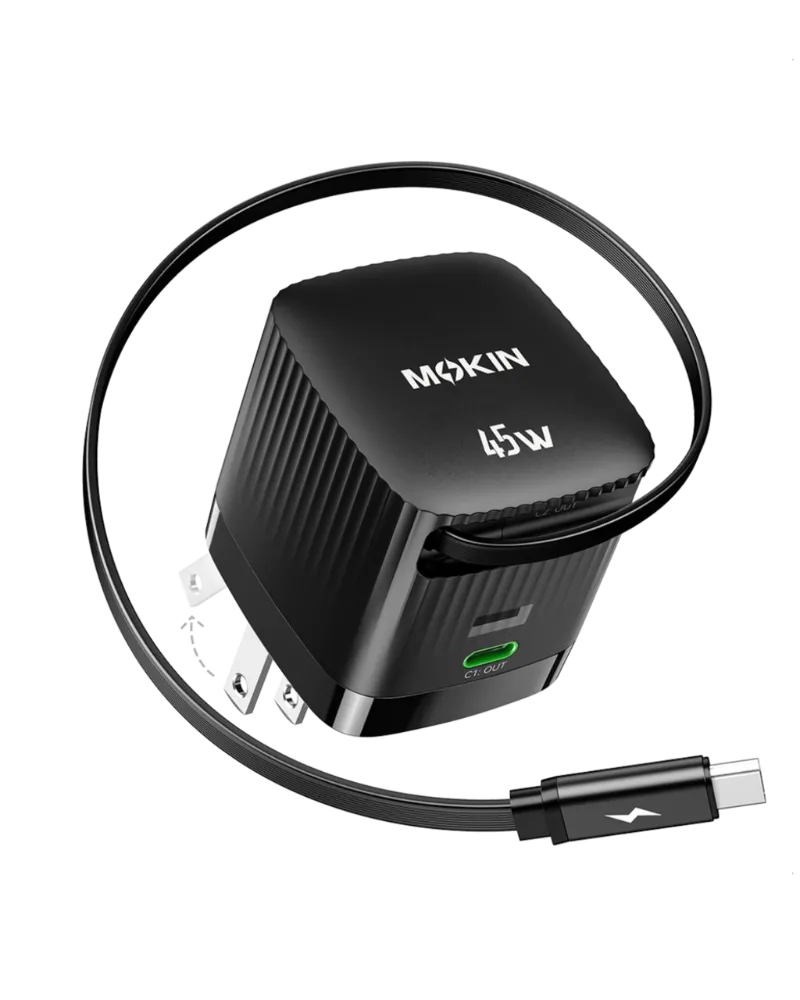
If you also need charging cables for your phone, MOKiN offers an iphone charging cable and an old iphone charger with lightning port compatibility, plus a belkin 240w usb4 cable for high-speed data and charging in a single cord.
Which Solution Fits Your Workflow
Choose a DisplayLink docking station if you:
- Need three or more external monitors from a single cable
- Use a laptop with limited native display outputs
- Work in office productivity apps rather than color-critical creative software
- Want a single-cable setup that includes Ethernet, USB peripherals, and charging
Choose a USB-C adapter if you:
- Need one or two monitors and your laptop already supports them
- Prioritize zero software installation and driver-free operation
- Edit video, play games, or do color grading where latency matters
- Travel frequently and want a compact, universal display connector
Both MOKiN options ship with the cables you need and include solid build quality at prices well below premium Thunderbolt docks. Belkin’s DisplayLink offerings perform similarly but often cost more, so MOKiN represents strong value if you’re after multi-monitor support without the Thunderbolt tax.
We recommend starting with the simpler USB-C adapter if your current setup only requires one or two screens. You can always upgrade to a DisplayLink dock later if your workspace expands. For immediate multi-monitor needs, though, the displaylink docking station removes compatibility headaches and gets you running in under ten minutes.
Questions
Do I need to install drivers for a DisplayLink docking station?
Yes, DisplayLink docks require you to download and install driver software on Windows, macOS, or Linux. The driver enables your computer to recognize the dock as an additional graphics adapter and route video to connected monitors.
Can a USB-C adapter support three monitors?
Most USB-C adapters rely on your laptop's native GPU output, which typically supports one or two external displays. To run three or more monitors, you'll need a DisplayLink docking station that uses software compression to bypass those limits.
Will a DisplayLink dock work with my Mac?
Yes, DisplayLink docking stations support macOS with the official driver. You'll need to grant security permissions for the kernel extension during setup, but once installed, the dock reconnects automatically each time you plug it in.
Which is better for gaming, a DisplayLink dock or USB-C adapter?
A USB-C adapter delivers lower latency because it uses your laptop's native video output without compression. DisplayLink docks add a small delay due to software encoding, making them less ideal for fast-paced gaming.
Does MOKiN offer a discount code for docking stations?
Yes, MOKiN currently offers 10% off sitewide including docking stations and USB-C adapters. Check the MOKiN discount code page for the latest promo details.
Can I use a DisplayLink dock without installing software?
No, DisplayLink technology requires driver software to function. If you need a driver-free solution, choose a standard USB-C adapter that relies on your laptop's built-in DisplayPort Alt Mode instead.
Products in this guide
 Shopping at MOKiN? See the discount code
10% OFF Sitewide
Shopping at MOKiN? See the discount code
10% OFF Sitewide
More in this series
Troubleshooting Display Issues with DisplayPort to HDMI Adapters1 Aug 20265 minWhat to Know Before Buying a 240W USB4 Cable for High-Power Devices1 Aug 20265 minDo Lightning to USB-C Cables Really Charge iPhones Faster Than Old Chargers?1 Aug 20264 minHow to Set Up Your Steam Deck Dock for the Best Gaming Experience1 Aug 20265 min