 A MOKiN guide
Troubleshooting Display Issues with DisplayPort to HDMI Adapters
A d-port to hdmi adapter can fail for reasons ranging from incorrect resolution settings to missing drivers, and we'll walk you through every fix.
Why Your D-Port to HDMI Connection Isn’t Working
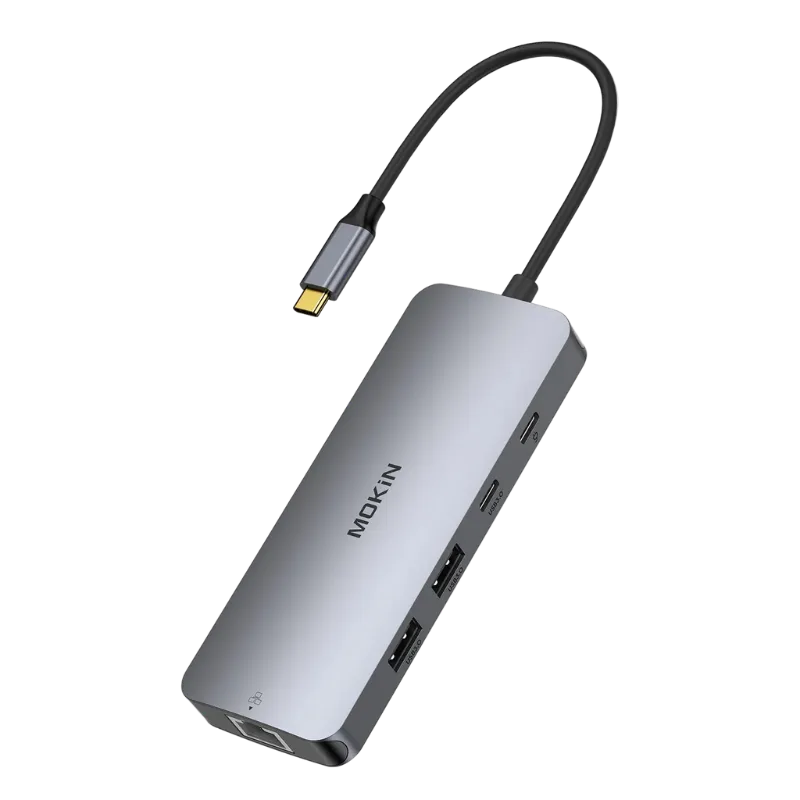
A d-port to hdmi adapter should deliver plug-and-play video, but blank screens, flickering, or “no signal” errors are common when resolution limits, HDCP handshake failures, or outdated firmware get in the way. Whether you’re connecting a second monitor or troubleshooting a displaylink docking station, the steps below will get your display working.
Check Cable Quality and Adapter Specifications
Low-quality cables and adapters are the leading cause of intermittent or missing video. Many budget adapters claim 4K support but lack the bandwidth to deliver it, while thin or damaged cables introduce signal loss.
- Verify bandwidth ratings: A true 4K at 60 Hz adapter requires HDMI 2.0 and DisplayPort 1.2 or higher. Adapters marked “4K-ready” without version numbers often max out at 4K/30 Hz or 1080p/60 Hz.
- Inspect the cable: Bent pins, frayed insulation, or loose connectors cause flickering or complete signal loss. Swap in a certified cable to rule out physical damage.
- Test with a shorter cable: HDMI signals degrade beyond 15 feet without an active repeater. If your cable exceeds that length, try a shorter run or an active HDMI cable.
- Match the adapter type: Passive adapters work only for DisplayPort++ (Dual-Mode) sources, which output an HDMI-compatible signal. Older or non-DP++ ports require an active adapter with a built-in signal converter.
We’ve seen the most consistent results with adapters that list explicit HDMI and DisplayPort version numbers. Check the latest price on MOKiN’s certified adapters to ensure you’re getting hardware that meets the spec.
Adjust Resolution and Refresh Rate Settings
Even a high-quality adapter will fail if you’re pushing a resolution or refresh rate beyond its capability. This is especially common when connecting a 4K monitor to an older laptop or when daisy-chaining displays.
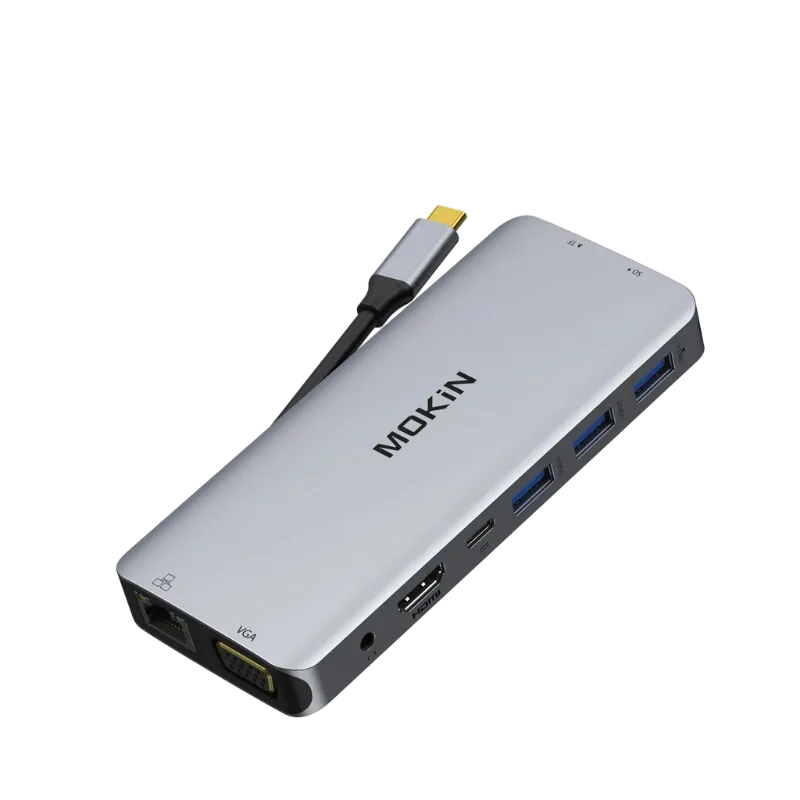
- Lower the resolution temporarily: Set your display to 1080p/60 Hz in your operating system’s display settings. If the image appears, your adapter or cable doesn’t support the higher resolution you were attempting.
- Disable high refresh rates: Many adapters cap out at 60 Hz. If your monitor defaults to 120 Hz or 144 Hz, manually drop it to 60 Hz in the advanced display settings.
- Check the source output limit: Older DisplayPort 1.1 ports can’t drive 4K at 60 Hz. Confirm your laptop or GPU’s DisplayPort version in the manufacturer’s spec sheet.
- Use a usb c adapter for newer devices: If your laptop has USB-C with DisplayPort Alt Mode, a direct USB-C-to-HDMI adapter often bypasses the limitations of older DisplayPort hardware.
Windows users can press Win + P to cycle through display modes (Duplicate, Extend, Second screen only) to force a fresh handshake. macOS users should hold Option and click Detect Displays in System Preferences > Displays.
Update Graphics Drivers and Firmware
Driver conflicts and outdated firmware are silent killers for DisplayPort-to-HDMI setups, especially on systems using Intel integrated graphics or DisplayLink-based docks.
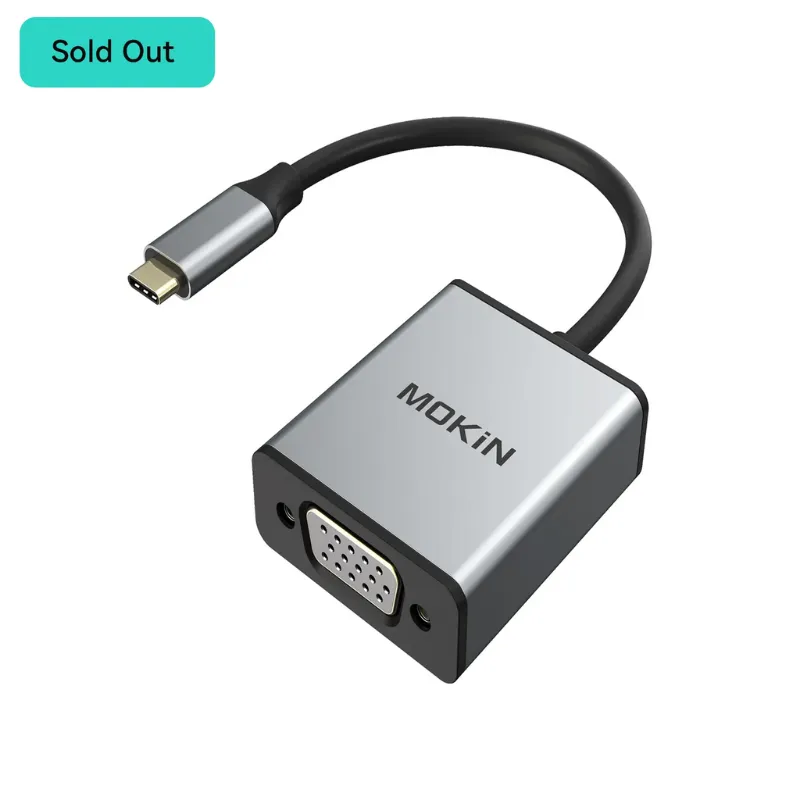
- Update GPU drivers: Download the latest drivers directly from NVIDIA, AMD, or Intel. Windows Update often lags behind by several months and may not include critical DisplayPort fixes.
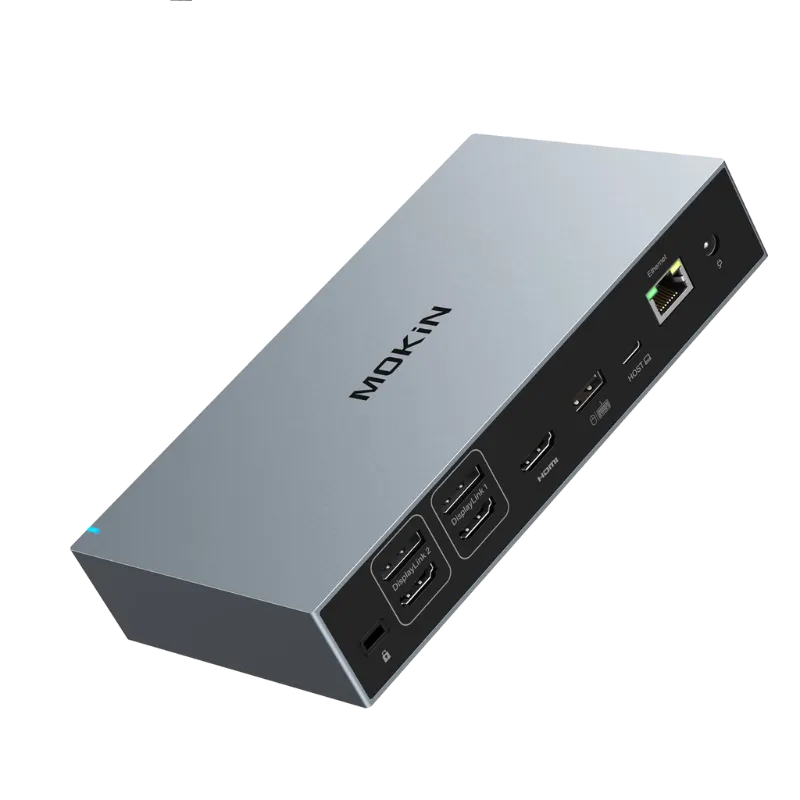
- Install DisplayLink drivers: If you’re using a displaylink docking station, the mokin usb to hdmi vga driver windows package is essential. DisplayLink adapters won’t output video without the manufacturer’s driver installed.
- Check adapter firmware: Some active adapters ship with updatable firmware. Visit the manufacturer’s support page and search for your adapter’s model number to see if a firmware tool is available.
- Disable GPU power-saving modes: Aggressive power management can put the DisplayPort output to sleep during idle periods. In Windows, go to Device Manager > Display adapters, right-click your GPU, select Properties > Power Management, and uncheck “Allow the computer to turn off this device to save power.”
We’ve found that a clean driver install, using DDU (Display Driver Uninstaller) to remove old drivers before installing new ones, resolves roughly half of all “no signal” cases that aren’t cable-related. Grab the code for 10% off MOKiN’s driver-compatible adapters if you’re shopping for a replacement.
Diagnose HDCP and Handshake Failures
HDCP (High-bandwidth Digital Content Protection) is a copy-protection protocol that can block video output if any device in the chain doesn’t support the required version. This manifests as a blank screen, a brief flicker followed by black, or an error message on the display.
| Symptom | Likely Cause | Fix |
|---|---|---|
| Black screen with audio | HDCP handshake failure | Power-cycle all devices, unplug for 30 seconds |
| “HDCP not supported” error | Monitor or adapter lacks HDCP 2.2 | Use an HDCP 2.2-compliant adapter and cable |
| Intermittent flicker | Loose connection or marginal cable | Reseat connectors, replace cable |
- Power-cycle the entire chain: Unplug the adapter, monitor, and source device for 30 seconds, then reconnect in order: source first, adapter second, monitor last. This forces a fresh HDCP negotiation.
- Bypass HDCP temporarily: If you’re not playing protected content (streaming video, Blu-ray), some adapters let you disable HDCP in their control software. This is a diagnostic step, not a permanent solution.
- Test with a different monitor: Older HDMI 1.4 monitors may not support HDCP 2.2, which some 4K sources require. Borrow a newer display to isolate whether the monitor is the bottleneck.
Dell’s DisplayPort To HDMI Converters guide explains the version compatibility matrix in detail if you’re unsure which HDCP level your hardware supports.
Test with Alternative Devices and Ports
Isolating the faulty component saves hours of trial and error. By swapping devices, you can pinpoint whether the issue lies with the adapter, the source, or the display.
- Connect the adapter to a different DisplayPort source: Plug it into another laptop or desktop. If video works, the original source’s port or GPU is likely damaged or misconfigured.
- Try a different HDMI monitor or TV: Some displays are pickier about signal timing. A second monitor confirms whether your primary display is the problem.
- Use the monitor’s other input ports: If your monitor has a native DisplayPort input, connect directly with a DisplayPort cable to verify the display itself works.
- Test a known-good adapter: Borrow a friend’s adapter or pick up a second unit. If the replacement works, your original adapter is defective.
Plugable’s guide on connecting a DisplayPort monitor to an HDMI port covers bidirectional troubleshooting (HDMI source to DP monitor and vice versa) if you’re working with mixed connector types.
When to Replace Your Adapter
Even high-quality adapters eventually fail due to connector wear, electrostatic discharge, or heat damage. Knowing when to troubleshoot versus replace saves time and frustration.
- Physical damage: Cracked housings, bent pins, or exposed wiring mean it’s time for a new adapter. Internal traces can break even if the exterior looks intact.
- Inconsistent behavior across multiple devices: If the same adapter fails on three different laptops and monitors, the adapter itself is the common factor.
- Outdated standards: HDMI 1.4 adapters bottleneck 4K displays at 30 Hz. Upgrading to an HDMI 2.0-capable d-port to hdmi adapter unlocks 4K at 60 Hz and HDR support.
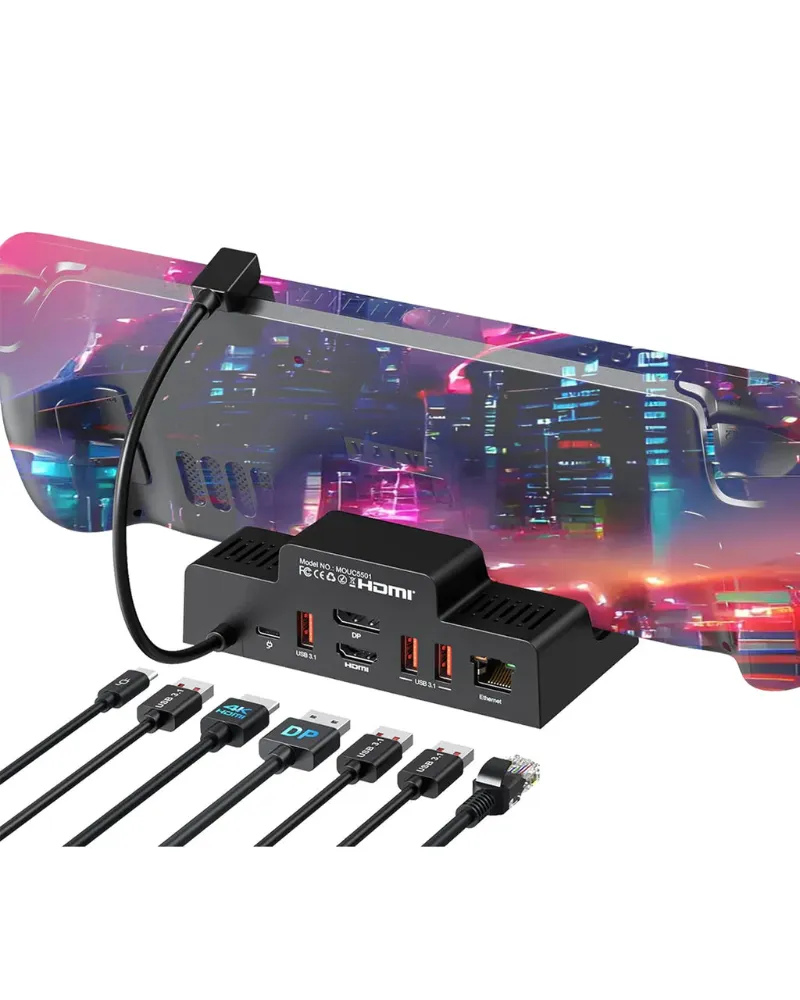
- Better alternatives exist: For multi-display setups, a steam deck dock or full-featured docking station often provides more stable video output than a standalone adapter, plus additional USB and charging ports.
Comprehensive Cable’s DP to HDMI Adapters catalog shows the range of active and passive options available, along with their rated resolutions and refresh rates. If you’re ready to upgrade, check the latest price to see MOKiN’s current offers on certified adapters with warranty coverage.
Questions
Why does my d-port to hdmi adapter show no signal on my monitor?
No-signal errors usually stem from incorrect resolution settings, a passive adapter on a non-DP++ port, or a damaged cable. Lower your resolution to 1080p/60 Hz and try a different cable first.
Do I need an active or passive DisplayPort to HDMI adapter?
Passive adapters work only with DisplayPort++ (Dual-Mode) sources that output HDMI-compatible signals. Older laptops and most docking stations require an active adapter with a built-in converter chip.
Can a DisplayPort to HDMI adapter support 4K at 60 Hz?
Yes, but only if the adapter is rated for HDMI 2.0 and your source supports DisplayPort 1.2 or higher. Many budget adapters cap out at 4K/30 Hz or 1080p/60 Hz despite claiming 4K support.
Why does my screen flicker when using a DisplayPort to HDMI adapter?
Flickering is usually caused by a loose connection, a marginal cable, or an HDCP handshake failure. Reseat all connectors, try a shorter certified cable, and power-cycle your entire setup.
Do I need to install drivers for a DisplayPort to HDMI adapter?
Passive and most active adapters are plug-and-play. However, DisplayLink-based docking stations require the manufacturer's driver, such as the MOKiN USB to HDMI VGA driver for Windows.
How long can an HDMI cable be before signal quality drops?
Passive HDMI cables reliably carry signals up to 15 feet. Beyond that distance, you'll need an active HDMI cable with a built-in signal booster to prevent flickering or dropouts.
Products in this guide
 Shopping at MOKiN? See the discount code
10% OFF Sitewide
Shopping at MOKiN? See the discount code
10% OFF Sitewide
More in this series
What to Know Before Buying a 240W USB4 Cable for High-Power Devices1 Aug 20265 min Do Lightning to USB-C Cables Really Charge iPhones Faster Than Old Chargers?1 Aug 20264 minUSB-C Adapter vs DisplayLink Docking Station: Which MOKiN Solution Is Right for You?1 Aug 20265 minHow to Set Up Your Steam Deck Dock for the Best Gaming Experience1 Aug 20265 min