 A MOKiN guide
How to Set Up Your Steam Deck Dock for the Best Gaming Experience
Setting up a steam deck dock correctly transforms your handheld into a full desktop gaming station with minimal effort.
A steam deck dock turns your portable console into a desktop powerhouse in seconds. Whether you’re using the official Steam Deck™ Docking Station or a third-party option, these steps ensure smooth performance every time.
Initial Connection and Power Setup
Before you connect any cables, verify your dock supports the Steam Deck’s power requirements. Most quality docks deliver at least 45W through USB-C, which keeps your device charged during gameplay while powering peripherals.
Follow this connection order to avoid detection issues:
- Connect the dock’s power adapter to an outlet first
- Plug the USB-C cable into your Steam Deck’s charging port
- Wait 3-5 seconds for the dock to initialize
- Connect your HDMI or DisplayPort cable to your monitor
- Attach keyboards, mice, and controllers to available USB ports
The Steam Deck should automatically detect the external display within seconds.
Display Configuration and Resolution Settings
Once connected, your Steam Deck may default to mirrored display mode. We recommend switching to external-only mode for better performance, especially at higher resolutions.
Access display settings through these steps:
- Press the Steam button on your device
- Navigate to Settings > Display
- Select “External Display” as primary output
- Choose your preferred resolution (1080p or 1440p for best frame rates)
- Set refresh rate to match your monitor’s capability
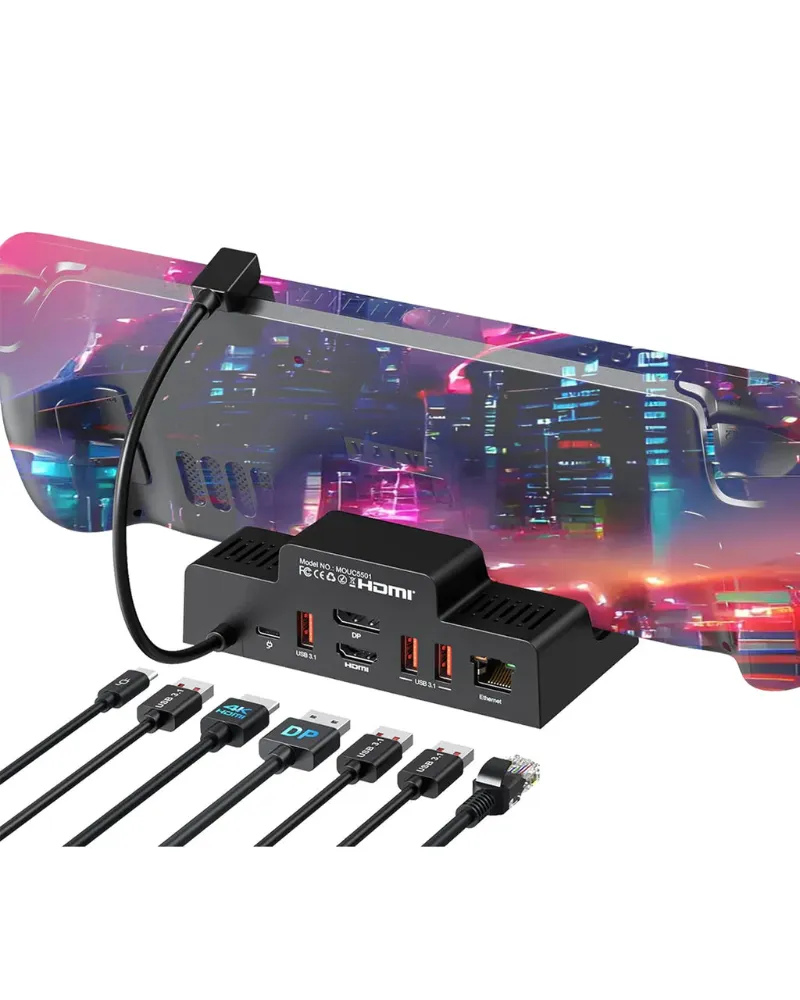
Most steam deck dock units support 4K output at 60Hz, but we suggest 1080p at 60Hz for demanding titles. If your monitor uses DisplayPort instead of HDMI, a d-port to hdmi adapter bridges the connection without quality loss.
Peripheral Setup and USB Management
Your dock transforms the Steam Deck into a full PC setup, but USB port management matters.
Optimal peripheral arrangement:
- USB 3.0 ports: external storage, high-speed controllers
- USB 2.0 ports: keyboards, mice, wireless adapters
- Front-accessible ports: frequently swapped devices like USB drives
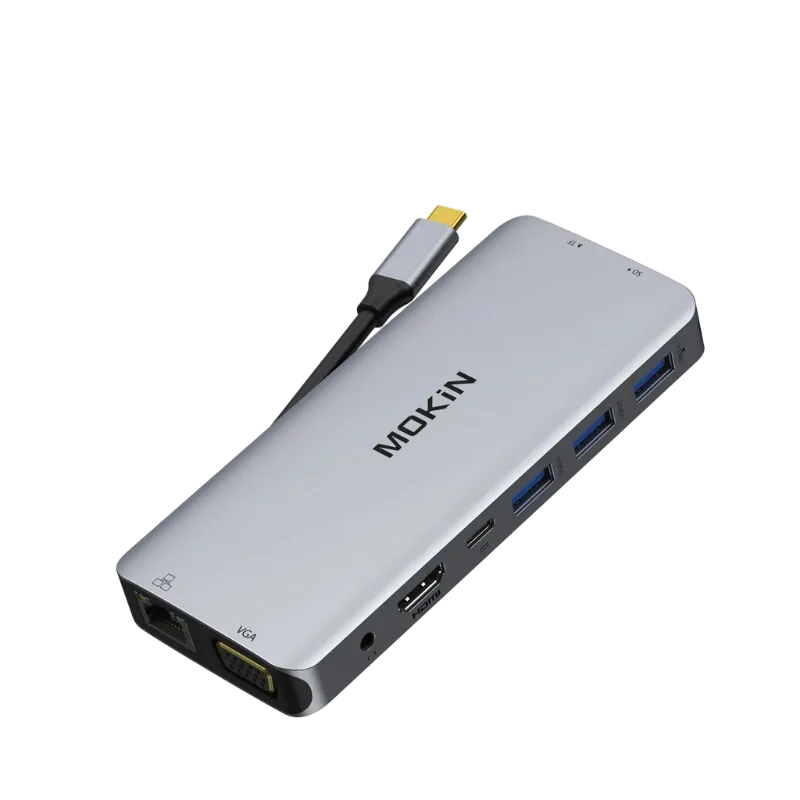
Many users on Steam Deck Reddit communities report input lag with certain wireless peripherals. Wired connections eliminate this issue entirely. If you need additional ports beyond your dock’s capacity, a quality usb c adapter expands connectivity without compromising data speeds.
Audio routing sometimes defaults to the Steam Deck’s speakers even when docked. Navigate to Sound Settings and manually select HDMI audio output or your connected speakers to fix this quirk.
Best Steam Deck Dock Options Compared
The market offers several dock styles, each with tradeoffs. Here’s how the most popular categories compare.
| Dock Type | Best For | Typical Ports | Power Delivery |
|---|---|---|---|
| Official Valve Dock | Guaranteed compatibility | 3× USB-A, 1× Ethernet, DisplayPort, HDMI | 45W |
| Third-Party Premium | Extra features, better price | 4-6× USB, multiple displays | 65-100W |
| Compact Travel Docks | Portability | 2-3× USB, HDMI | 45W |
| DisplayLink Models | Multi-monitor setups | 6+ USB, dual HDMI | 85W+ |
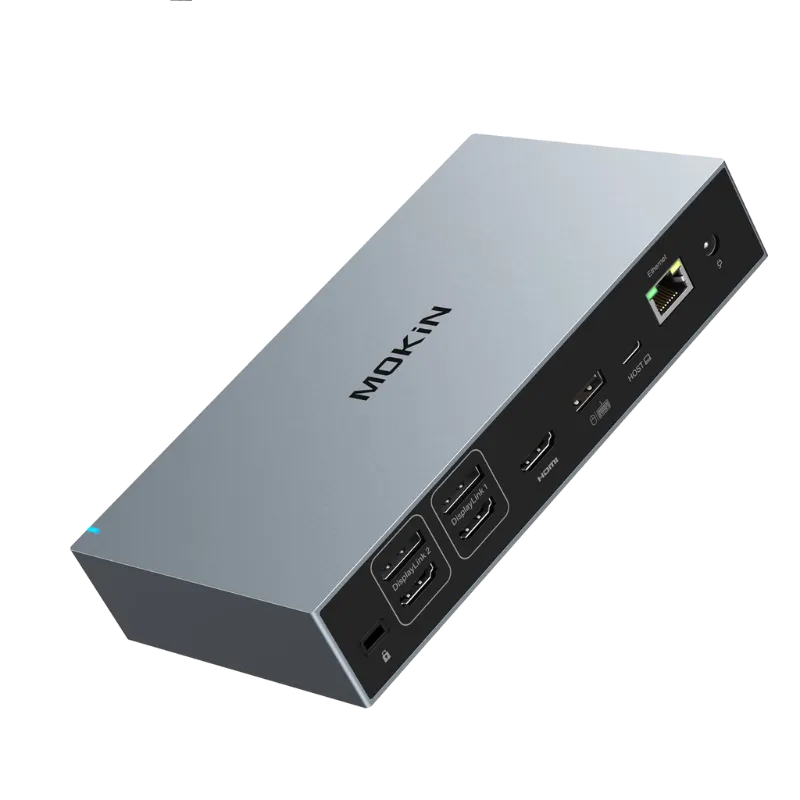
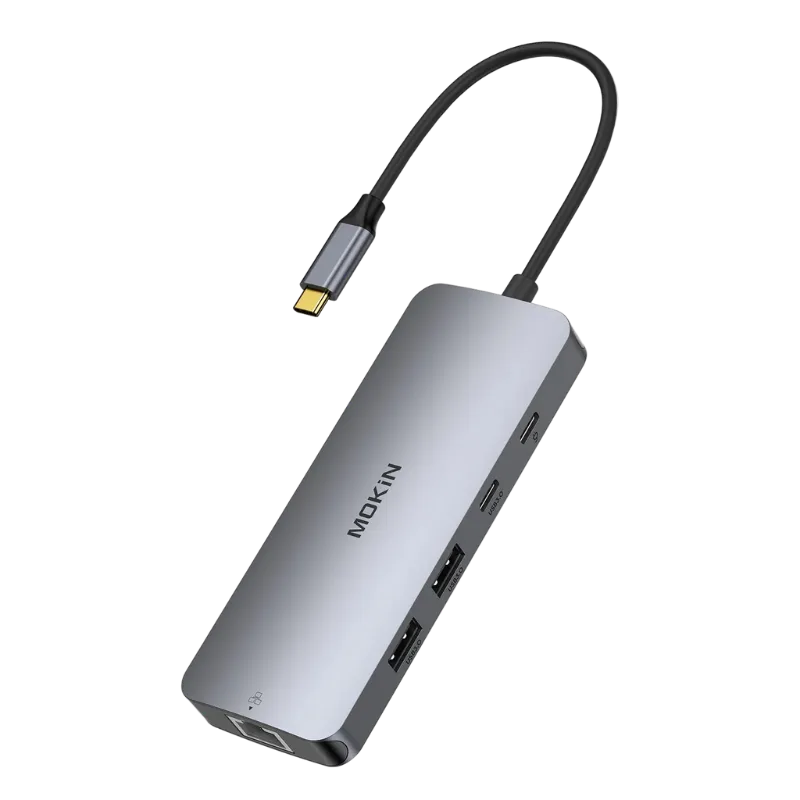
For users wanting multi-monitor capability, a displaylink docking station enables two or three external displays simultaneously, though it requires driver installation. The Dock from Steam’s official site remains the safest choice for plug-and-play simplicity, but third-party alternatives often deliver better value.
Before buying any dock, grab the code for 10% off MOKiN docking stations that include all essential ports plus Ethernet for stable online gaming.
Troubleshooting Common Steam Deck Dock Issues
Even quality docks occasionally encounter hiccups.
Display not detected: Unplug the USB-C cable from your Steam Deck, wait 10 seconds, then reconnect. This forces the device to re-scan for external displays. If problems persist, try a different HDMI cable, cheap cables often lack the bandwidth for higher resolutions.
Intermittent charging: Your dock may not supply sufficient wattage for demanding games. The Steam Deck consumes up to 45W under full load, so docks rated below this threshold will slowly drain your battery during gameplay. Check your dock’s specifications or upgrade to a higher-wattage model.
USB devices not recognized: Some docks require a firmware update for full compatibility. Check the manufacturer’s website for updates, or try connecting devices after the dock fully initializes (wait 10-15 seconds after plugging in your Steam Deck).
Audio crackling or cutting out: This usually indicates HDMI bandwidth issues. Lower your display refresh rate to 60Hz or reduce resolution to 1080p. Some users resolve this by connecting external speakers directly to the Steam Deck’s headphone jack instead of relying on HDMI audio.
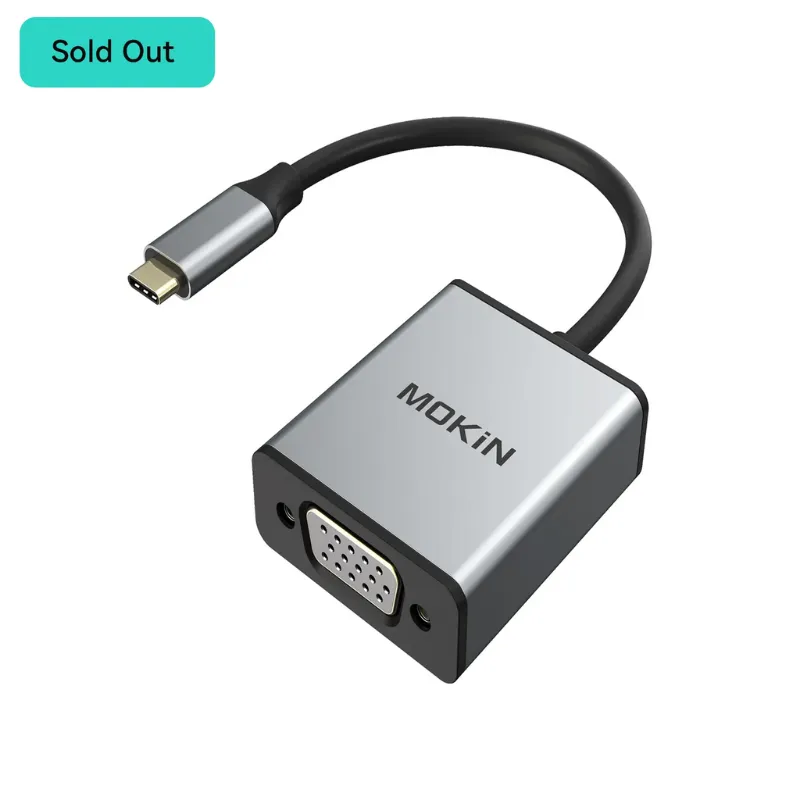
For complex display adapter configurations like mokin usb to hdmi vga driver windows, ensure you’ve installed the latest drivers from the manufacturer before connecting to your Steam Deck.
Optimizing Dock Performance for Specific Games
Not all games perform identically when docked. Here are settings to try for different kinds of games.
For competitive multiplayer games: Prioritize frame rate over resolution. Set your dock’s display output to 1080p at 60Hz, then reduce in-game graphics to medium settings. This maintains consistent performance during intense action.
For single-player AAA titles: Enable the Steam Deck’s 40Hz refresh rate lock when your dock supports it, creating a middle ground between 30Hz and 60Hz that many displays handle well. Pair this with high graphics settings for stunning visuals without excessive frame drops.
For indie and retro games: Max out resolution and effects, these titles rarely stress the hardware. Use your dock’s full 4K capability if your monitor supports it.
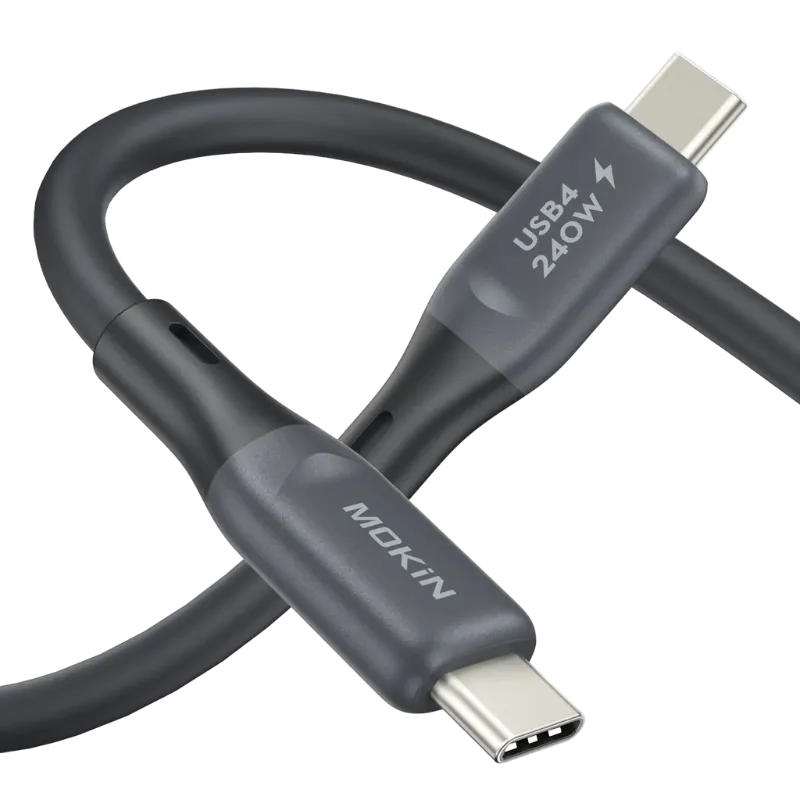
Consider cable quality in your setup too. While most docks include basic cables, a premium belkin 240w usb4 cable future-proofs your station for higher bandwidth requirements and ensures reliable power delivery even under maximum load.
Portable Dock Setup for Travel Gaming
Frequent travelers need a streamlined dock setup that fits in a backpack without sacrificing essential features. Here is a minimal configuration for hotel rooms and friends’ houses.
Pack these essentials:
- Compact third-party dock (avoid the bulkier official model)
- Short HDMI cable (3-6 feet maximum)
- Foldable wireless keyboard and mouse combo
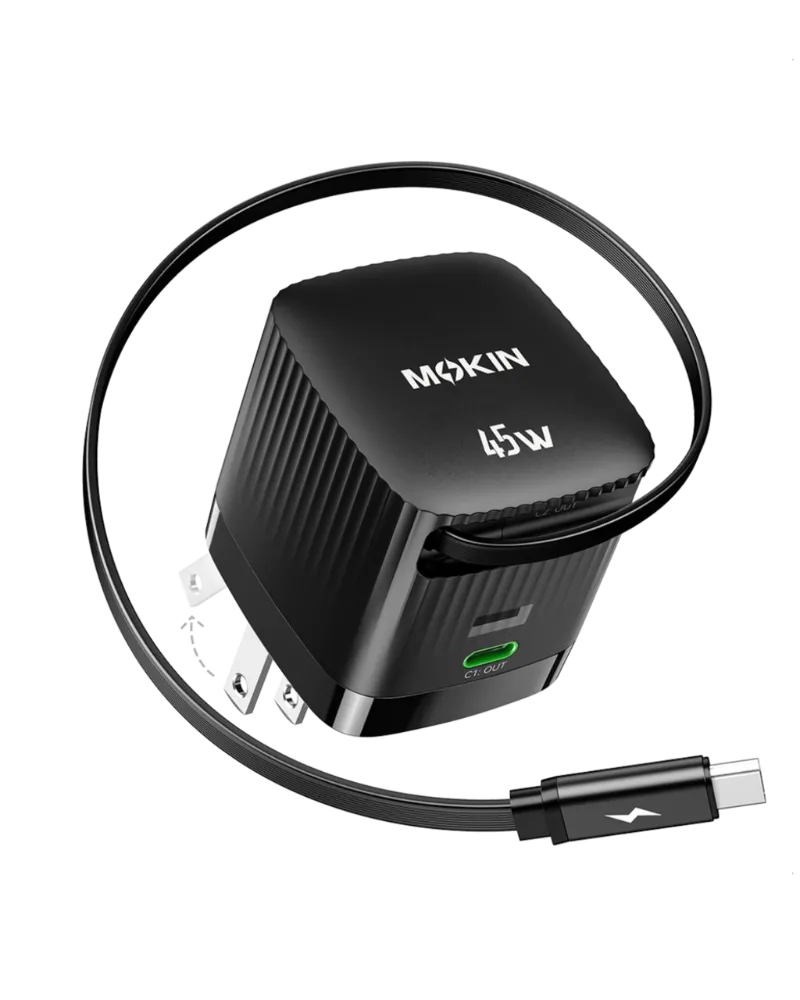
- USB-C power adapter rated for 45W minimum
Skip Ethernet adapters when traveling, modern WiFi provides adequate speeds for gaming and updates in most locations.
For charging multiple devices on the road, an iphone charging cable or old iphone charger shares your dock’s USB ports, eliminating extra wall adapters. A lightning port adapter works similarly for Apple accessories.
Remember to test your travel dock at home first. Some budget models work perfectly with certain monitors but fail with others due to HDCP compatibility issues. Visit the MOKiN discount page for travel docks at reduced prices.
Your Steam Deck dock setup should enhance your gaming, not complicate it. Follow these configurations and troubleshooting steps to build a reliable station that switches seamlessly between handheld and desktop modes.
Questions
Does my steam deck dock need special drivers?
Most Steam Deck docks work plug-and-play without drivers. DisplayLink docks for multi-monitor setups require software installation, but standard HDMI docks connect automatically through the Steam Deck's native USB-C functionality.
Can I use any USB-C dock with my Steam Deck?
Not all USB-C docks work reliably. Your dock must support DisplayPort Alt Mode and deliver at least 45W power. Phone or tablet docks often lack these specs and will either not charge properly or fail to output video.
Why does my display flicker when using a third-party dock?
Display flickering usually stems from insufficient power delivery or poor-quality HDMI cables. Try a different cable first, then verify your dock supplies 45W or more. Some budget docks split power delivery too thin when multiple USB devices are connected.
Will docking my Steam Deck damage the battery?
No, the Steam Deck includes charge management that prevents overcharging. Leaving it docked long-term is safe, the device stops charging at 100% and runs directly from dock power during gameplay.
Can I connect two monitors to a Steam Deck dock?
The Steam Deck supports only one external display through standard docks. Multi-monitor setups require DisplayLink docking stations with special drivers, though performance may vary depending on the game and resolution.
What is the best refresh rate setting for docked gaming?
Use 60Hz for most games at 1080p resolution. The Steam Deck can push 4K at 60Hz for less demanding titles, but competitive games benefit from 1080p to maintain consistent frame rates above 40 FPS.
Products in this guide
 Shopping at MOKiN? See the discount code
10% OFF Sitewide
Shopping at MOKiN? See the discount code
10% OFF Sitewide
More in this series
Troubleshooting Display Issues with DisplayPort to HDMI Adapters1 Aug 20265 minWhat to Know Before Buying a 240W USB4 Cable for High-Power Devices1 Aug 20265 minDo Lightning to USB-C Cables Really Charge iPhones Faster Than Old Chargers?1 Aug 20264 minUSB-C Adapter vs DisplayLink Docking Station: Which MOKiN Solution Is Right for You?1 Aug 20265 min