 A AutoKit CarPlay guide
How to Set Up a Wireless CarPlay Adapter in Your Car
A wireless carplay adapter converts your wired CarPlay system to wireless in minutes with simple plug-and-pair setup.
A wireless carplay adapter lets you connect your iPhone to your car’s infotainment system without plugging in a cable every time you drive. Most adapters work by plugging into your existing USB port and pairing via Bluetooth and Wi-Fi, turning factory wired CarPlay into a wireless experience in under five minutes.
This guide walks you through the complete setup process, from unboxing to troubleshooting, so you can get wireless CarPlay running smoothly the first time.
What You Need Before Starting Setup
Before you plug anything in, confirm your car has factory wired CarPlay. Start your engine, connect your iPhone with a Lightning cable, and check whether the CarPlay interface appears on your dashboard screen. If it does, you’re ready for a wireless upgrade.
You’ll also need an iPhone running iOS 10 or later. Most adapters work with iPhone 6 and newer models, though we recommend iPhone 8 or later for the best connection stability. Older phones can experience occasional lag or reconnection delays.
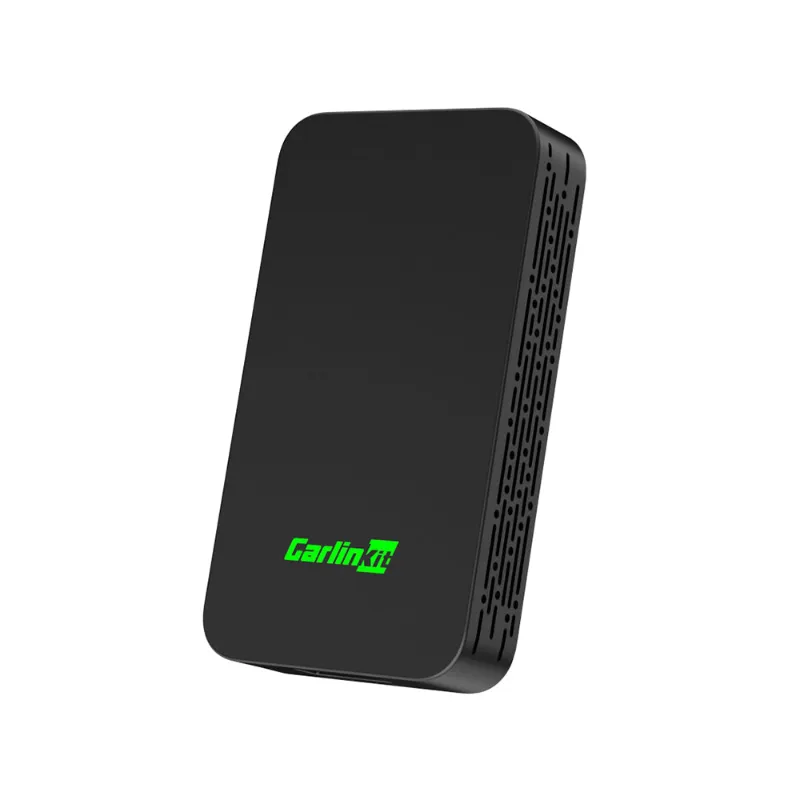
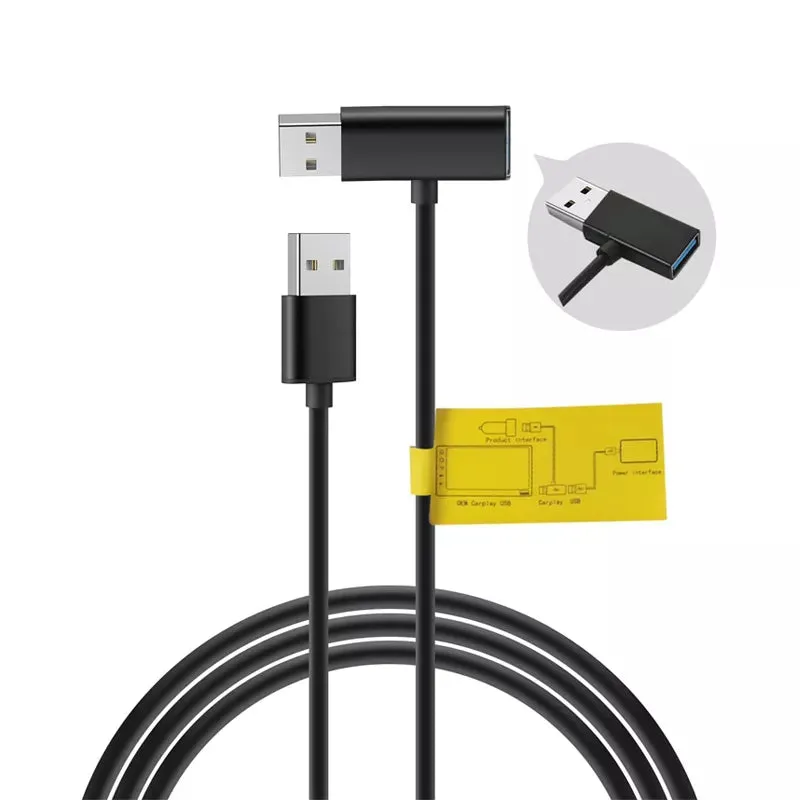
Check which USB port your car uses. The carlinkit 5.0 and carlinkit mini ultra 3 support both USB-A and USB-C connections, but some vehicles only accept one type. If your car has USB-C and your adapter came with USB-A, you may need a usb cable for android auto or a quality USB-C adapter cable.
Step-by-Step Wireless CarPlay Adapter Installation
Plug the adapter into your car’s CarPlay-enabled USB port with the engine running. Most adapters have a small LED indicator that blinks blue or red during startup. Wait 10 to 15 seconds for the device to boot.
On your iPhone, open Settings > Bluetooth and look for a device name like “AutoKit” or “CarlinKit.” Tap to pair. You may see a pairing code on your dashboard screen; confirm it matches the code on your phone, then tap Pair on both devices.
Once Bluetooth pairing completes, the adapter automatically switches to Wi-Fi for the actual CarPlay connection. Your iPhone will briefly disconnect from Bluetooth, connect to the adapter’s Wi-Fi network (this happens in the background), and then launch the CarPlay interface on your dashboard. The entire process takes 30 to 60 seconds on the first connection.
For subsequent drives, the carlinkit 5.0 wireless carplay adapter reconnects automatically when you start your car. You don’t need to open settings or tap anything; just keep Bluetooth and Wi-Fi enabled on your iPhone.
Choosing the Right Adapter for Your Car
Not all adapters deliver the same performance. We recommend the carlinkit 5 for most drivers because it balances speed, compatibility, and price. It reconnects in under 10 seconds and works reliably with 2016 to 2024 model-year vehicles.
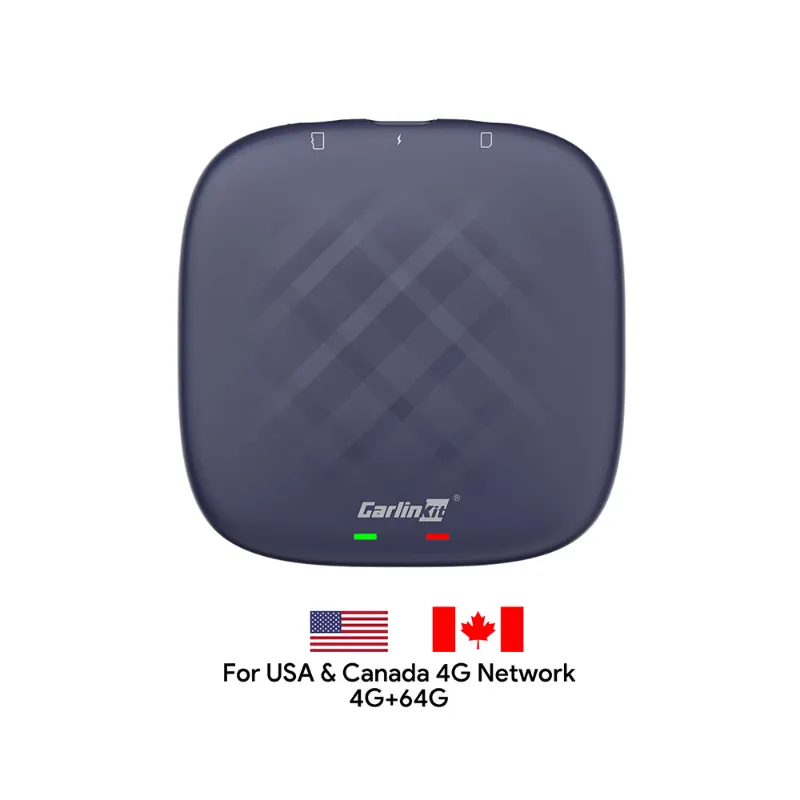
If you drive a newer car with USB-C or want the fastest possible connection, the carlinkit tbox plus uses a newer chipset that cuts reconnection time to around 7 seconds. It also supports 5 GHz Wi-Fi, which reduces audio stuttering in areas with heavy 2.4 GHz interference.
For older vehicles or budget-conscious buyers, the carlinkit for carplay offers solid performance at a lower price point. It takes a few extra seconds to connect and occasionally requires a manual reconnect if you’ve been away from your car for several days, but it handles navigation, music, and calls without issue.
| Model | Best For | Connection Speed | USB Type |
|---|---|---|---|
| Carlinkit 5.0 | Most drivers, 2016+ cars | ~10 seconds | USB-A & USB-C |
| Carlinkit TBox Plus | Newest cars, USB-C ports | ~7 seconds | USB-C |
| Carlinkit Mini Ultra 3 | Compact fit, tight dashboards | ~12 seconds | USB-A |
Check the latest price and grab our exclusive discount code before you buy. We currently offer 18% off all orders.
Troubleshooting Common Setup Issues
If your adapter won’t pair, unplug it, restart your car, and delete any previous “AutoKit” or “CarlinKit” entries from your iPhone’s Bluetooth settings. Then plug the adapter back in and start the pairing process from scratch.
Connection dropping mid-drive usually means Wi-Fi interference or a weak adapter position. Move your phone closer to the dashboard during the first few drives to help the adapter learn your phone’s signal pattern. Avoid placing your phone in a metal cup holder or under a wireless charging pad, both of which can block the 5 GHz signal some adapters use.
If CarPlay launches but audio cuts out, check that your car’s firmware is up to date. Some 2017 to 2019 model-year vehicles require a dealer software update to support stable wireless audio streaming. You can also try toggling “Hey Siri” off and back on in your iPhone settings, which forces the audio routing to refresh.
For cars with multiple USB ports, always use the port labeled with the CarPlay or smartphone icon. Standard charging ports won’t recognize the adapter even if they physically fit. If you’re still stuck, expert recommendations from owners often highlight model-specific quirks worth checking.
How Wireless CarPlay Adapters Compare to Wired
Wired CarPlay delivers zero latency and doesn’t drain your battery as quickly, but you’re tethered to a cable every time you drive. A wireless carplay adapter trades a tiny bit of lag (usually under 0.2 seconds, imperceptible for navigation and music) for true plug-and-forget convenience.
Battery drain is real but manageable. Expect your iPhone to lose an extra 10 to 15% per hour compared to wired, since Bluetooth and Wi-Fi stay active. If you have wireless charging in your car, you can offset this entirely by dropping your phone on the pad after the adapter connects.
Some adapters now support Android Auto alongside CarPlay, so if you switch between an iPhone and an Android device, models like the carlinkit tbox plus let you pair both without reconfiguring. Road and Track’s 2026 roundup highlights this as a key feature for multi-phone households.
Who Should Use a Wireless CarPlay Adapter
If you drive multiple short trips each day, a wireless adapter eliminates the repetitive plug-unplug routine. Parents doing school runs, delivery drivers, and rideshare operators see the biggest quality-of-life improvement.
Drivers who frequently use navigation and hands-free calling benefit most. Once the adapter is installed, you can jump in your car, start driving, and have Siri read texts or launch directions without touching your phone.
Skip the adapter if your car already has factory wireless CarPlay (most 2021+ models from BMW, Mercedes, Audi, and newer Hondas and Toyotas). You’re also better off sticking with wired if you drive in areas with weak cell signals, since wireless adapters can amplify connection instability when your phone is already struggling for service.
Ready to upgrade? Grab the code and check compatibility for your specific vehicle and iPhone model before ordering. Installation takes less than five minutes, and most drivers never look back once they experience true wireless convenience.
Questions
Does a wireless carplay adapter work with any iPhone?
Most wireless CarPlay adapters work with iPhone 6 and newer running iOS 10 or later. We recommend iPhone 8 or newer for the most stable connection and fastest pairing times.
Will the adapter drain my iPhone battery faster?
Yes, wireless adapters use Bluetooth and Wi-Fi continuously, draining about 10 to 15% more battery per hour compared to wired CarPlay. You can offset this with a wireless charging pad in your car.
How long does the Carlinkit 5.0 take to reconnect each time I start my car?
The Carlinkit 5.0 typically reconnects in under 10 seconds once you start your engine, as long as Bluetooth and Wi-Fi are enabled on your iPhone.
Can I use the same adapter for both iPhone and Android?
Some models like the Carlinkit TBox Plus support both CarPlay and Android Auto. You can pair multiple devices, though only one phone connects at a time.
What if my car has both USB-A and USB-C ports?
Use the port with the CarPlay or smartphone icon, regardless of type. Most adapters include cables for both USB-A and USB-C, or you can use a compatible USB cable if needed.
Why does my wireless adapter disconnect randomly while driving?
Random disconnects usually stem from Wi-Fi interference or your phone being too far from the adapter. Keep your phone near the dashboard and away from metal surfaces or other wireless charging pads during your drive.
Products in this guide
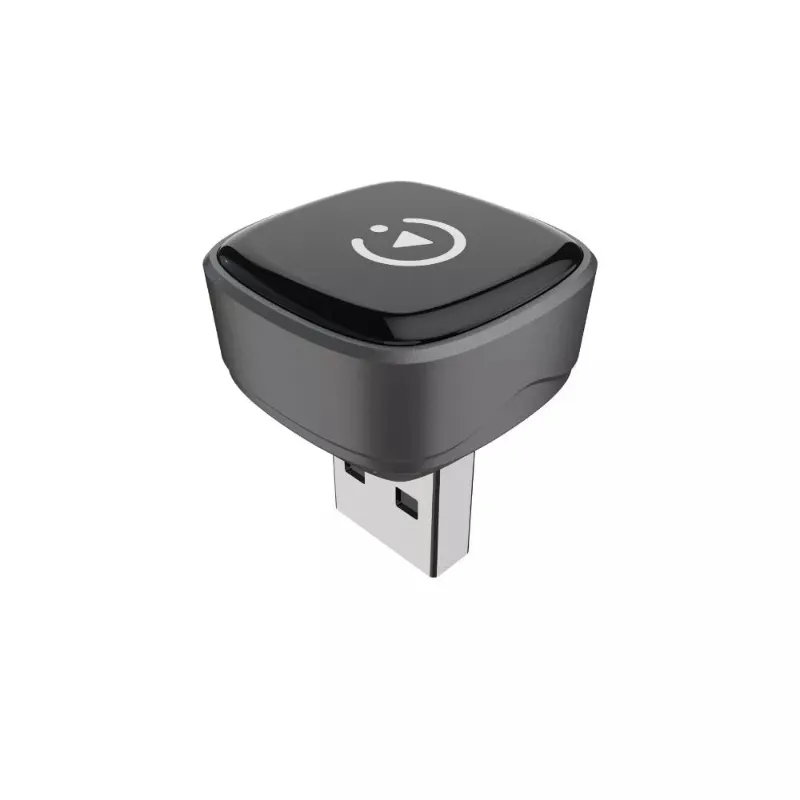
 Shopping at AutoKit CarPlay? See the discount code
18% OFF All Orders
Shopping at AutoKit CarPlay? See the discount code
18% OFF All Orders
More in this series
USB Cable Requirements for Android Auto: What You Need to Know16 Aug 20265 minWhy Does My Carlinkit Adapter Keep Disconnecting and How to Fix It16 Aug 20265 minCarlinkit TBox Plus Review: Is This the Most Reliable Wireless CarPlay Adapter?16 Aug 20263 minDo Wireless CarPlay Adapters Work With Factory Wired CarPlay Systems?16 Aug 20264 minCarlinkit 5.0 vs Carlinkit Mini Ultra 3: Which Wireless Adapter Is Right for You?16 Aug 20264 min