 A AutoKit CarPlay guide
Why Does My Carlinkit Adapter Keep Disconnecting and How to Fix It
If your carlinkit 5.0 wireless carplay adapter keeps disconnecting, the culprit is usually Bluetooth interference, outdated firmware, or a weak USB power supply.
If your carlinkit 5.0 wireless carplay adapter keeps disconnecting, the culprit is usually Bluetooth interference, outdated firmware, or a weak USB power supply. This guide walks you through each cause and the exact steps we use to restore stable wireless CarPlay.
Why Your Wireless CarPlay Adapter Disconnects
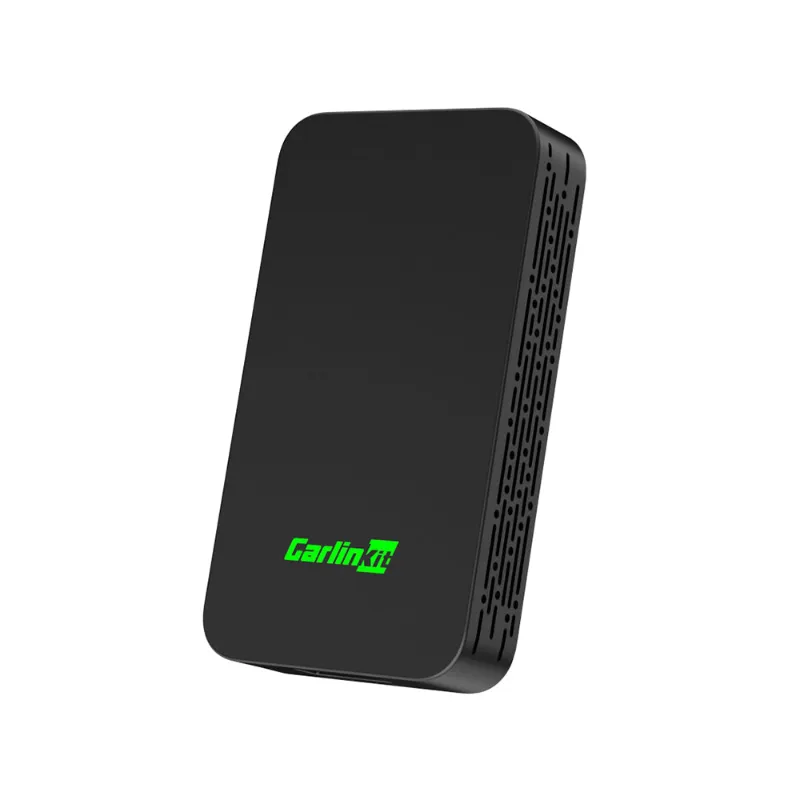
Disconnections happen when the adapter loses either its Bluetooth pairing with your iPhone or its Wi-Fi data stream. The carlinkit 5.0 and similar models rely on Bluetooth for the initial handshake and Wi-Fi for audio and video data, so any disruption to either protocol triggers a drop.
The most common causes include:
- Bluetooth interference from other devices (smartwatches, fitness trackers, second phones)
- Insufficient USB power from older or shared USB ports in the vehicle
- Outdated adapter firmware that lacks bug fixes for specific iPhone iOS versions
- iPhone software bugs introduced in iOS updates
- Physical obstructions or poor USB cable quality
Understanding which layer is failing makes troubleshooting faster. Most fixes take under ten minutes.
Check Your USB Port and Cable First
Start every disconnection diagnosis with the power supply, since it’s the easiest variable to isolate. The carlinkit 5.0 wireless carplay adapter draws around 500 mA, and many factory head units share USB power across multiple ports or restrict output to preserve the vehicle battery.
Test a different USB port. If your car has multiple ports, try each one. Ports labeled with a lightning bolt icon or “charging” typically deliver higher current. Avoid rear-seat or console ports meant only for media playback.
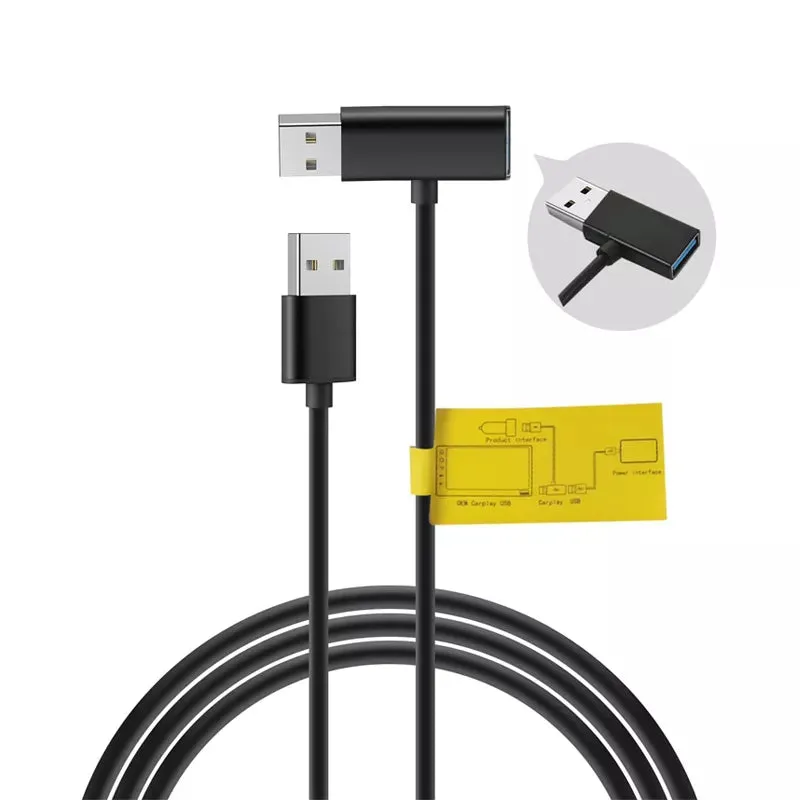
Swap the USB cable. Factory cables bundled with older adapters can degrade or lack proper data pins. We recommend a short (6 to 12 inch) USB-A to USB-C cable rated for both power and data. If you use Android Auto as well, grab a quality usb cable for android auto that meets USB 2.0 standards.
Use a powered USB hub. For vehicles with notoriously weak USB outputs (common in pre-2018 models), a powered hub plugged into the 12V outlet can stabilize the connection.
Before moving to software fixes, confirm the adapter LED stays solid after pairing. A blinking or flickering light signals a power issue.
Update Firmware on Your Carlinkit Adapter
Firmware updates patch compatibility bugs with new iOS releases and improve Bluetooth stability. Carlinkit releases updates every few months, so check whether your adapter is running the latest firmware.
How to update:
- Download the Carlinkit app (AutoKit) from the App Store
- Connect your iPhone to the adapter’s Wi-Fi network (usually named “AutoKit_XXXX”)
- Open the app and navigate to Settings > Firmware Update
- If an update is available, tap Download and wait 5 to 10 minutes (do not disconnect)
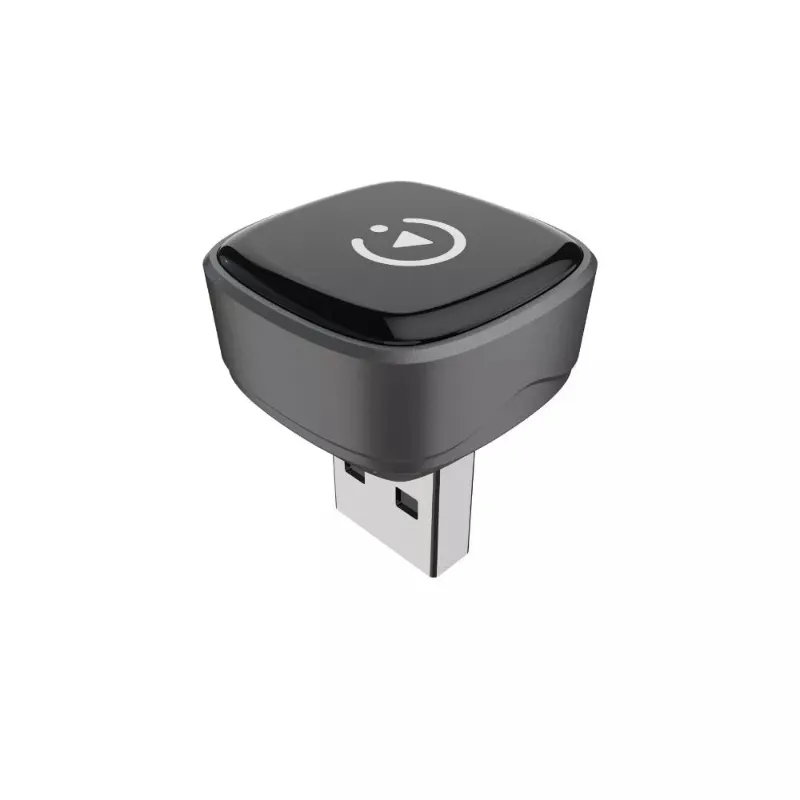
After the update, forget the adapter in your iPhone’s Bluetooth settings and re-pair from scratch. This clears any cached connection data that might conflict with the new firmware. The carlinkit mini ultra 3 and carlinkit tbox plus follow the same update process.
If you’re running the latest firmware and still seeing drops, check the carlinkit 5.0 compatibility list on the manufacturer’s site to confirm your vehicle and iPhone model are fully supported.
Reduce Bluetooth Interference
Bluetooth operates in the crowded 2.4 GHz band, and modern vehicles often have four or more devices competing for bandwidth: your phone, the adapter, a smartwatch, and the built-in vehicle system.
Steps to minimize interference:
- Disconnect other Bluetooth devices. Temporarily unpair smartwatches, fitness trackers, and secondary phones. Test the wireless carplay adapter alone for a few trips.
- Turn off Bluetooth on passenger phones. Even inactive pairings can scan and interfere.
- Keep your iPhone close to the adapter. Bluetooth range is rated at 10 meters, but metal dashboards and thick consoles cut that in half. Store your phone in the cup holder or center console, not a back pocket or purse.
- Disable Wi-Fi on your iPhone when not needed. Some users report that leaving Wi-Fi scanning active (even when not connected to a network) causes the iPhone to drop the adapter’s Wi-Fi. Toggle Wi-Fi off in Control Center and let the adapter handle the connection.
According to a detailed review on Ars Technica, interference is especially pronounced in vehicles with factory wireless charging pads, which can emit low-level RF noise.
Reset Your iPhone’s Network Settings
iOS caches network and Bluetooth configurations, and corrupted cache files can prevent stable pairing. This often resolves persistent “mystery” disconnections by forcing iOS to rebuild these settings from scratch.
To reset network settings:
- Open Settings > General > Transfer or Reset iPhone > Reset
- Tap Reset Network Settings (this will NOT erase apps or photos)
- Enter your passcode
- Confirm the reset
Your iPhone will reboot and forget all saved Wi-Fi networks, Bluetooth pairings, and VPN configurations. After the reboot, re-pair the carlinkit for carplay by selecting it in Bluetooth settings and following the on-screen prompts.
This fix is especially effective after major iOS updates (e.g., iOS 17 to iOS 18), which occasionally introduce Bluetooth stack bugs that a reset clears.
When to Factory Reset Your Adapter
If you’ve tried every fix above and the adapter still disconnects, a factory reset wipes corrupted internal settings. We reserve this step for persistent issues because it erases all saved pairings and preferences.
Factory reset steps:
- Locate the small reset button on the adapter (usually a pinhole on the side or bottom)
- Use a paperclip or SIM tool to press and hold for 10 seconds
- The LED will flash rapidly, then reboot
- Re-pair your iPhone as if it’s a new adapter
After the reset, update firmware again before pairing. This ensures the adapter starts with the latest software and a clean configuration.
For current pricing and our exclusive discount, check the latest offer before ordering a replacement if your adapter remains unstable.
Compare Carlinkit Models for Reliability
Not all Carlinkit adapters perform identically.
| Model | Connection Stability | Best For |
|---|---|---|
| Carlinkit 5.0 | Excellent | Most vehicles, fast pairing |
| Carlinkit Mini Ultra 3 | Very Good | Compact installs, budget-friendly |
| Carlinkit TBox Plus | Good | Older vehicles, Android Auto priority |
The carlinkit 5 shares the same chipset as the 5.0 and delivers comparable stability. The Mini Ultra 3 uses a slightly older Bluetooth module, which can be more sensitive to interference but is still reliable in vehicles with strong USB power.
An in-depth review from Android Guys confirms that the 5.0 generation handles multi-device environments better than earlier Carlinkit 3.0 models.
Grab the Code and Test Your Fix
Once you’ve applied the relevant fixes, test your adapter on a 30-minute drive with navigation, music streaming, and at least one phone call. Stable wireless CarPlay should reconnect within 10 seconds of starting the vehicle and hold the connection without drops.
If you’re in the market for an upgrade or replacement, grab the code for 18% off and free shipping. We update compatibility notes and troubleshooting tips as new iOS versions roll out, so bookmark this guide for future reference.
Most disconnection issues resolve with a firmware update and USB port swap. The handful that don’t usually point to a failing adapter under warranty or an iOS bug that Apple patches in the next update. Either way, you’ll have a clear diagnosis and next step.
Questions
Why does my carlinkit 5.0 keep disconnecting after an iOS update?
iOS updates occasionally introduce Bluetooth stack bugs that corrupt cached pairings. Reset your iPhone's network settings (Settings > General > Reset > Reset Network Settings) and update your adapter's firmware through the AutoKit app to restore compatibility.
Can a weak USB port cause my wireless CarPlay adapter to disconnect?
Yes. The adapter needs at least 500 mA to maintain stable Bluetooth and Wi-Fi connections. Shared or low-power USB ports (common in pre-2018 vehicles) can't deliver enough current, causing random drops. Try a different port or use a powered USB hub.
How do I update firmware on my Carlinkit adapter?
Download the AutoKit app, connect your iPhone to the adapter's Wi-Fi network, open the app, and navigate to Settings > Firmware Update. If an update is available, download it and wait 5 to 10 minutes without disconnecting. Re-pair your iPhone after the update completes.
Will other Bluetooth devices interfere with my Carlinkit adapter?
Yes. Smartwatches, fitness trackers, and secondary phones all compete for bandwidth in the 2.4 GHz band. Disconnect other Bluetooth devices temporarily and test the adapter alone to see if stability improves.
Should I factory reset my adapter if it still disconnects?
Only after you've updated firmware, tested different USB ports, and reset your iPhone's network settings. A factory reset erases all saved pairings and can fix corrupted internal settings, but it's a last-resort step.
Which Carlinkit model has the most stable connection?
According to independent reviews, the Carlinkit 5.0 and Carlinkit 5 offer the best connection stability, with faster pairing and better handling of Bluetooth interference compared to older 3.0 models and the Mini Ultra 3.
Products in this guide
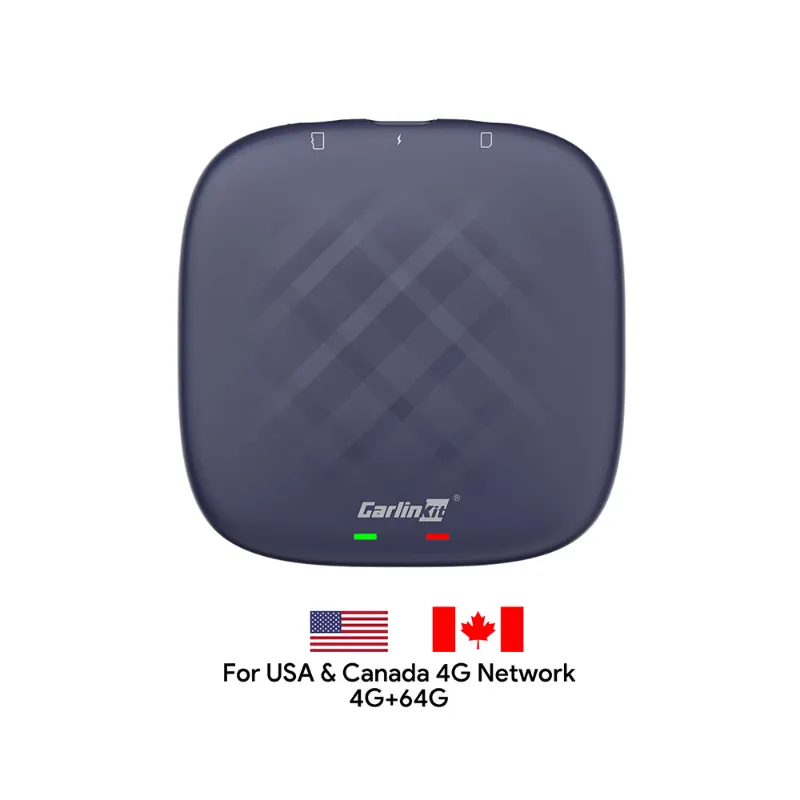 Shopping at AutoKit CarPlay? See the discount code
18% OFF All Orders
Shopping at AutoKit CarPlay? See the discount code
18% OFF All Orders
More in this series
USB Cable Requirements for Android Auto: What You Need to Know16 Aug 20265 minCarlinkit TBox Plus Review: Is This the Most Reliable Wireless CarPlay Adapter?16 Aug 20263 minDo Wireless CarPlay Adapters Work With Factory Wired CarPlay Systems?16 Aug 20264 minCarlinkit 5.0 vs Carlinkit Mini Ultra 3: Which Wireless Adapter Is Right for You?16 Aug 20264 minHow to Set Up a Wireless CarPlay Adapter in Your Car16 Aug 20265 min