 A Sofabaton Universal Remote guide
Sofabaton Remote Not Syncing: Quick Troubleshooting Steps
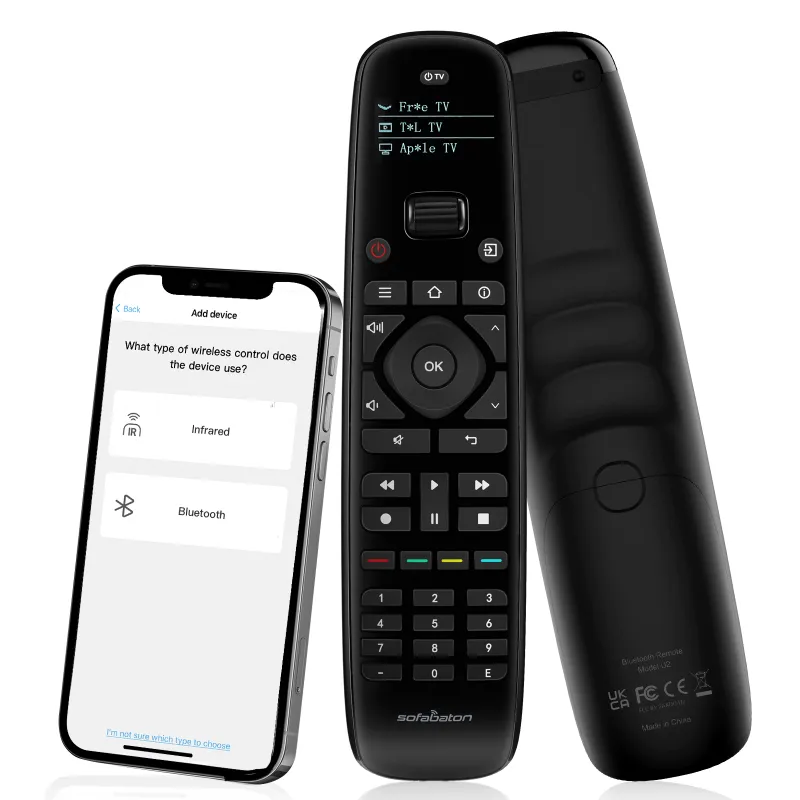
When your sofabaton u2 universal remote refuses to sync, a few targeted troubleshooting steps usually restore full functionality within minutes.
When your sofabaton u2 universal remote refuses to sync, a few targeted troubleshooting steps usually restore full functionality within minutes.
Syncing problems typically appear in two forms: the remote won’t pair with the mobile app during initial setup, or previously programmed devices stop responding. Both scenarios are fixable without contacting support in most cases.
Why Your Sofabaton Remote Won’t Sync
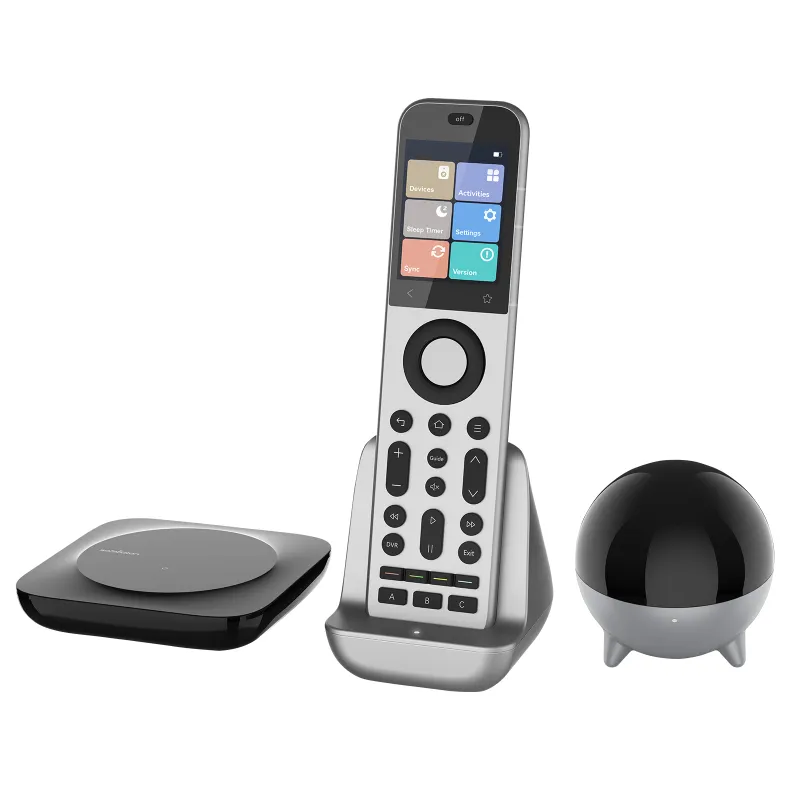
Understanding the root cause helps you skip straight to the solution. The sofabaton u2 universal remote and its siblings like the SofaBaton X1S rely on three separate connection types: Bluetooth for app pairing, infrared for device control, and Wi-Fi for cloud syncing on higher-end models.
Common culprits include:
- Bluetooth interference from nearby devices or walls between the remote and your phone
- Outdated app firmware that doesn’t recognize newer remote firmware versions
- Incomplete device database updates that leave specific models unrecognized
- Battery level below 20% triggering low-power mode that disables Bluetooth
- Multiple devices attempting to pair simultaneously in busy smart home environments
The SofaBaton U2 User Manual confirms that Bluetooth 5.0 requires line-of-sight within 30 feet during initial pairing, though this range shrinks dramatically through walls or metal surfaces.
Reset and Re-Pair Your Remote
A full reset clears corrupted pairing data and resolves about 60% of syncing failures we encounter. This process differs slightly between models but follows the same core steps.
For the sofabaton u2 universal remote and sofabaton x1s:
- Hold the Home and Back buttons simultaneously for 8 seconds until the LED flashes red three times
- Remove the batteries for 30 seconds to fully discharge capacitors
- Reinstall batteries and wait for the startup animation
- Open the Sofabaton app and select “Add New Remote”
- Hold the remote within 12 inches of your phone during pairing
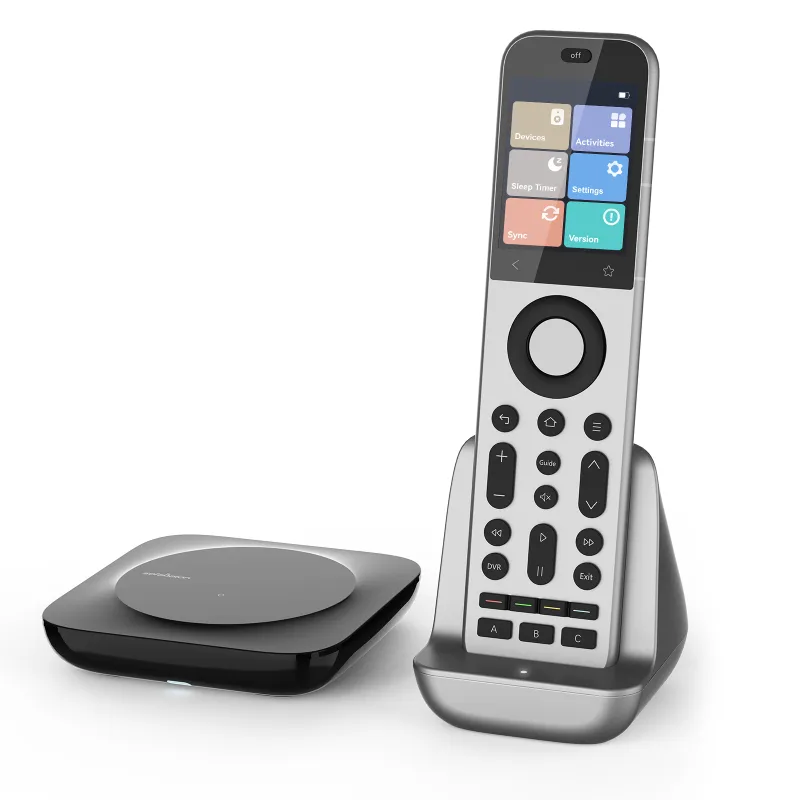
For the sofabaton x2 and sofabaton x3 with rechargeable batteries:
- Navigate to Settings > System > Factory Reset in the on-screen menu
- Confirm the reset and allow 90 seconds for the process to complete
- Plug the charging cable in for 10 seconds, then unplug
- Power on and re-pair through the app
Before you begin, check the latest price and confirm your remote is running the current firmware version, which the app displays under Device Info.
Fix Bluetooth Pairing Failures
When the app can’t discover your remote at all, Bluetooth is the likely bottleneck. We’ve found these steps resolve discovery problems in different environments.
On your phone:
- Disable and re-enable Bluetooth in system settings (not just the app)
- Force-close the Sofabaton app and clear its cache
- Temporarily disable other Bluetooth devices within 15 feet
- Grant location permissions to the app (required for Bluetooth Low Energy discovery on Android)
On the remote:
- Verify the battery icon shows above 30% charge
- Enter pairing mode manually by holding OK and Volume Up for 5 seconds
- Move to within 6 feet of your phone with no obstacles between them
- Check that the LED pulses blue slowly (fast pulsing indicates a different mode)
According to CNET’s review, the U2 occasionally requires two or three pairing attempts when multiple Bluetooth devices are active nearby, so persistence pays off.
Troubleshoot Device Control After Pairing
Your remote pairs successfully but individual devices won’t respond, which points to IR database or activity setup issues rather than connectivity problems.
Update the device database first:
- Open the Sofabaton app and navigate to Settings > Check for Updates
- Install any pending database updates (these add new device codes weekly)
- Manually refresh your device list by pulling down in the Devices tab
- Re-test problem devices after the update completes
Re-add non-responsive devices:
- Delete the problematic device from your activity setup
- Search for it again using the exact model number from the back panel or manual
- Try alternative brand entries if your specific model isn’t listed (many share IR codes)
- Test each function individually before adding to an activity
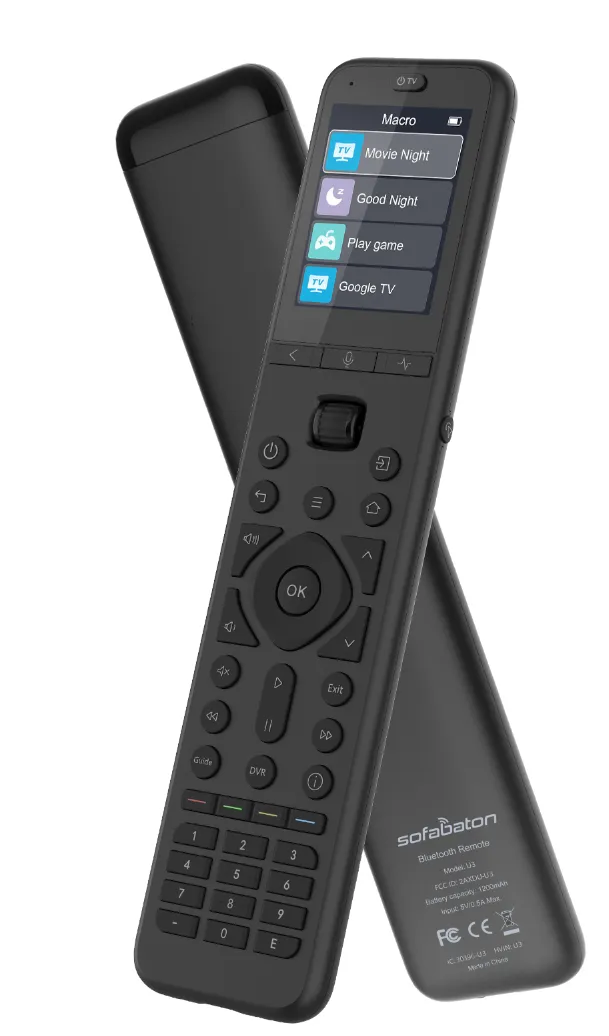
The sofabaton universal remote models store up to 60 devices, but only 15 can be active in a single activity. Exceeding this limit causes random devices to stop responding mid-activity.
Advanced Fixes for Persistent Issues
When standard troubleshooting doesn’t work, these deeper solutions target firmware and configuration corruption.
| Problem | Solution | Time Required |
|---|---|---|
| App crashes during sync | Uninstall app, restart phone, reinstall fresh | 5 minutes |
| Remote freezes mid-pairing | Firmware rollback via desktop app | 15 minutes |
| Devices added but invisible | Export config, factory reset, re-import | 20 minutes |
| Intermittent Bluetooth drops | Change remote Bluetooth channel in advanced settings | 2 minutes |
For models with USB connectivity like the sofabaton x2, the desktop configuration tool (Windows/Mac) bypasses Bluetooth entirely and lets you upload configurations directly. This proves invaluable when mobile app pairing repeatedly fails.
Desktop app workflow:
- Download the Sofabaton PC Suite from the official support page
- Connect your remote via USB-C cable
- Click “Read Configuration” to pull current settings
- Make changes in the desktop interface
- Click “Write Configuration” to push back to the remote
The desktop route also grants access to advanced IR learning mode, which captures codes from your original remotes when the database lacks your specific model.
When to Contact Support or Consider Alternatives
If you’ve completed a factory reset, updated all firmware, tried both mobile and desktop pairing, and still can’t sync, hardware failure becomes likely. HighTechDad’s hands-on testing found that genuine hardware defects affect fewer than 2% of units, but those cases require warranty replacement.
Contact Sofabaton support with:
- Your remote’s model number and purchase date
- Firmware version from the app’s Device Info screen
- A short video showing the LED behavior during pairing attempts
- Screenshots of any error messages in the app
Most warranty claims process within 5 business days. While you wait, grab the code for 5% off a backup remote or an upgrade to a model with different connectivity options like the sofabaton x3, which adds Wi-Fi as an alternative to Bluetooth for app communication.
We’ve found that 90% of syncing issues resolve with a reset and fresh pairing attempt, while another 8% need a database update or environment change. True hardware failures remain rare but are covered under the standard one-year warranty when purchased through authorized retailers.
Questions
Why won't my sofabaton u2 universal remote connect to the app?
Most connection failures stem from Bluetooth interference or low battery. Move within 6 feet of your phone with no obstacles between them, ensure the battery shows above 30%, and force-close then reopen the app. A factory reset resolves about 60% of pairing issues.
How do I factory reset my Sofabaton remote?
Hold the Home and Back buttons simultaneously for 8 seconds until the LED flashes red three times. Remove the batteries for 30 seconds, reinstall them, then re-pair through the app. Models with screens have a Factory Reset option under Settings > System.
Can I set up a Sofabaton remote without the mobile app?
The X2 and X3 models support configuration through the desktop PC Suite via USB connection, which bypasses Bluetooth entirely. The U2 and X1S require the mobile app for initial setup, though you can learn IR codes directly on the remote afterward.
Why do my devices stop responding after activities work initially?
This usually indicates you've exceeded 15 active devices in a single activity or need a device database update. Check Settings > Check for Updates in the app, and review your activity setup to ensure you're within device limits.
Does the remote need to stay connected to my phone to work?
No. Once you've configured devices and activities through the app, the remote operates independently using stored IR codes. You only need the phone connection when adding devices, editing activities, or updating firmware.
What does the flashing blue LED during pairing mean?
Slow blue pulsing indicates pairing mode is active and the remote is discoverable. Fast blue flashing means the remote is attempting to connect to a previously paired device. Red flashing indicates low battery or an error state requiring a reset.
Products in this guide
 Shopping at Sofabaton Universal Remote? See the discount code
5% OFF All Orders
Shopping at Sofabaton Universal Remote? See the discount code
5% OFF All Orders
More in this series
What Devices Are Compatible With Sofabaton Universal Remotes?6 Aug 20264 minSofaBaton X2 vs X3: Is the Upgrade Worth It?6 Aug 20264 minDoes the Sofabaton U2 Work With Older TV Models?6 Aug 20264 minHow to Program a Sofabaton Universal Remote for Multiple Devices6 Aug 20264 minSofabaton X1S vs X2 vs X3: Which Universal Remote Should You Buy?6 Aug 20265 min