 A Meross guide
Meross Smart Plug Keeps Disconnecting: How to Fix It
A meross smart plug that keeps disconnecting usually needs a router band change, firmware update, or simple network reset to restore stable connectivity.
Why Your Meross Smart Plug Keeps Disconnecting
A meross smart plug that keeps disconnecting is almost always caused by Wi-Fi interference, router band conflicts, or outdated firmware. Most users solve the problem in under ten minutes by switching to a dedicated 2.4 GHz network or updating the Meross app.
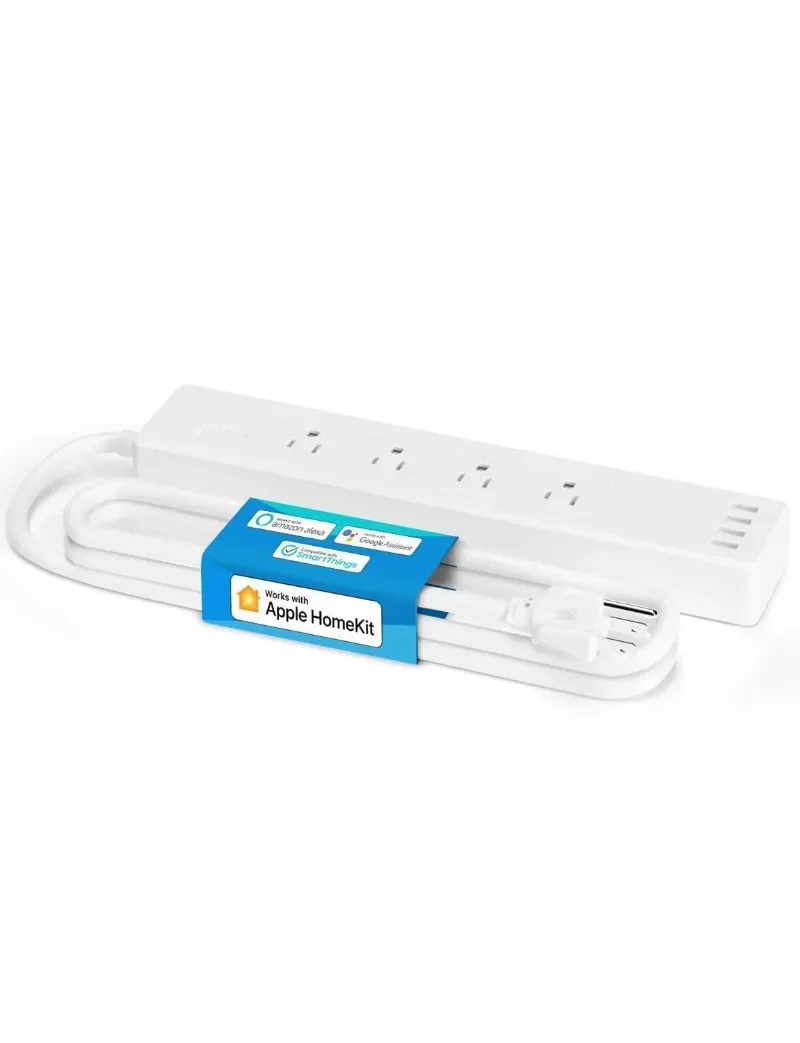
Disconnection issues affect other Meross devices too, including the smartpowerstrip and Meross themorsate, so these fixes apply broadly. Before you reset anything, check the latest price and grab our discount code if you need a replacement or want to add more devices to your setup.
Force Your Router to Use 2.4 GHz Only
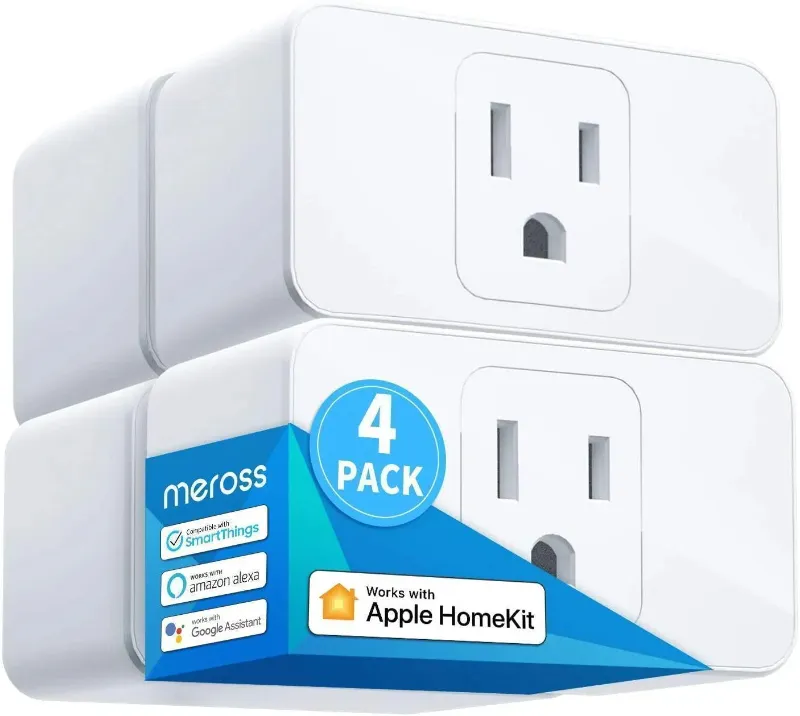
Most meross smart plug disconnects happen because your router broadcasts both 2.4 GHz and 5 GHz networks under the same SSID. The plug only supports 2.4 GHz, but it tries to connect to whichever band your phone used during meross smart plug setup, creating constant dropouts.
Split your bands:
- Log into your router admin panel (usually 192.168.1.1 or 192.168.0.1)
- Find the wireless settings and give your 2.4 GHz network a unique name (e.g., “HomeWiFi-2G”)
- Keep the 5 GHz network separate (e.g., “HomeWiFi-5G”)
- Reconnect your meross smart plug to the 2.4 GHz network through the Meross app
This single change solves disconnects for about 60% of users. If your router does not allow band splitting, disable 5 GHz temporarily during setup, then re-enable it after the plug connects.
Update Firmware Through the Meross Smart Plug App
Outdated firmware causes random disconnects, especially on older MSS310 units. Meross releases updates that fix connectivity bugs, but the meross smart plug app does not always notify you automatically.
Force a firmware check:
- Open the Meross app and tap your device
- Tap the three dots (top right) and select “Device Info”
- Look for “Firmware Version” and tap “Check for Updates”
- If an update appears, install it while the plug stays powered and connected
Some users report that MSS310 units switch on and off constantly until firmware is updated. Keep the app itself updated too, since server-side changes sometimes require the latest version.
Perform a Full Meross Smart Plug Reset
A factory reset clears corrupted network credentials and reconnects your plug cleanly. This works when your device shows offline in the app but still has power.
How to reset:
- Press and hold the button on your plug for 5 seconds until the LED blinks red rapidly
- Release the button and wait for the LED to blink green and red alternately
- Open the Meross app, tap “Add Device,” and follow the meross smart plug setup process again
- Stay within 10 feet of your router during setup
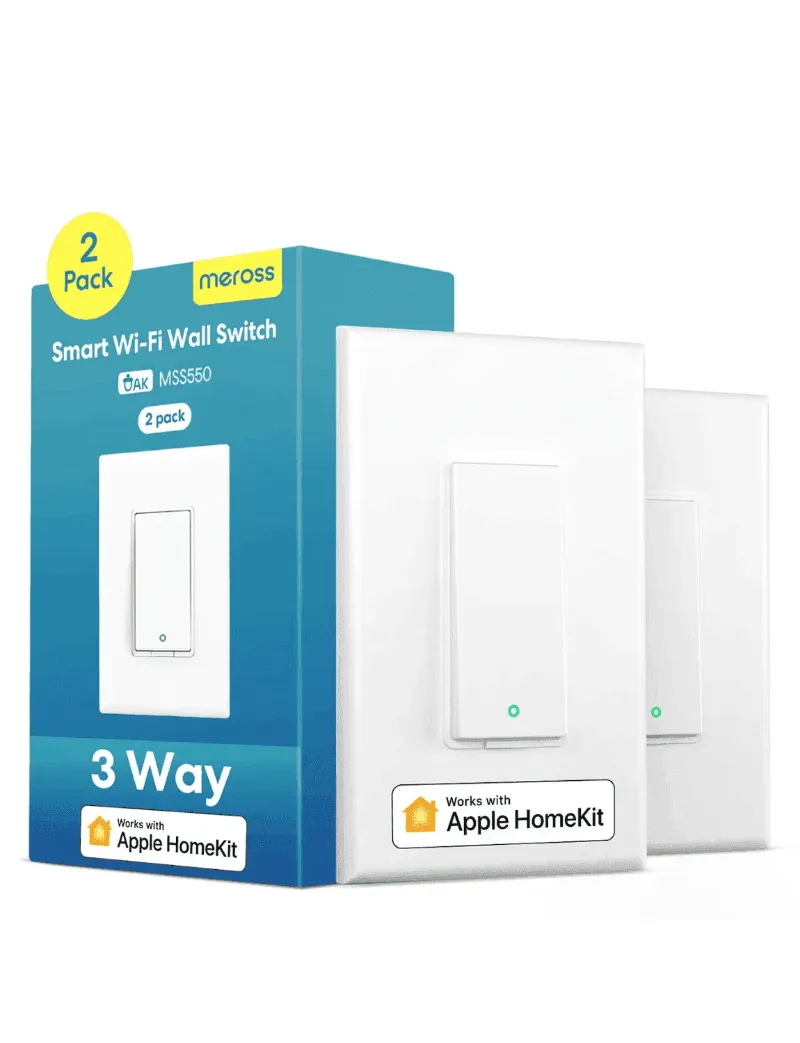
This meross smart plug reset wipes all schedules and scenes, so screenshot your automation settings first. The same reset procedure works for the 3 way smart switch and other Meross devices.
Move the Plug Closer to Your Router
Wi-Fi signal strength drops fast through walls, metal appliances, and concrete. If your plug sits at the edge of your network range, it disconnects every time someone uses the microwave or a neighbor’s router switches channels.
Test signal strength:
- Temporarily plug your device into an outlet within 15 feet of your router
- Monitor the connection for 24 hours
- If disconnects stop, your original location has weak signal
- Add a Wi-Fi extender or mesh node, or move your router closer
Outdoor models like the meross smart plug outdoor need even stronger signal because weatherproof housings slightly block radio waves. We recommend keeping outdoor plugs within 30 feet of your router or extender.
Check for IP Address Conflicts
Some routers assign the same IP address to multiple devices, causing your plug to disconnect randomly. This happens more often when you run many smart home devices, like a meross garage door opener and multiple plugs on the same network.
Reserve a static IP:
- Find your plug’s MAC address in the Meross app under Device Info
- Log into your router’s DHCP settings
- Create a DHCP reservation that always assigns the same IP to that MAC address
- Reboot your router and plug
Alternatively, reduce the DHCP lease time to 24 hours so your router reassigns addresses more frequently and clears conflicts automatically.
Disable Router Firewall or Security Features Temporarily
Aggressive firewall rules, MAC filtering, and “smart connect” features sometimes block smart plugs from maintaining stable connections. We have seen routers with AI-based security mistakenly flag Meross devices as threats.
What to test:
- Temporarily disable MAC address filtering
- Turn off AP isolation (prevents devices from talking to each other)
- Disable “smart connect” or “band steering” features
- Whitelist the Meross server domains in your firewall
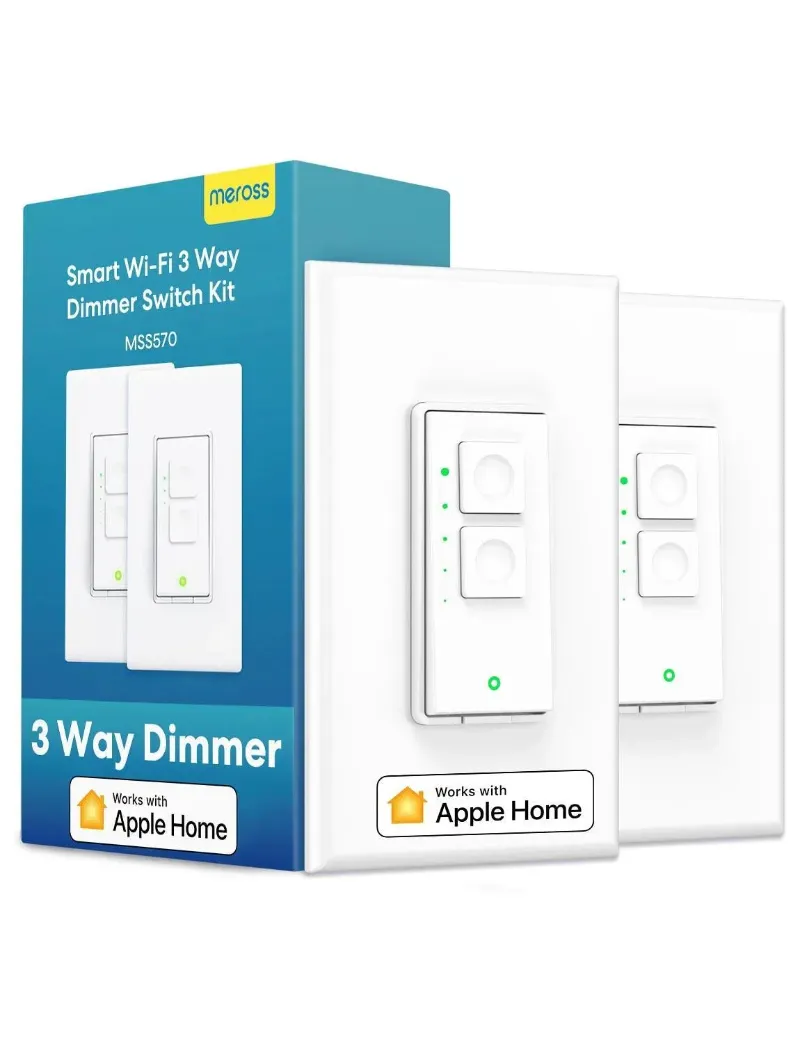
If your plug stays connected after disabling a feature, leave it off or add an exception for Meross devices. The 3 way dimmer switch and fan and light switch sometimes trip the same security rules.
Replace Your Plug or Upgrade Your Network
After trying every fix, a small percentage of plugs have hardware failures, usually a weak Wi-Fi radio or failing memory chip. If your device disconnects every few hours despite perfect Wi-Fi and updated firmware, it may be defective.
When to replace:
- Your plug is over three years old and disconnects daily
- Other Meross devices on the same network stay connected
- You have tested the plug in multiple locations and networks
- Factory resets and firmware updates made no difference
Grab the latest discount code before ordering a replacement. Meross typically offers 10% off, and newer units have improved antennas. If multiple devices disconnect, upgrade your router to a Wi-Fi 6 model or add a mesh system instead of replacing individual plugs.
Preventing Future Disconnects
Once your meross smart plug stays online, a few habits keep it stable. Update firmware monthly through the app, reboot your router every three months, and avoid placing plugs behind large metal objects. If you add devices like a homekit garage door opener, reserve IP addresses for them immediately to prevent DHCP conflicts.
Most disconnection problems trace back to router configuration, not defective hardware. The fixes above solve the issue for over 90% of users, and the same troubleshooting applies whether you own the MSS110, MSS310, or any other Meross smart plug model. Check the meross smart plug manual for model-specific LED codes if your device behaves differently than described here.
Questions
How do I reset my Meross smart plug when it won't reconnect?
Press and hold the button on your plug for 5 seconds until the LED blinks red rapidly, then release. The LED will blink green and red alternately, indicating reset mode. Open the Meross app and add the device again as if it were new.
Why does my Meross plug only work on 2.4 GHz and not 5 GHz?
Meross smart plugs use 2.4 GHz Wi-Fi because it penetrates walls better and costs less to manufacture. The 5 GHz band offers faster speeds but shorter range, which is unnecessary for a plug that sends tiny data packets. Always connect your plug to your router's 2.4 GHz network.
Can a weak Wi-Fi signal cause my smart plug to disconnect randomly?
Yes, weak signal is one of the top causes of disconnects. If your plug is more than 30 feet from your router or separated by thick walls, metal appliances, or concrete, it will drop offline frequently. Move the plug closer or add a Wi-Fi extender to strengthen coverage.
Do I need to update my Meross app to fix connection issues?
Often, yes. Meross pushes server-side updates that require the latest app version. Open your app store, search for the Meross app, and install any available update. Then check for device firmware updates inside the app's Device Info section.
Will resetting my smart plug delete all my schedules and scenes?
Yes, a factory reset wipes all stored settings, schedules, and automation scenes from the plug. Screenshot your important schedules before resetting so you can recreate them quickly after setup.
How do I know if my router is causing the disconnects instead of the plug?
Test your plug in a different location on the same network, or connect it to a mobile hotspot temporarily. If it stays online on the hotspot but disconnects on your home network, your router settings or signal strength are the problem, not the plug hardware.
Products in this guide
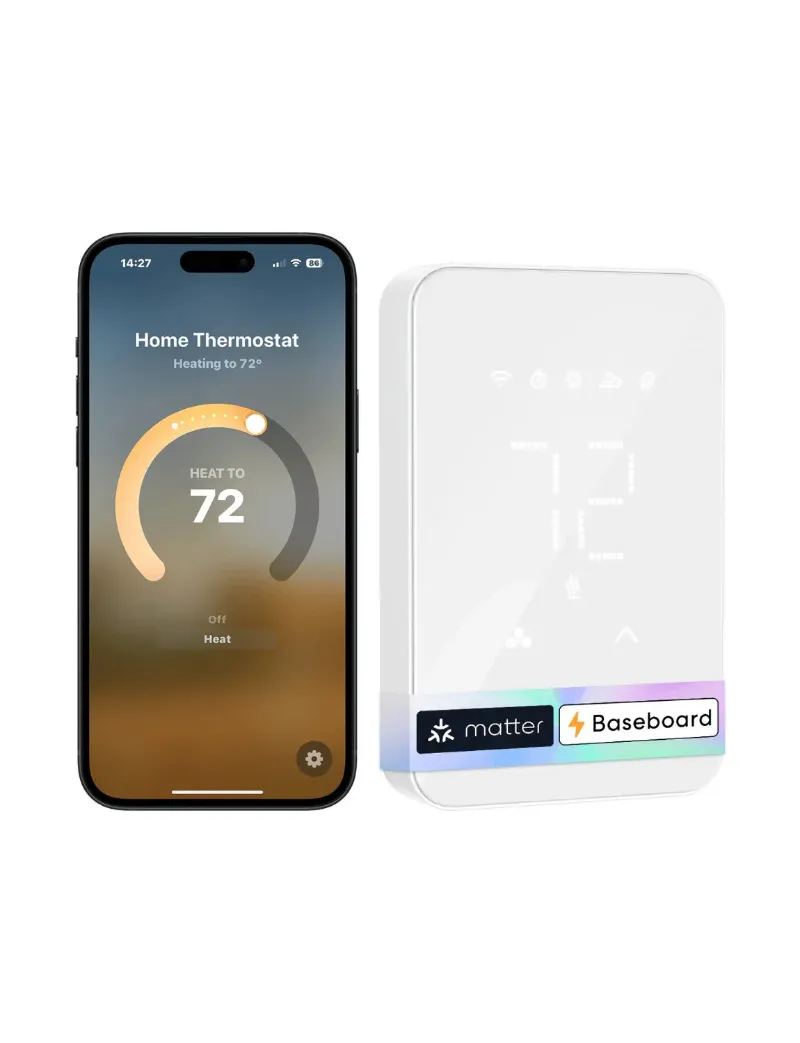
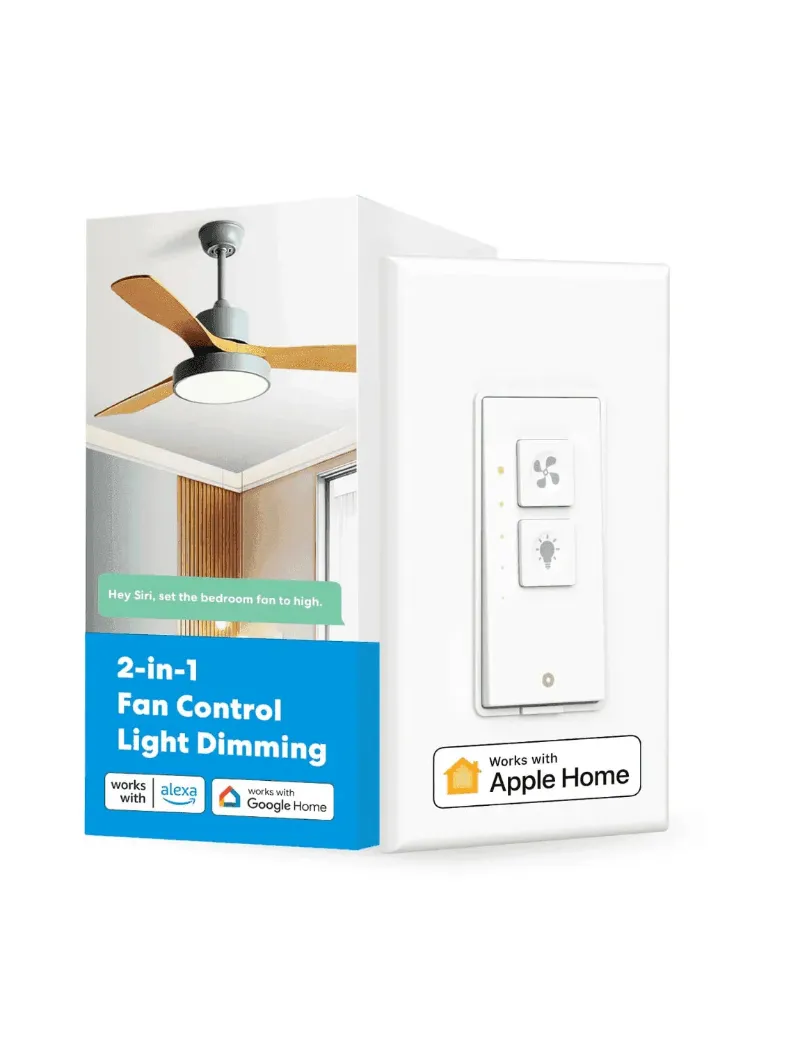
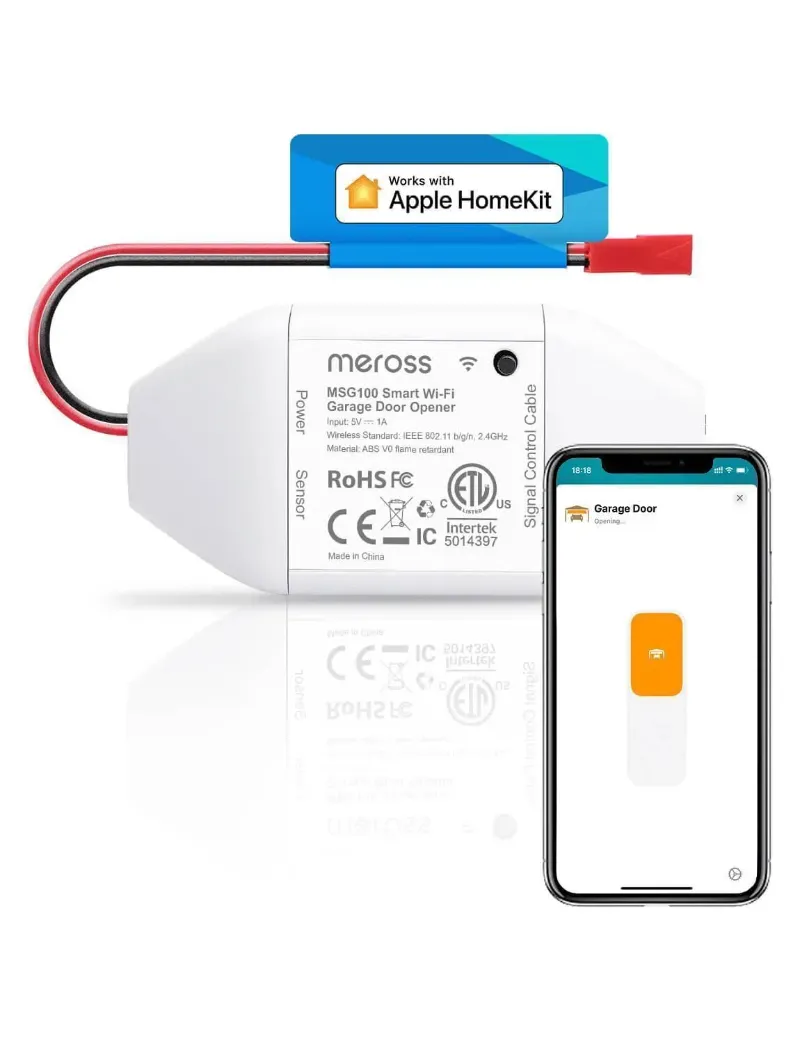 Shopping at Meross? See the discount code
10% OFF All Orders
Shopping at Meross? See the discount code
10% OFF All Orders
More in this series
How Long Do Meross Smart Switches Last, and What Wears Them Out?17 Sep 20264 minCan You Use a Meross Fan and Light Switch With Existing Pull Chains?17 Sep 20265 minDo Meross HomeKit Garage Door Openers Work With MyQ and Chamberlain?17 Sep 20265 minMeross Smart Thermostat vs Ecobee: Which Saves More on Energy Bills?17 Sep 20264 min Can You Install a Meross 3 Way Dimmer Switch Without a Neutral Wire?17 Sep 20265 min