 A Udexreal guide
Do Haptic VR Gloves Work with SteamVR and VRChat? Compatibility Guide
Haptic gloves do work with SteamVR and VRChat when they support SteamVR tracking and finger-tracking protocols, though setup steps vary by model.
Do Haptic Gloves Work with SteamVR and VRChat?
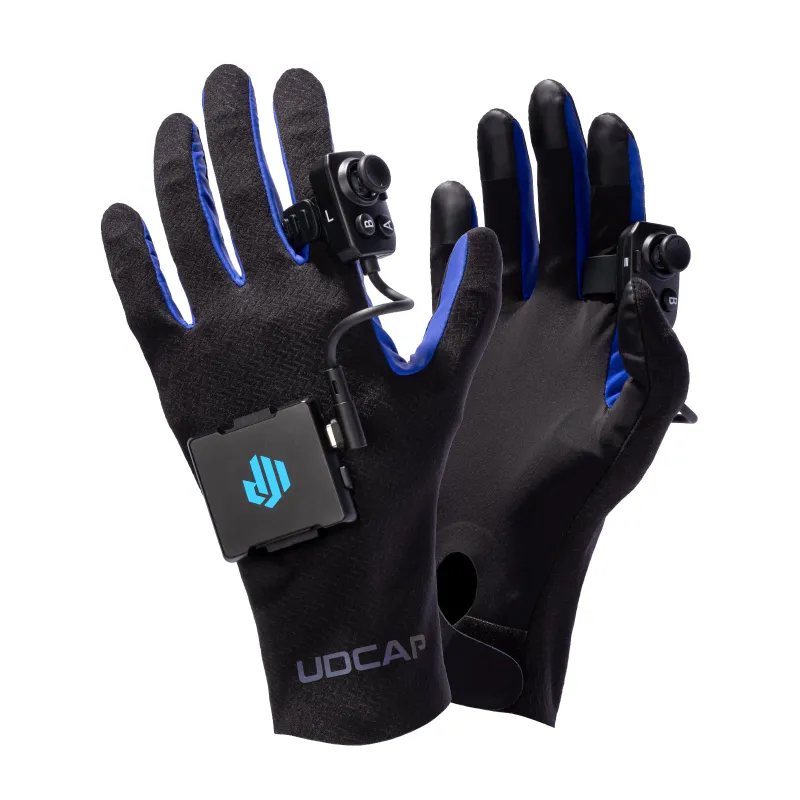
Yes, haptic gloves work with SteamVR and VRChat when they support SteamVR tracking protocols and finger-tracking input. Most modern haptic vr gloves designed for PC VR integrate through SteamVR’s input system, allowing hand and finger data to register in compatible games and social platforms. VRChat specifically recognizes SteamVR skeletal input, so gloves that expose finger positions through this API will animate your in-game hands. Setup complexity and feature support depend on the manufacturer, firmware version, and whether the gloves use optical tracking, IMU sensors, or a hybrid approach.
Which Haptic Glove Models Support SteamVR?
The Udexreal dexcap line and similar udcap vr gloves ship with SteamVR drivers that expose finger bend, splay, and palm orientation as skeletal input. These gloves pair via USB or Bluetooth and appear as tracked controllers in SteamVR, meaning any app that reads controller input or hand tracking will see your finger movements. Other options like stretchsense vr gaming gloves use stretch sensors and also publish SteamVR-compatible data, though driver installation and calibration steps differ.
Key compatibility markers to verify before purchase:
- SteamVR driver package included in the manufacturer’s SDK or download portal
- Skeletal input support, not just basic button emulation
- Tracking method compatibility with your headset (inside-out, lighthouse, or standalone wrist trackers)
- Firmware updates that add platform support over time
Check our discount code page for the latest pricing and bundle offers that include SteamVR-ready models.
Setting Up Haptic Gloves for VRChat
VRChat reads SteamVR skeletal input automatically once your vr gloves are recognized by SteamVR. The process involves installing the manufacturer’s driver, pairing or plugging in the gloves, and launching SteamVR to let the system detect the new input devices. In VRChat’s action menu, enable OSC or SteamVR Skeletal Input under settings so the platform maps finger data to your avatar’s hand rig.
Step-by-step setup:
- Install the glove driver software and reboot SteamVR
- Pair or connect the gloves and verify they appear in the SteamVR Devices list
- Calibrate finger ranges using the manufacturer’s calibration tool
- Launch VRChat and navigate to Settings > OSC or Input
- Confirm hand tracking is enabled and test finger curls in a mirror world
Some vrchat gloves require additional avatar configuration if your model lacks a full hand bone rig. Avatars with proper finger bones animate naturally, while older models may only show fist and point gestures.
Compatibility Differences Across Headsets
Haptic glove compatibility varies by headset tracking ecosystem.
| Headset Type | Tracking Method | Glove Compatibility |
|---|---|---|
| Valve Index, Vive | Lighthouse base stations | Full support with wrist or hand trackers |
| Quest 2, Quest 3 | Inside-out cameras | Works via Link/Air Link to SteamVR; native Quest apps limited |
| Pico, HP Reverb | Inside-out cameras | SteamVR driver support; check manufacturer docs |
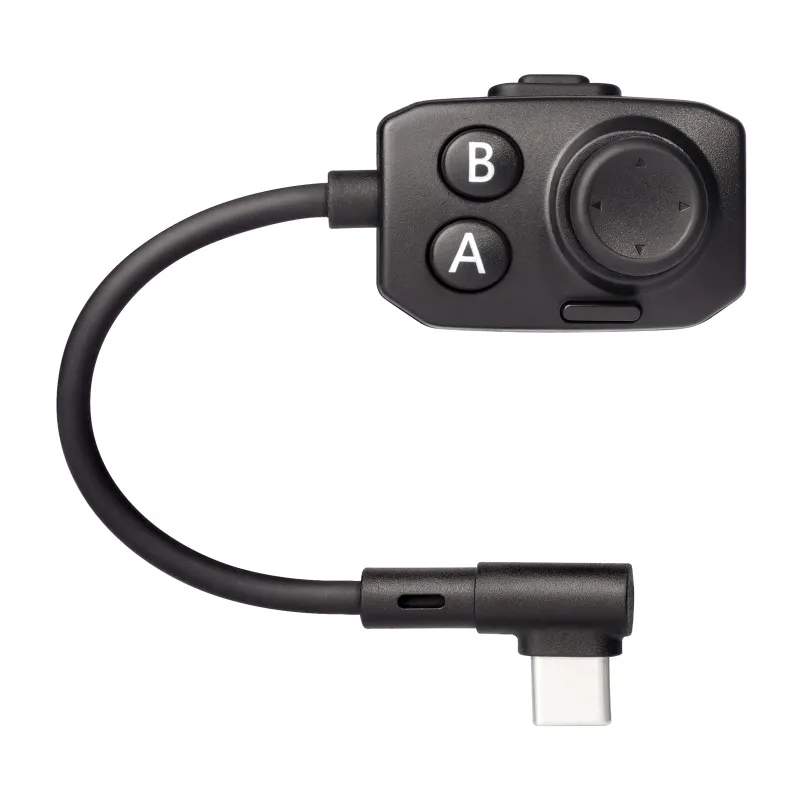
If your gloves include a module controller or wrist tracker puck, you will need compatible base stations or a hybrid tracking solution. Quest users running PCVR through Link can leverage SteamVR skeletal input, but standalone Quest apps rarely support third-party glove input unless the developer explicitly integrates the SDK.
For current bundle pricing and headset-specific recommendations, visit our Udexreal code page.
SteamVR Driver Installation and Troubleshooting
Most haptic glove manufacturers provide a dedicated SteamVR driver as a separate installer or integrated into their companion app. After installation, the driver registers a new device class in SteamVR’s `drivers` folder, and the runtime automatically loads it on startup. If SteamVR does not detect your gloves, check the following:
- Driver path: Confirm the driver folder exists in `Steam/steamapps/common/SteamVR/drivers/`
- Permissions: Run SteamVR and the glove app as administrator during first-time setup
- Firmware version: Update glove firmware through the companion app
- USB or Bluetooth pairing: Wired USB often bypasses pairing issues during troubleshooting
Some users report that disabling other hand-tracking inputs (such as Leap Motion or headset hand tracking) prevents conflicts. If your udcap vr glove shows in the companion app but not in SteamVR, restart the SteamVR server and re-pair the device.
Performance and Latency in SteamVR Games
Latency between finger movement and in-game response depends on the glove’s sensor refresh rate, wireless protocol, and the game’s input polling frequency. High-end vr hand tracking gloves update at 90 to 120 Hz, matching or exceeding typical VR headset refresh rates. Bluetooth models may introduce 10 to 30 ms of additional latency compared to wired USB or proprietary 2.4 GHz dongles.
In fast-paced VRChat interactions or rhythm games, lower latency improves gesture recognition and social presence. We recommend wired USB for competitive or performance-critical use, and Bluetooth for casual social VR where cable-free movement matters more than single-frame precision.
Who Should Use Haptic Gloves with SteamVR?
Haptic gloves suit VRChat regulars, social VR enthusiasts, and developers prototyping hand-interaction mechanics. If you spend hours in social worlds and want expressive finger gestures beyond controller button presses, gloves deliver a noticeable upgrade in communication and immersion. They also benefit VR training simulations, virtual instrument play, and sign-language practice where fine finger control matters.
Casual gamers who primarily play action titles may find traditional controllers more practical, since many SteamVR games still design interactions around trigger and grip buttons rather than individual finger input. Check whether your favorite titles support skeletal input before committing to a glove setup.
Questions
Do haptic gloves work with VRChat on Quest 3?
Yes, when you connect Quest 3 to a PC via Link or Air Link and run VRChat through SteamVR. Standalone Quest apps rarely support third-party glove input unless the developer integrates the SDK directly.
Can I use Udexreal gloves without base stations?
Some Udexreal models include wrist-mounted IMU tracking that works without external base stations, while others require lighthouse trackers for full positional accuracy. Check the specific model's tracking method before purchasing.
Why doesn't SteamVR detect my VR gloves?
Confirm the manufacturer's driver is installed in the SteamVR drivers folder, restart SteamVR, and check that the gloves are paired or connected via USB. Updating firmware and running SteamVR as administrator often resolves detection issues.
Do all VRChat avatars support finger tracking from gloves?
Only avatars with full hand bone rigs animate individual fingers from skeletal input. Older avatars may lack finger bones and will only show basic fist or point gestures.
Is Bluetooth or wired USB better for haptic gloves in SteamVR?
Wired USB offers lower latency and no pairing issues, making it ideal for competitive or performance-critical use. Bluetooth provides cable-free movement at the cost of 10 to 30 ms additional latency.
Can I use haptic gloves for SteamVR games other than VRChat?
Yes, any SteamVR game that supports skeletal input or hand tracking will recognize finger movements from compatible gloves. Check individual game documentation to confirm support.
Products in this guide
Shopping at Udexreal? See the discount code
10% OFF All Orders
More in this series
StretchSense vs Udexreal Dexcap: Which VR Hand Tracking System to Buy20 Aug 20264 minHow Long Do VR Haptic Gloves Last? Durability and Care Tips20 Aug 20264 minVR Gloves vs Controllers: Which Is Better for Full-Body VR Gaming?20 Aug 20265 minHow to Set Up Finger Tracking Gloves with Meta Quest 320 Aug 20265 minDo Udexreal Haptic Gloves Improve VRChat Immersion?20 Aug 20265 min