 A Ötzi Pocket guide
How to Use the öTzi Ai Pen Scanner for Document Digitization
An ai pen scanner like the öTzi device turns printed text into editable digital files in seconds, perfect for students, professionals, and researchers.
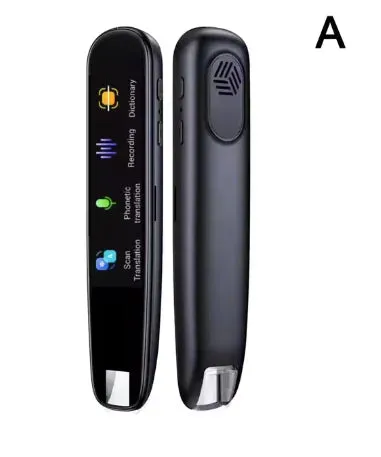
An ai pen scanner captures printed text by sliding over the page and instantly converts it into editable digital format on your smartphone or computer. The öTzi ai pen scanner makes document digitization straightforward: you scan line by line, the device recognizes the text using optical character recognition, and your content appears in the companion app ready to copy, translate, or export.
What the öTzi AI Pen Scanner Does
The öTzi scanner pen combines hardware and software to solve a simple problem: transferring printed words into your digital workflow without typing. When you glide the pen across a line of text, an internal camera captures the characters, onboard AI processes the image, and Bluetooth transmits the result to your paired device within one to two seconds.
This tool suits several scenarios:
- Students who need to digitize textbook passages, quotes, or research papers without retyping
- Professionals extracting data from printed reports, contracts, or meeting handouts
- Researchers building reference libraries from books and journals
- Travelers translating foreign-language menus, signs, or documents in real time
The öTzi model also functions as a translation pen, recognizing text in over 110 languages and offering instant translation into your target language. If you need a device that answers questions about scanned content, some models integrate ChatGPT-style AI assistants, though the öTzi focuses on accurate capture and translation rather than conversational features.
Setting Up Your AI Pen Scanner
Before your first scan, you need to charge the device, install the app, and pair via Bluetooth.
- Charge the pen using the included USB-C cable until the indicator light turns solid (typically 90 minutes for a full charge).
- Download the öTzi Pocket app from the App Store or Google Play; compatibility covers iOS 12+ and Android 8+.
- Enable Bluetooth on your phone, then power on the pen by holding the side button for three seconds.
- Open the app and tap “Add Device”; select your pen from the list when it appears.
- Complete the pairing prompt on your phone; the pen will vibrate once to confirm connection.
After pairing, the app will prompt you to select your primary language and any secondary languages for translation. You can adjust these settings anytime in the app’s language menu.
How to Scan Documents Step by Step
Scanning with the öTzi ai pen requires steady hand movement and proper lighting. Follow these steps for clean captures:
Positioning and Technique
- Hold the pen at a 60 to 80 degree angle to the page, as if you were writing naturally.
- Place the scanning tip at the beginning of the line, ensuring the camera window sits flush against the paper.
- Glide smoothly from left to right at a moderate pace (about one second per inch of text); moving too fast causes missed characters, while moving too slow can capture the same word twice.
- The device will vibrate briefly when it successfully captures a line; if you feel no vibration, re-scan that line.
Best Practices for Accuracy
Different documents require slight adjustments:
- Printed books and magazines: work best with the default settings, thanks to the high contrast between black ink and white paper.
- Glossy or laminated pages: tilt the pen slightly to avoid glare from overhead lights.
- Handwritten notes: recognition depends on handwriting clarity; print-style handwriting works better than cursive.
- Small fonts (below 8pt): move more slowly and ensure the camera captures the full line height.
The öTzi app displays scanned text in real time, so you can immediately verify accuracy and re-scan any garbled lines before moving on.
Using Translation and Export Features
Once text appears in the app, you have several options for working with it.
Instant Translation
Tap any scanned paragraph and select Translate from the menu. The app supports 112 languages, including Spanish, Mandarin, Arabic, Japanese, and less common options like Swahili or Icelandic. Translation appears in a side-by-side view, allowing you to compare original and translated text. This feature makes the device especially useful as an ai pen scanner for international students or business travelers.
Exporting Your Scans
The app offers multiple export formats:
| Format | Best For | Steps |
|---|---|---|
| Plain text | Email, notes apps | Tap share icon, select “Copy Text” or send via Messages |
| Archiving, printing | Tap three-dot menu, choose “Export as PDF” | |
| Word/Google Docs | Editing, formatting | Use “Open in…” and select your word processor |
We recommend organizing scans into projects within the app (tap the folder icon to create a new project) so you can batch-export related documents later. Check the latest price to see current bundle deals that include a carrying case and extra charging cable.
Comparing AI Pen Scanners
The smart pen market includes several models with different capabilities. Here’s how the öTzi stacks up:
| Feature | öTzi Scanner Pen | Generic ChatGPT Pens | Flowtica Scribe |
|---|---|---|---|
| Text recognition | 110+ languages | 50-80 languages | 90+ languages |
| Translation | Yes, real-time | Limited or absent | Yes |
| AI Q&A assistant | No | Yes | Yes |
| Battery life | 6-8 hours active | 4-6 hours | 5-7 hours |
If you need an ai pen that answers questions about scanned content or want ai smart pen with ChatGPT integration, models like the Notique ai pen or similar devices offer conversational features at a higher price point. The öTzi prioritizes scanning speed and translation accuracy over chatbot functionality, making it ideal for users who already have preferred AI tools on their phone.
For the ai pen scanner price, avoid paying full retail; grab the code for 10% off sitewide at öTzi Pocket, which typically brings the scanner pen into the mid-range price tier.
Troubleshooting Common Issues
Even with proper technique, you may encounter occasional problems:
- Text appears jumbled or incomplete: You moved too quickly or the pen lost contact with the page mid-scan. Re-scan at half speed with firmer pressure.
- App shows “Device Disconnected”: Bluetooth range is about 30 feet; move closer to your phone or restart both devices and re-pair.
- Battery drains quickly: Background app sync can consume power; disable auto-sync in settings and manually sync when needed.
- Foreign characters display as boxes: Update the app to the latest version, which includes expanded Unicode font support.
The öTzi device includes a one-year warranty covering hardware defects. Keep your purchase receipt and register your device in the app to activate coverage.
Maintaining Your Scanner Pen
Regular maintenance extends the device’s lifespan and keeps scans accurate:
- Clean the camera window weekly using a microfiber cloth; dust and fingerprints degrade image quality. Avoid alcohol-based cleaners that can damage the lens coating.
- Store with the cap on to protect the scanning tip from scratches.
- Charge monthly even during periods of non-use to preserve battery health; lithium batteries degrade faster when stored fully depleted.
- Update firmware when the app prompts you; updates often improve recognition algorithms and language support.
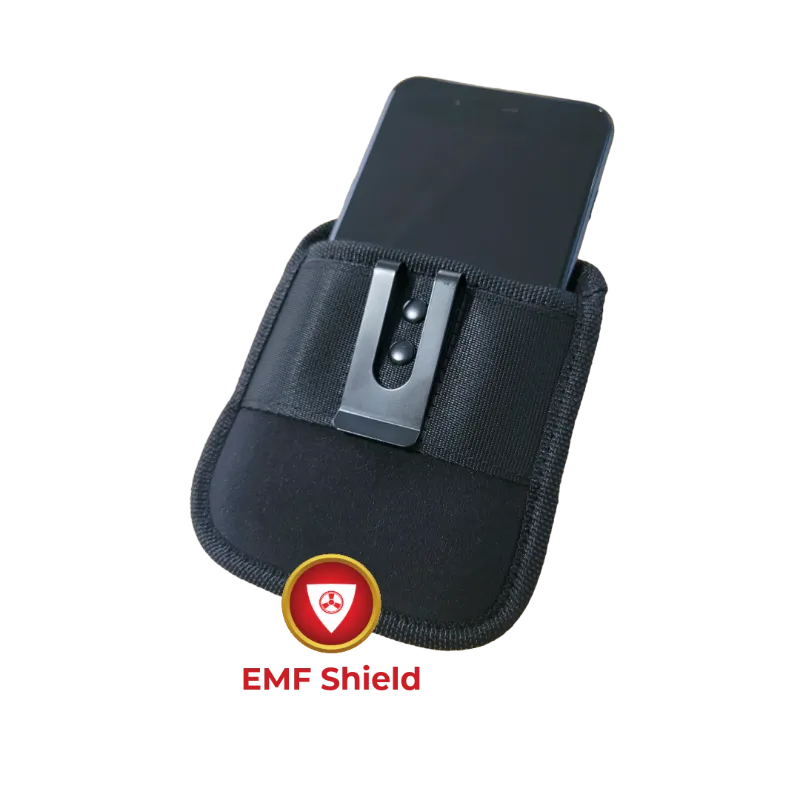
If you carry the pen daily, consider pairing it with an emf pocket protector case, which shields the device from electromagnetic interference that can occasionally disrupt Bluetooth connectivity in high-EMF environments like airports or data centers.
Who Should Use an AI Pen Scanner
This tool works best for people who regularly encounter printed text they need in digital form. It saves time compared to manual typing and reduces transcription errors. Graduate students writing literature reviews, legal professionals extracting contract clauses, and journalists capturing interview notes from printed sources all benefit from the workflow.
The öTzi scanner pen is less useful if you primarily work with digital-native documents (PDFs, web articles) that you can already copy and paste, or if you need advanced AI features like summarization or question-answering directly from the pen. For those needs, explore options that combine scanning with ai pen scanner ChatGPT integration, though expect to pay 30-50% more.
The translation feature suits multilingual households or workplaces, and the scanned original remains archived for reference.
Questions
How accurate is the öTzi ai pen scanner with different fonts?
Accuracy depends on the font and print quality. Decorative fonts, italics, and fonts below 8pt may require slower scanning and manual correction of occasional errors.
Can the scanner pen work offline without a phone?
The öTzi pen has limited onboard memory that stores about 30 pages of text when disconnected from your phone. You must sync via Bluetooth later to transfer stored scans to the app.
Does the translation pen recognize handwritten text?
Handwriting recognition depends on clarity. Print-style handwriting works better than cursive, and you may need to manually correct some words after scanning.
How long does the battery last on a full charge?
Active scanning delivers 6 to 8 hours of use, which equals approximately 300 to 400 pages of text. Standby time extends to several days when the device remains powered on but idle.
Can I use the ai pen scanner with both iPhone and Android?
Yes, the öTzi app supports iOS 12 or newer and Android 8 or newer. You can pair the same pen with multiple devices, though only one connection is active at a time.
What languages does the scanner recognize and translate?
The device recognizes text in over 110 languages and provides translation between any supported language pairs. Common options include English, Spanish, French, German, Mandarin, Japanese, Arabic, and Russian.
Products in this guide
Shopping at Ötzi Pocket? See the discount code
10% OFF Sitewide
More in this series
How Long Does the öTzi Ai Pen Battery Last With Daily Use?31 Jul 20264 minTroubleshooting Common Issues With Your öTzi Smart Pen31 Jul 20266 minWhat the öTzi Translation Pen Can (and Cannot) Do31 Jul 20264 minHow the Ötzi EMF Pocket Protector Works and Who It Suits31 Jul 20264 minöTzi Ai Pen vs Translation Pen: How to Pick the Right One31 Jul 20264 min