 A Ötzi Pocket guide
Troubleshooting Common Issues With Your öTzi Smart Pen
An ai pen like the öTzi Smart Pen occasionally runs into connectivity, battery, or recognition issues that are easy to fix with the right steps.
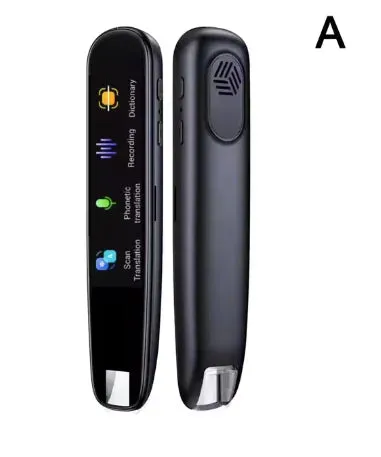
An ai pen like the öTzi Smart Pen occasionally runs into connectivity, battery, or recognition issues that are easy to fix with the right steps. Whether your ai pen won’t pair, your handwriting isn’t syncing, or your battery drains faster than expected, this guide walks you through each fix.
Why Your AI Pen Won’t Connect to Bluetooth
Bluetooth pairing failures are the most common complaint with any ai pen device. The öTzi Smart Pen uses Bluetooth Low Energy to sync notes to your phone or tablet, and interference or outdated firmware often blocks the connection.
Try these steps in order:
- Restart both devices. Power off your Smart Pen completely (hold the button for 8 seconds), then restart your phone. This clears temporary Bluetooth cache conflicts.
- Forget and re-pair. Open your phone’s Bluetooth settings, tap the öTzi device, and select “Forget.” Then open the öTzi app and run the pairing wizard from scratch.
- Check app permissions. The öTzi app needs location and Bluetooth permissions on iOS and Android. Denied permissions prevent discovery even when Bluetooth is on.
- Update firmware. Open the app, go to Settings > Device, and check for a firmware update. Older firmware versions have known pairing bugs that updates resolve.
- Move away from interference. Wireless routers, microwaves, and other Bluetooth devices can block the signal. Pair in a different room if the first attempt fails.
If pairing still fails after firmware updates, the Bluetooth module may need a factory reset. Contact öTzi support through the app for reset instructions specific to your model.
Fixing Battery Drain and Charging Problems
The öTzi Smart Pen uses a rechargeable lithium battery rated for up to 8 hours of active writing. If your pen dies in 2 to 3 hours or won’t charge at all, a few settings and hardware checks usually solve it.
Battery drain fixes:
- Disable always-on Bluetooth. The pen’s default mode keeps Bluetooth active to sync in real time. Switch to “Manual Sync” in the app’s settings to extend battery life by 40 percent.
- Lower the sampling rate. High-precision mode (1000 Hz) drains the battery faster than standard mode (500 Hz). Unless you’re drawing technical diagrams, standard mode is sufficient and doubles runtime.
- Turn off the pen when not writing. The auto-sleep timer is set to 5 minutes by default. Shorten it to 2 minutes in Settings > Power to prevent accidental drain in your bag.
Charging issues:
- Clean the charging contacts. Ink residue and pocket lint block the magnetic charger. Wipe the pen’s contacts with a dry microfiber cloth.
- Try a different USB power source. Some USB-C hubs and laptop ports don’t supply enough current. Plug the charger into a wall adapter (5V/1A minimum) and test again.
- Check the cable. The included USB-A to magnetic cable has a known weak point near the plug. If the LED doesn’t light up when you attach the pen, the cable may be damaged.
For persistent charging failures, check the latest price on a replacement cable or contact support for a warranty claim.
Resolving Handwriting Recognition and Sync Errors
The öTzi Smart Pen captures strokes with an infrared camera and converts them to digital text or vector paths. Recognition errors usually stem from calibration drift, dirty optics, or app bugs.
When handwriting looks distorted or missing:
- Recalibrate the pen. Open the app, tap Settings > Calibration, and follow the on-screen pattern. Calibration drift happens after 20 to 30 hours of use and throws off stroke alignment.
- Use öTzi-branded paper. The pen relies on a microdot pattern printed on proprietary notebooks. Generic paper won’t work. If you’re testing on plain paper, that’s the issue.
- Clean the camera lens. The infrared lens sits near the pen tip. A single fingerprint or ink smudge blocks the dot pattern. Gently wipe it with a lens cloth (not tissue, which scratches).
- Check lighting conditions. Extremely bright or dim environments confuse the camera’s exposure. Normal indoor lighting works best.
When notes sync but text recognition fails:
The öTzi app uses on-device AI to convert handwriting to text. Recognition accuracy depends on writing style and language settings. Select the correct language in Settings > Recognition, and write in print (not cursive) for best results. For more context on how AI pens handle handwriting conversion, third-party comparisons show öTzi ranks among the top performers.
Troubleshooting the Translation Pen and Scanner Pen
The translation pen and ai pen scanner share the same core hardware but add optical character recognition (OCR) for printed text. Common issues include scan failures, incorrect language detection, and slow processing.
| Problem | Cause | Solution |
|---|---|---|
| Scanner won’t capture text | Low contrast or small font | Use at least 10pt font, ensure good lighting, hold pen perpendicular to paper |
| Translation is gibberish | Wrong source language selected | Manually set source and target languages in app settings instead of auto-detect |
| Scans are slow or freeze | Offline mode disabled | Enable offline language packs in Settings > Languages to avoid cloud processing delays |
The translation pen supports 112 languages but ships with only 5 offline packs installed. Download your language pairs before travel to avoid reliance on Wi-Fi. Scanned text syncs to the app’s library, where you can copy, export, or re-translate it.
App Crashes, Freezes, and Firmware Update Failures
Software bugs in the öTzi mobile app cause occasional crashes on older phones or during large note syncs. Firmware updates sometimes stall mid-process and brick the pen temporarily.
App stability fixes:
- Clear the app cache. On Android, go to Settings > Apps > öTzi > Storage > Clear Cache. On iOS, delete and reinstall the app (your cloud-synced notes are safe).
- Reduce note library size. If you have 100+ notebooks synced, archive older ones in the app’s library view. Large databases slow down the UI.
- Update your phone’s OS. The öTzi app requires iOS 14+ or Android 9+. Compatibility patches roll out with OS updates.
Recovering from a failed firmware update:
If the pen’s LED blinks red repeatedly after an update attempt, it’s stuck in recovery mode. Connect the pen to the app, tap Settings > Device > Force Recovery, and let the app re-flash the firmware. This takes 5 to 10 minutes and requires a stable Bluetooth connection, so stay within 3 feet of your phone. Do not power off the pen during recovery.
Getting Help and Using Your Discount Code
Most issues resolve within 5 minutes once you identify the root cause.
When to contact support:
- Hardware damage (cracked pen body, broken clip, unresponsive buttons)
- Persistent Bluetooth failures after firmware updates and resets
- Warranty claims for battery or charging defects
The öTzi support team responds within 24 hours through the in-app chat. Include your pen’s serial number (printed on the barrel) and a screenshot of any error messages.
Save with our exclusive code:
Before you buy replacement accessories or upgrade to a newer model, grab the code for 10% off sitewide at Ötzi Pocket. The discount applies to all ai pen models, paper refills, and charging cables. Existing customers can use it for add-ons like extra notebooks or the protective carrying case.
For a broader look at ai pen options beyond öTzi, including wearable ai pin devices and voice-first tools like AudioPen, research reviews highlight different use cases. The öTzi Smart Pen excels at handwritten note digitization, while other devices prioritize voice capture or real-time transcription. Choose based on whether you write, type, or speak your notes.
Most öTzi Smart Pen issues come down to Bluetooth interference, calibration drift, or user error with non-branded paper. Keep your firmware updated, clean the camera lens monthly, and switch to manual sync mode if battery life is a priority. The hardware is reliable once you understand its quirks, and the company’s support and warranty terms back that up.
Questions
Why won't my öTzi ai pen pair with my iPhone or Android phone?
The most common causes are outdated firmware, denied app permissions, or Bluetooth interference. Update the pen's firmware through the app, ensure the app has Bluetooth and location permissions enabled, and try pairing in a different room away from routers or other wireless devices.
How long should the battery last on a fully charged Smart Pen?
The öTzi Smart Pen battery lasts up to 8 hours of active writing in standard mode. If yours drains in 2 to 3 hours, switch from real-time Bluetooth sync to manual sync mode and lower the sampling rate from 1000 Hz to 500 Hz.
Can I use regular notebook paper with the öTzi Smart Pen?
No, the pen requires öTzi-branded paper printed with a microdot pattern. The infrared camera reads these dots to track your strokes. Generic paper won't work because it lacks the pattern.
What should I do if my pen is stuck in recovery mode after a firmware update?
Open the öTzi app, go to Settings > Device > Force Recovery, and keep the pen within 3 feet of your phone during the 5 to 10 minute re-flash process. Do not power off the pen until the LED turns solid green.
Why does my translation pen scan slowly or give incorrect translations?
Slow scans usually mean you're relying on cloud processing. Download offline language packs in Settings > Languages for instant results. Incorrect translations happen when auto-detect picks the wrong source language, so manually set both source and target languages instead.
Where can I get replacement charging cables or accessories?
You can order official replacement cables, notebooks, and cases directly from Ötzi Pocket. Use the discount code on their site for 10% off all accessories and replacement parts.
Products in this guide
Shopping at Ötzi Pocket? See the discount code
10% OFF Sitewide
More in this series
How Long Does the öTzi Ai Pen Battery Last With Daily Use?31 Jul 20264 minWhat the öTzi Translation Pen Can (and Cannot) Do31 Jul 20264 min How the Ötzi EMF Pocket Protector Works and Who It Suits31 Jul 20264 minHow to Use the öTzi Ai Pen Scanner for Document Digitization31 Jul 20266 minöTzi Ai Pen vs Translation Pen: How to Pick the Right One31 Jul 20264 min