 A Omoni Designs guide
Setting Up Your Laptop for Bilingual Typing After Applying Korean Keyboard Stickers
A complete walkthrough for applying korean keyboard stickers and configuring your laptop so you can type in Hangul and English without missing a beat.
If you are learning the Korean alphabet or frequently switch between English and Hangul, the quickest way to make that work is with a set of korean keyboard stickers. In this guide we walk through the full setup process, from choosing the right sticker material to enabling the Korean keyboard layout in your operating system, so you can start typing bilingually in minutes.
Why Korean Keyboard Stickers Beat a Keyboard Cover
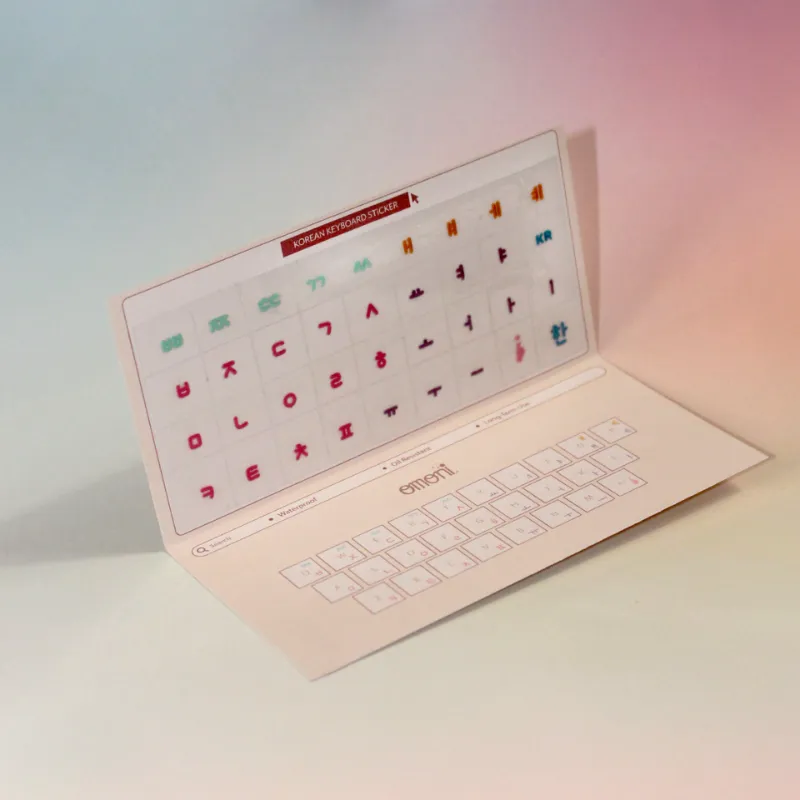
A lot of people ask us whether they should buy a korean keyboard cover instead of stickers. Covers are thicker and can make typing feel mushy. They also trap heat and dirt. Stickers are thinner, last longer, and let you feel the original keycap texture. Whether you need korean keyboard stickers transparent or opaque, the material makes a real difference in daily use.
Choosing the Right Material and Size
Not all stickers are the same. Here is what we look for:
- Transparent vs opaque. Transparent stickers let the original key legend show through, which helps if you are still learning the korean alphabet. Opaque stickers cover the original letter entirely.
- Durability. Look for laminated vinyl. Cheaper paper stickers peel within weeks.
- Keyboard fit. Standard laptop keys, MacBook scissor switches, and mechanical keyboards all have slightly different keycap shapes. Omoni Designs cuts their stickers to match each profile.
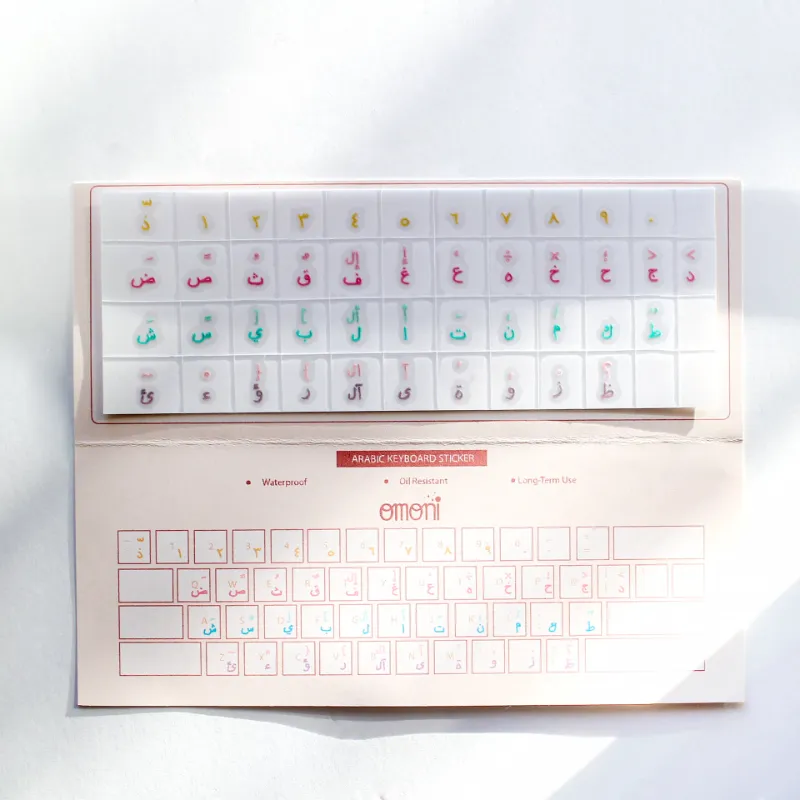
The arabic keyboard sticker set is a good option if you need a second bilingual setup.
How to Apply Korean Keyboard Stickers Without Bubbles
Application is straightforward but a little patience goes a long way. Follow these steps:
- Clean the keys. Use a microfiber cloth and a tiny bit of isopropyl alcohol. Let the keys dry completely.
- Peel one sticker at a time. Do not remove all of them from the sheet at once.
- Align from the top edge. Place the top edge of the sticker against the top of the keycap, then lower it down slowly.
- Squeegee out air. Use a credit card wrapped in a soft cloth to push bubbles toward the edges.
- Press firmly. Run your thumb over each sticker for a few seconds.
If you are using a MacBook, the korean keyboard stickers for macbook from Omoni are pre-cut to fit the butterfly and Magic Keyboard keycap shapes. The korean keyboard stickers for laptop sets work across most Windows machines too.
Configuring the Korean Keyboard Layout on Your Computer
Once the stickers are on, you need to enable the Korean keyboard layout in your operating system. This is the step people often skip, and then they wonder why pressing the sticker labels does nothing.
Windows 10 and 11
- Go to Settings > Time & Language > Language & region.
- Click Add a language and search for Korean.
- Select Korean (2-Set), which is the standard korean keyboard layout.
- Switch between layouts using Windows key + Spacebar.
macOS
- Open System Settings > Keyboard > Input Sources.
- Click the + button and add Korean (2-Set).
- Toggle layouts with Control + Space or Globe key.
ChromeOS and Linux
- ChromeOS: Settings > Device > Keyboard > Input method and add Korean.
- Linux: Most desktop environments let you add Korean under Region & Language input sources.
The Korean alphabet maps to the 2-Set layout, which is what most of the korean keyboard stickers we sell are printed to match. If you want to learn more about how Hangul maps to the keys, Typing Hangul part 1, Korean alphabet keyboard stickers is a helpful reference.
Comparison of Keyboard Sticker Options
Here is how several bilingual sticker sets compare:
| Feature | Korean Stickers | Japanese Stickers | Arabic Stickers |
|---|---|---|---|
| Material | Laminated vinyl | Laminated vinyl | Laminated vinyl |
| Transparency | Transparent or opaque | Transparent or opaque | Transparent or opaque |
| Keycap fit | Standard, MacBook, mechanical | Standard, MacBook, mechanical | Standard, MacBook, mechanical |
| Layout | 2-Set Korean | Hiragana / Katakana | Arabic letters |
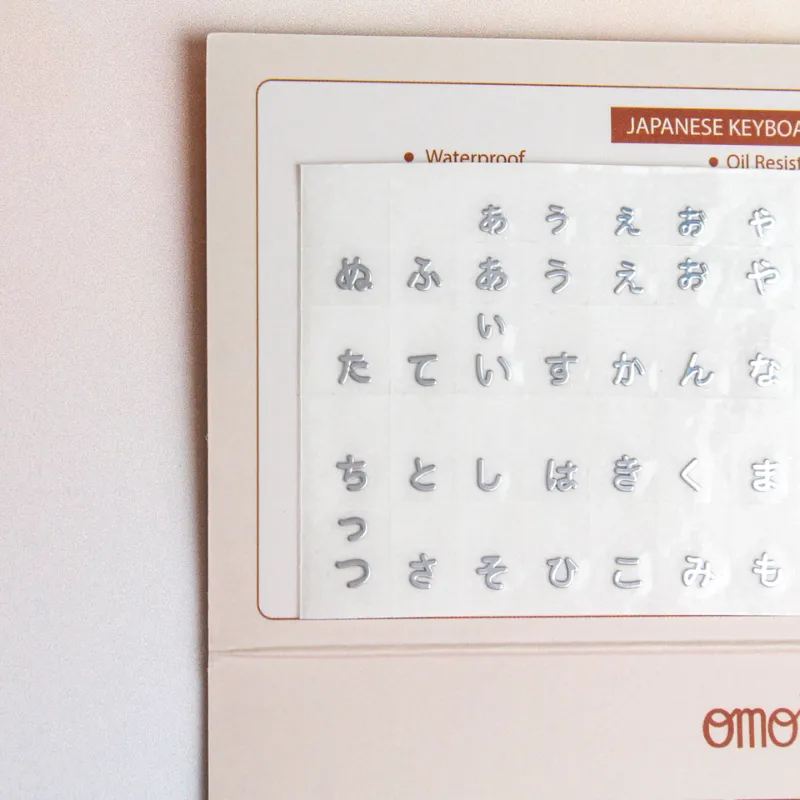
The choice comes down to which language you need. If you also write in Japanese, the japanese keyboard stickers are worth adding to your order.
Caring for Your Stickers and Keyboard
Stickers are low maintenance, but a few habits will keep them looking new:
- Clean gently. Use a slightly damp microfiber cloth, not alcohol wipes, once the stickers are on.
- Avoid sharp objects. Fingernails and ring edges can lift the corner of a sticker.
- Replace individual keys. If one sticker wears out, you do not need to redo the whole keyboard. The sets include spares for common keys.
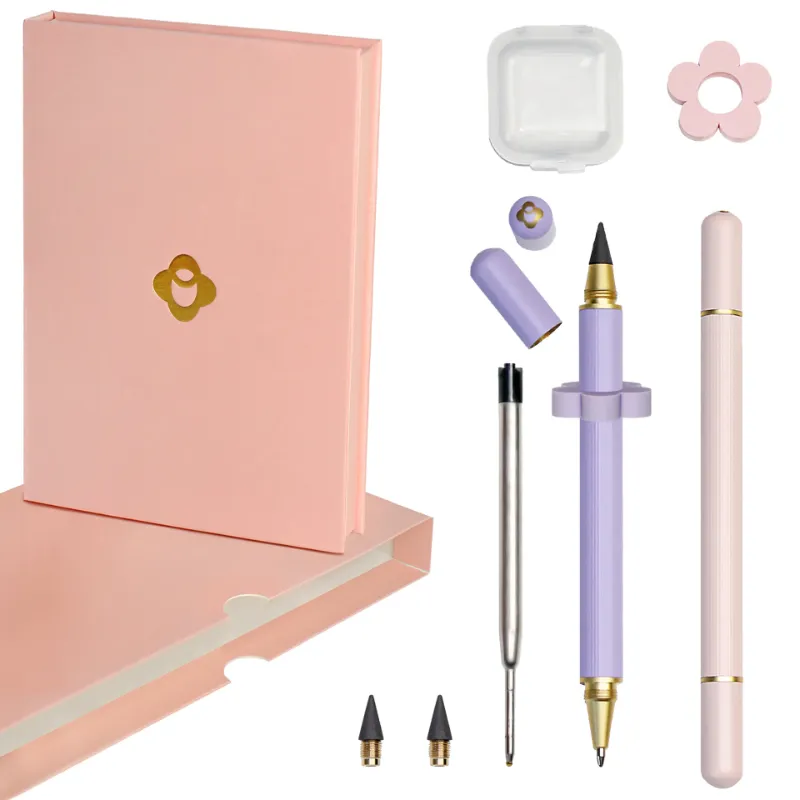
We also like the omni pens from Omoni Designs for marking notes or flashcards while you practice the korean alphabet. They write smoothly on glossy paper and do not smudge.
Who Benefits Most from This Setup
Bilingual keyboard stickers are not just for beginners. Here is who we see buying them:
- Language learners who want to practice typing without looking at a reference chart.
- Remote workers who communicate in both English and Korean daily.
- Writers and translators who need fast access to Hangul characters.
- Travelers who pick up a local keyboard and need to find the right keys quickly.
If you are ready to set up your own bilingual laptop, check the latest price and our 10% discount code to grab a set of korean keyboard stickers for your machine. The korean sticker keyboard set is also a solid choice if you prefer a full keyboard overlay look. For more technical details on the construction of these labels, Korean Keyboard Labels offers a good overview of the standard sizing. And if you want to see how the transparent variant looks on a backlit keyboard, Korean transp Apple has a useful reference photo.
Questions
Will korean keyboard stickers work on a backlit keyboard?
Yes, transparent korean keyboard stickers let the backlight shine through so you can still see the original key legends and the Hangul characters at night. Opaque stickers will block the light.
How long do korean keyboard stickers last with daily use?
Laminated vinyl stickers like the ones from Omoni Designs typically last several months to a year depending on typing frequency and how clean you keep your hands. They are replaceable individually.
Do I need to change my keyboard layout after applying the stickers?
Yes. The stickers are just labels. You must enable the Korean keyboard layout in your operating system settings for the keys to output Hangul when you press them.
Can I remove and reapply korean keyboard stickers?
Removal is possible but the adhesive may lose grip. It is better to apply them once and press them firmly. Most sets include a few spares for mistakes.
What is the difference between 2-Set Korean and other Korean layouts?
2-Set is the standard Korean keyboard layout used in South Korea. It maps consonants to the left side of the keyboard and vowels to the right.
Are these stickers safe for MacBook keyboards?
Yes, the korean keyboard stickers for macbook from Omoni Designs are precision cut to fit the shallow keycaps on Apple keyboards. They do not interfere with the mechanism or trap heat.
Products in this guide
Shopping at Omoni Designs? See the discount code
10% OFF All Orders
More in this series
Can You Use Omni Pens on a Touchscreen? A Complete Guide7 Sep 20264 minWhy Keyboard Stickers Wear Out and How to Make Korean Keyboard Stickers Last7 Sep 20264 minArabic vs. Japanese Keyboard Stickers: Which Layout Works Best for Your Needs?7 Sep 20265 minHow to Apply Arabic Keyboard Stickers Without Damaging Your Keys7 Sep 20265 min