 A Colaboxs guide
How to Set Up the Colastick V1 Plus on a TV, Monitor or Projector
Plug in, power up and connect the Colastick V1 Plus, with the ports, power and Bluetooth details the store lists.
To set up the Colastick V1 Plus, plug it into an HDMI port on your TV, monitor or projector, connect the USB-C power cable, join your WiFi and follow the prompts. Our Colaboxs discount code page lists the current code and how to use it.
What you need before you start
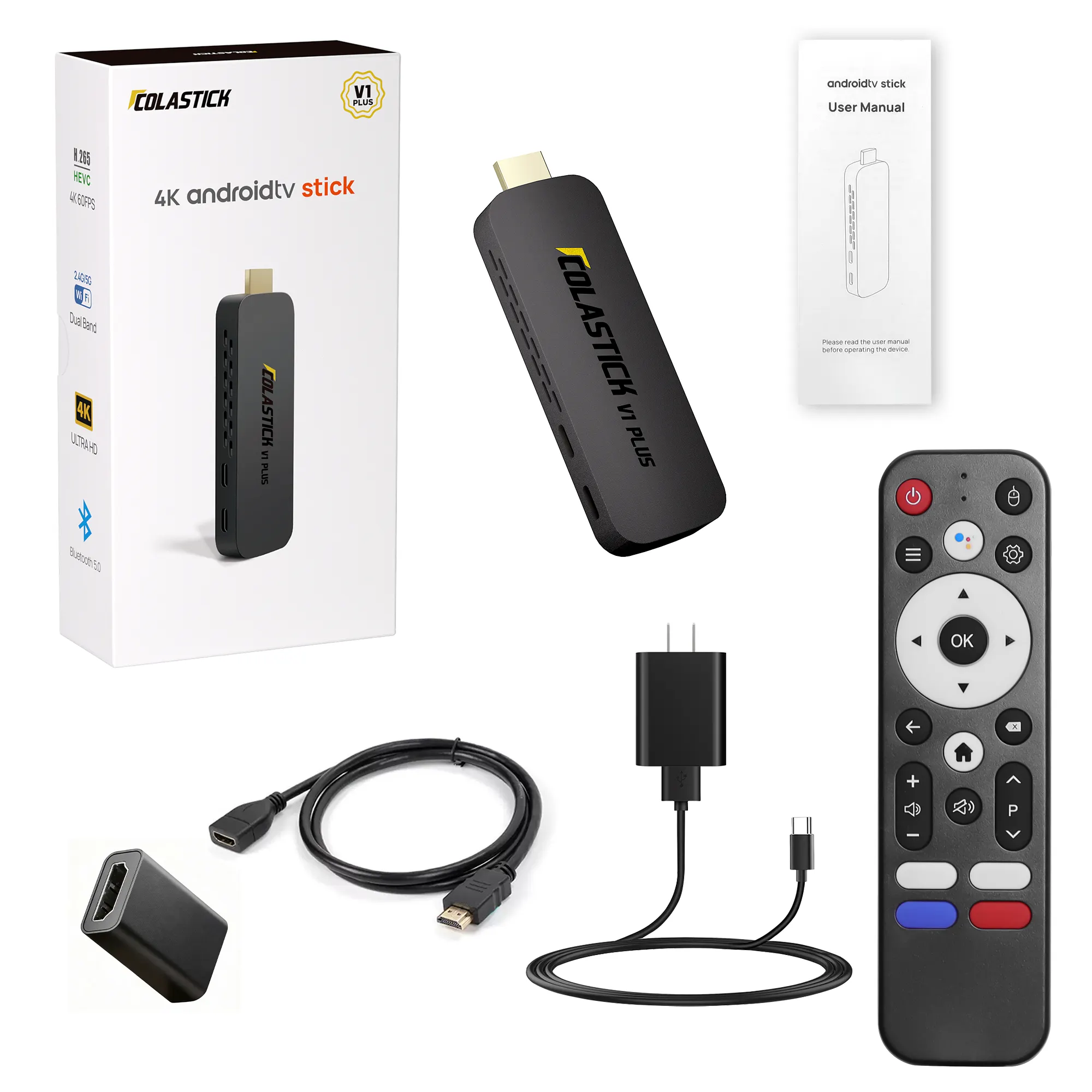
The Colastick V1 Plus streaming stick is a stick rather than a box, so it needs very little. The store’s page lists HDMI 2.0 and USB-C power (5V/2A) as its ports and power. That means you need three things: a screen with an HDMI port, a USB-C power source, and your WiFi details. The store calls the stick plug and play and says it needs no installation driver.
Check the power source before you plug in. The store lists the USB-C input as 5V/2A, so use a power source that matches. If your screen has a USB port, the store does not say the stick can run from it, so we do not assume it can.
Connecting it to a TV, monitor or projector
The Colastick FAQ says you can use it with computer monitors or projectors, as long as the display has a standard HDMI port. The steps are short:
- Connect the stick to the HDMI port on your screen.
- Attach the USB-C power cable.
- Switch the screen to that HDMI input.
- Connect to WiFi and you are ready to go.
The stick has dual-band WiFi, so it can join a 2.4GHz or a 5GHz network, according to the specifications table. If it cannot see your network, the brand’s FAQ for its L2 Plus box suggests checking that your WiFi signal works and trying your phone’s hotspot. That advice is written for the box, not the stick, but it is a reasonable first check.
Using Bluetooth headphones and the voice remote
The stick includes a Bluetooth remote with voice search, which the store describes as BLE. It also has Bluetooth 5.0, and the FAQ says you can pair wireless headphones, external Bluetooth speakers or game controllers with it. That is handy on a monitor or projector with weak built-in speakers.
What the spec sheet lists
| Item | What the store lists |
|---|---|
| Operating system | Android 14 |
| Processor | GK63 quad-core 64-bit ARM Cortex-A55 |
| Graphics | Mali450 GPU |
| Memory and storage | 2GB RAM and 32GB ROM |
| Video decoding | 4K at 60fps, H.265/HEVC, HDR10+ |
| WiFi | 2.4GHz and 5GHz dual-band |
| Bluetooth | Bluetooth 5.0 |
| Ports and power | HDMI 2.0, USB-C (5V/2A) |
These figures come from the store’s own page. A few notes on what they mean when you shop:
- RAM and storage. RAM is the working memory apps use while they run, and ROM is the space where apps and files are kept. The stick lists 2GB of the first and 32GB of the second.
- 4K and HDR10+. The decoding line describes what the stick can handle. You only see 4K or HDR10+ if your screen supports them too, so check the screen’s manual.
- HDMI 2.0. This is the connection type on the stick. It plugs into a standard HDMI port, and the store says that is all a monitor or projector needs.
- Dual-band WiFi. The stick can use the 2.4GHz or the 5GHz band of your router.
The store’s page does not give a list of apps, so we do not name any.
Buying from an authorized seller
The brand’s FAQ says it provides authorization codes and proof of authorization for every official dealer, and that after-sales service applies to purchases from authorized dealers. It also runs a distributor verification page: you enter the code your seller gives you, and a green result means the code is valid and officially recognized, while a red result means no authorized distributor was found. If you are buying the stick from a marketplace or an unfamiliar shop, ask for the code first.
The FAQ describes a one-year replacement for problems caused by a product malfunction, counted from the day you receive the product, and says specifics go through the dealer. Keep your receipt and the date of delivery together so you can show the start of that year.
Questions
How do I set up the Colastick V1 Plus?
Connect it to the HDMI port on your screen, attach the USB-C power cable, connect to WiFi and follow the prompts. The store calls it plug and play with no installation driver.
Can I use the Colastick V1 Plus with a monitor or projector?
Yes, according to the store's FAQ, as long as the display or projector has a standard HDMI port.
Does the Colastick V1 Plus work with Bluetooth headphones?
The store's FAQ says yes. It has Bluetooth 5.0 and can pair with wireless headphones, external speakers or game controllers.
What power does the Colastick V1 Plus use?
The store lists USB-C power at 5V/2A.
Does the Colastick V1 Plus have a voice remote?
Yes. The store says it includes a BLE Bluetooth remote with voice search.
Products in this guide
Shopping at Colaboxs? See the discount code
10% OFF All Orders