 A Colaboxs guide
How to Set Up Your Colabox L2 Plus, Step by Step
To set up a Colabox L2 Plus, connect it to your TV with the included HDMI cable, plug in the power cord, then follow the on-screen steps to pair the remote and choose your language, time zone, network and display area.
To set up a Colabox L2 Plus, connect it to your TV with the included HDMI cable, plug in the power cord, then follow the on-screen steps to pair the remote and choose your language, time zone, network and display area. Colaboxs describes the setup as guided and relatively easy. Our Colaboxs discount code page lists the current code and how to use it.
What is in the box and what you need
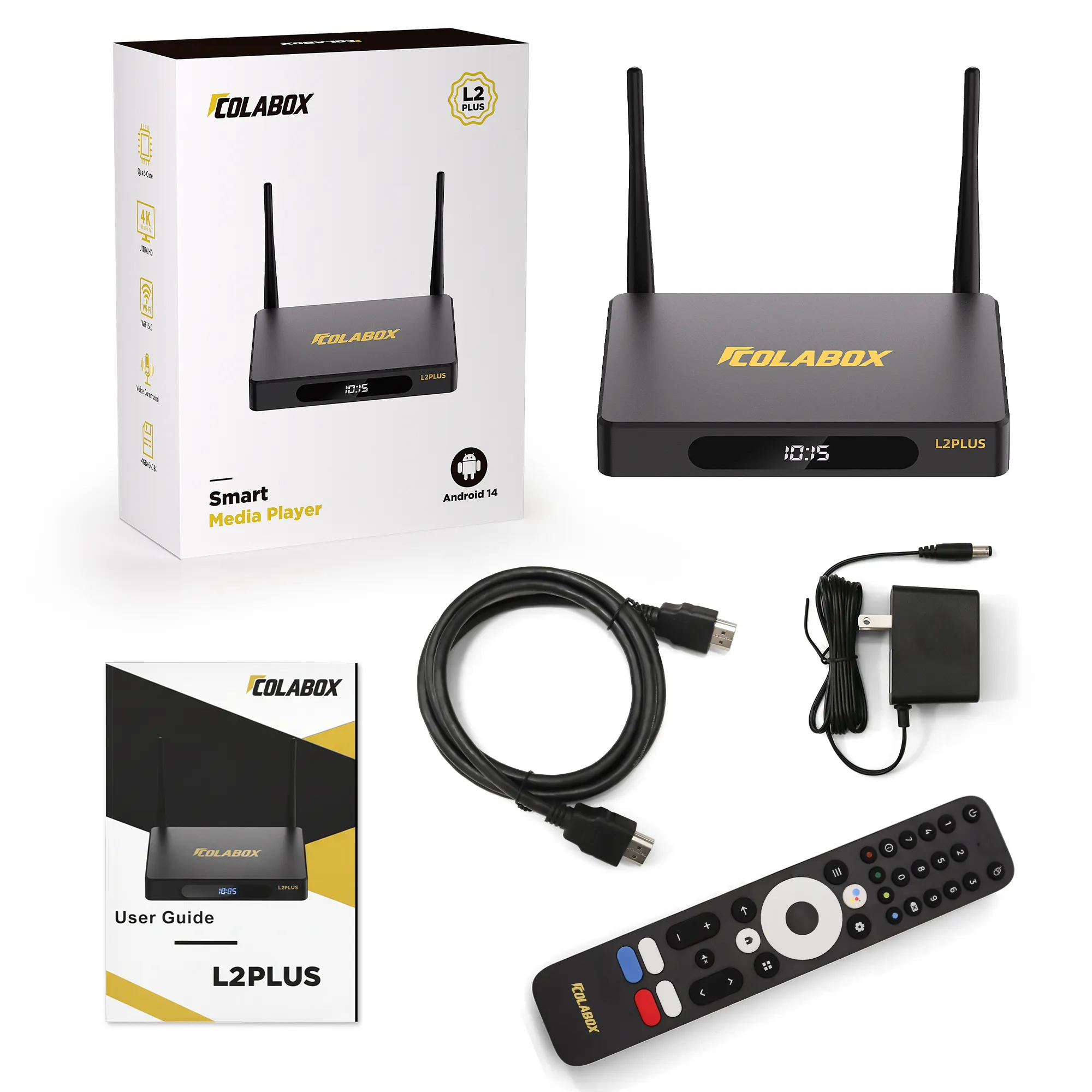
Colaboxs lists these items in the Colabox L2 Plus package:
- The L2 Plus box
- A voice remote
- An HDMI cable
- A power cord
- A user manual
You also need a TV with a free HDMI input and an internet connection. Colaboxs says a network bandwidth of 100M is enough and that no VPN is needed, you just connect to Wi-Fi or Ethernet as normal. If your router is close by, an Ethernet cable plugged into the box’s 1000Mbps port is the simplest option.
Connect the box and pair the remote
Step 1: Connect the box.
- Plug one end of the HDMI cable into the box and the other into an HDMI input on your TV.
- If you are using a wired connection, plug your Ethernet cable into the box now.
- Connect the power cord to the box and to a wall outlet.
- Turn on the TV and switch its input to the HDMI port you used.
Place the box where air can reach it. Colaboxs describes a metal case with vents on both sides, so avoid covering them.
Step 2: Pair the remote. Colaboxs’s setup page lists pairing the Bluetooth remote as the first step, and you follow the on-screen instructions to do it. Voice commands only work after this pairing, and the microphone is on the top of the remote.
If the remote will not pair, Colaboxs suggests these steps in order:
- Check that batteries are installed in the remote.
- Restart the box a few times, then try pairing again.
- If it still fails, contact the seller for after-sales support.
Step 3: Choose your settings
After pairing, the setup screens walk you through four settings, in this order on Colaboxs’s setup page:
- Language: the language for menus.
- Time zone: so the clock and any time-based features show the right time.
- Network: pick your Wi-Fi network and enter its password, or confirm the Ethernet connection.
- Display area: adjust the picture so the edges of the menus fit inside your screen. If text is cut off at the edges, this is the setting to change.
Once these are done, the box opens to its home screen.
Fix Wi-Fi and picture problems
If the box cannot find your Wi-Fi, Colaboxs’s FAQ gives this order of checks:
- Make sure your Wi-Fi signal is working on another device.
- Turn on your phone’s hotspot and see whether the box can find it. If it can, the issue is likely your router or its signal in that room.
- Restart the box, or reset its network settings.
- Try an Ethernet cable instead of Wi-Fi.
- If none of that works, contact the seller for support.
If the screen stays blank, start with the connection. Work through these general checks:
- Confirm the TV is set to the same HDMI input the box is plugged into.
- Push both ends of the HDMI cable in firmly.
- Try a different HDMI port on the TV.
- Unplug the power cord for a few seconds, then plug it back in.
If the box still shows nothing, contact the seller before you open the case or try other fixes.
After setup
Colaboxs says the L2 Plus supports OTA (over the air) updates, which means software updates download over the internet. Install them when the box offers them. Colaboxs also says only one TV can connect to a box at a time, so each TV needs its own device.
One plain rule for any streaming device: only watch content from services you are licensed to use.
Questions
Is the Colabox L2 Plus hard to set up?
Colaboxs says no. On first use you follow on-screen steps to pair the remote and pick your language, time zone, network and display area.
Do I need a VPN?
Colaboxs says no, you connect to Wi-Fi or Ethernet as normal.
Why does voice search not work?
Colaboxs says voice commands only work after the remote is paired over Bluetooth. The microphone is on the top of the remote.
What if the remote will not pair?
Check that the remote has batteries, restart the box a few times and try again. If it still fails, Colaboxs says to contact the seller.
Does the L2 Plus get software updates?
Yes. Colaboxs says it supports OTA updates, which download over the internet.
Products in this guide
Shopping at Colaboxs? See the discount code
10% OFF All Orders