 A Weikav guide
Troubleshooting Common Issues With the Keygeek Mechanical Keyboard
The iskar65 keyboard is a reliable mechanical board, but like any custom keyboard, it can develop issues ranging from unresponsive keys to RGB glitches.
The iskar65 keyboard is a reliable mechanical board, but like any custom keyboard, it can develop issues ranging from unresponsive keys to RGB glitches. This guide walks you through the fixes that actually work.
Why Your Iskar65 Keyboard Keys Stop Responding
Unresponsive keys are the most frustrating problem on any mechanical keyboard. The root cause is usually one of three things: a loose hot-swap socket, debris under the switch, or a firmware hiccup.
Start by pulling the keycap and switch on the dead key. Inspect the hot-swap socket on the PCB for bent pins or gaps. Reseat the switch firmly until you hear a click. If the socket looks damaged or the metal contact is lifted, you may need to resolder it or replace the PCB.
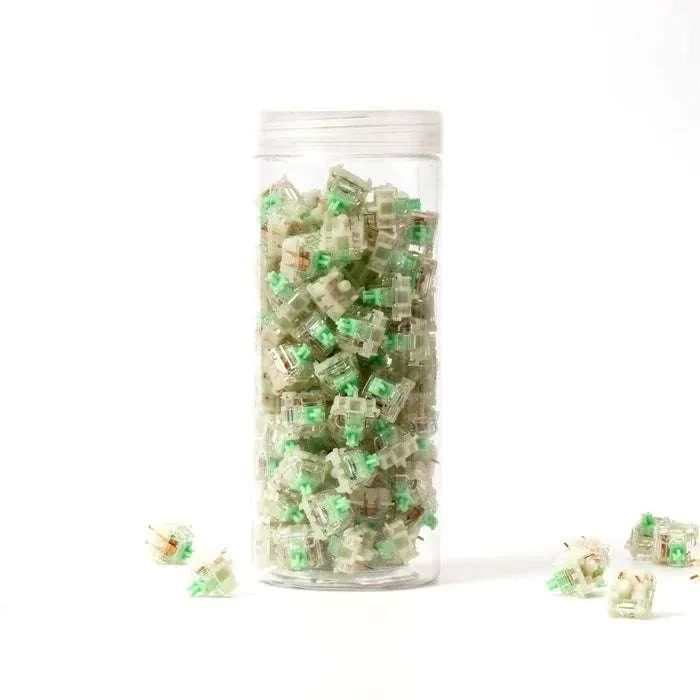
Next, check for dust or plastic shavings inside the socket. A single fiber can block contact. Use compressed air or a soft brush to clean it out. For boards with baby kangaroo switches or other tactile switches, make sure the metal leaf inside the switch housing isn’t bent.
If hardware looks fine, reflash the firmware. Download the latest VIA or QMK file from Keygeek’s support page, enter bootloader mode by holding Escape while plugging in the board, and flash using QMK Toolbox. This resets any keymap corruption.
Fixing Bluetooth and USB Connectivity Drops
Wireless dropout on the iskar65 keyboard typically stems from interference, low battery, or outdated firmware. If your board disconnects every few minutes, start with the basics.
Charge the keyboard fully and check the battery indicator. Most Keygeek boards show red LED at 10 percent or lower. If it drops connection only on Bluetooth, switch to the 2.4 GHz dongle mode if your model supports it. The dongle bypasses crowded Bluetooth channels.
USB connection issues are usually cable-related. Swap the cable with a known-good USB-C cable rated for data, not just charging. Test a different port on your computer. If the board still disconnects, inspect the USB-C port on the keyboard for bent pins or loose solder joints.
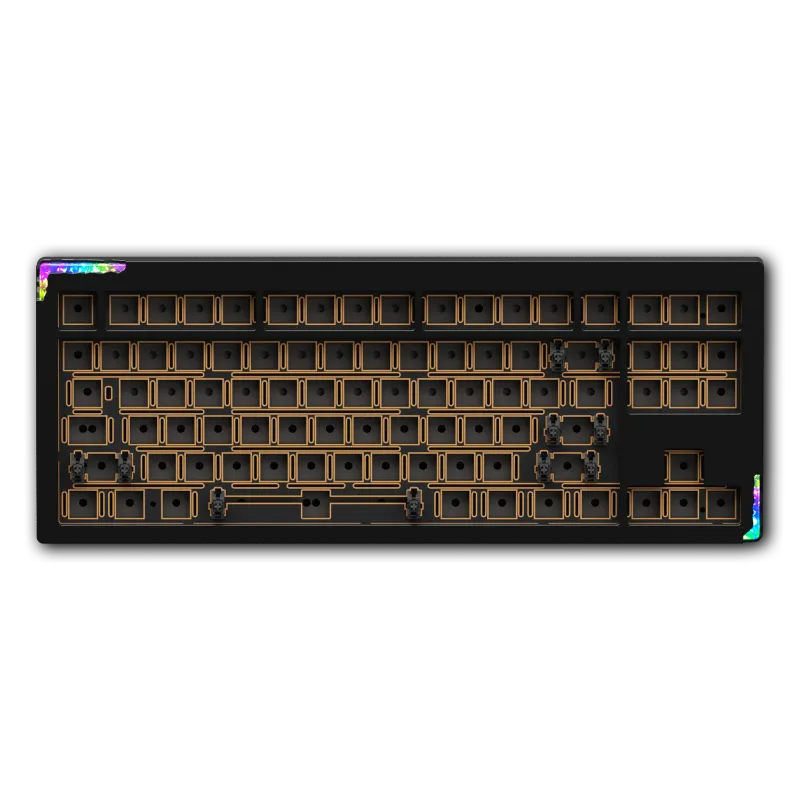
For persistent wireless problems, unpair the keyboard from all devices, reset it by holding Fn + B for five seconds, then re-pair. You can check the latest price and grab our discount code to replace a faulty cable or upgrade to a board with more stable connectivity like the star awaken 16 80.
Stabilizer Rattle and Mushy Spacebar Fixes
Rattly or mushy stabilizers plague even premium boards. The iskar65 keyboard ships with plate-mount or PCB-mount stabilizers depending on the batch, and both can develop noise over time.
Remove the keycaps on your spacebar, shift, and enter keys. Check if the stabilizer wire is seated properly in the plastic housings on both ends. Pop the wire out, clean it with isopropyl alcohol, and apply a thin layer of dielectric grease to the wire ends and the contact points inside the housing. Avoid over-lubing, which causes mushiness.
If the rattle persists, inspect for these issues:
- Loose housing: tighten the screws on screw-in stabilizers or reseat clip-in stabilizers until they snap flush
- Warped wire: replace with a genuine Cherry or Durock wire cut to the correct length
- Stem wobble: add stabilizer pads or tape mod under the PCB to reduce vertical play
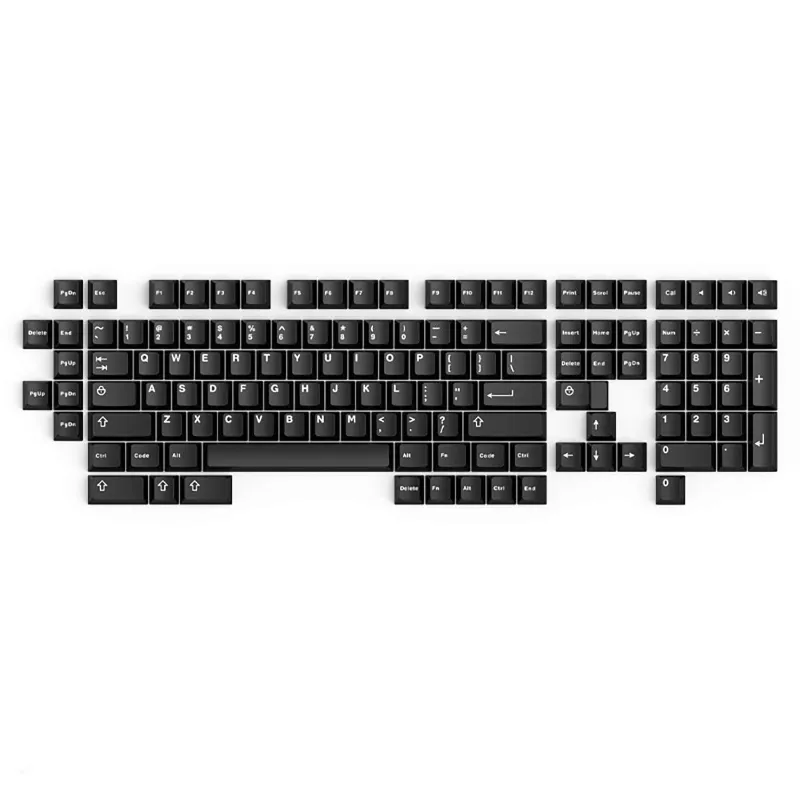
- Keycap interference: some thick PBT caps like wob keycaps on white keyboard can rub the housing; file down the inside edge slightly
For boards like the nut65 or keygeek that share the same stabilizer design, these fixes apply universally.
RGB Lighting Not Working or Stuck on One Color
RGB issues on the iskar65 keyboard usually trace back to software settings, a corrupted layer, or a failed LED. If your backlighting is dim, flickering, or frozen on a single color, start with VIA or the Keygeek software.
Open VIA and navigate to the Lighting tab. Verify that RGB is enabled and brightness is above zero. Cycle through effect modes using Fn + arrow keys to rule out a stuck preset. If one key’s LED is dead but others work, that’s a hardware failure and requires micro-soldering to replace the SMD LED.
For boards that won’t light up at all, reset the EEPROM. In VIA, go to Settings and click Clear EEPROM. Unplug and replug the board. This wipes saved lighting configs and often fixes ghost bugs.
If you’re running custom QMK firmware, double-check that RGB_MATRIX_ENABLE is set to yes in your rules.mk file and that you’ve defined the correct LED count in config.h. Reflashing with the stock firmware is the fastest way to isolate a software problem. Grab the code if you’re considering a newer board with per-key RGB controls.
Switch Feel Inconsistencies Across the Board
When some keys feel scratchy or sticky while others are smooth, you’re dealing with either switch quality variance or lube application issues. This is common on budget and mid-tier boards, including Keygeek models.
Pull the inconsistent switches and inspect the stems under good light. Look for mold marks, burrs, or uneven factory lube. Disassemble the switch by prying open the top housing, remove the spring and stem, and clean all parts with isopropyl alcohol. Re-lube the stem legs and spring with a thin coat of Krytox 205g0 or Tribosys 3203.
If you’re comparing tactile switches like baby kangaroo switches, note that hand-lubed switches will always feel more consistent than stock. Some users swap out problem switches entirely rather than tuning each one.
For linear switches that feel scratchy only after weeks of use, the issue is often dust or skin oils. Remove the keycaps, vacuum the board, and wipe down each switch housing with a microfiber cloth dampened with alcohol. Reinstall and test.
When to Contact Support vs DIY Repair
Not every problem has a home fix. If your iskar65 keyboard exhibits any of these symptoms, reach out to Keygeek or Weikav support before attempting repairs:
- PCB shorting: keys trigger randomly or the board won’t power on
- Cracked solder joints around the USB port: visible gaps or the port wiggles
- Firmware brick: the board won’t enter bootloader mode and isn’t recognized by any computer
- Warranty-sealed components: opening the case voids some warranties, so confirm before disassembly
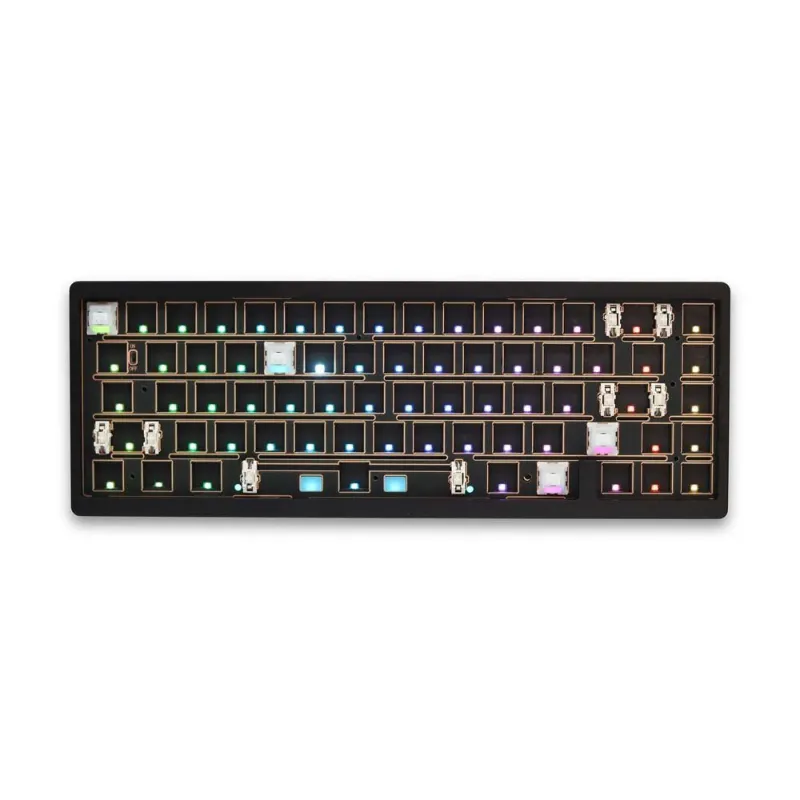
For out-of-warranty boards or simple fixes like switch swaps and stabilizer tuning, DIY is faster and cheaper. We’ve walked through these repairs on the star80 and weikav nut65 with no special tools beyond a switch puller and screwdriver.
Keep your proof of purchase and check Weikav’s current discount if a replacement board makes more sense than a repair. Most mechanical keyboard issues are fixable at home, but knowing when to stop prevents turning a small problem into a dead PCB.
Questions
Why does my iskar65 keyboard randomly disconnect during use?
Random disconnects are usually caused by a loose USB-C cable, low battery on wireless mode, or interference from other 2.4 GHz devices. Try a different cable, charge fully, and move the dongle closer to the keyboard if you're using wireless.
How do I fix a single dead key on my mechanical keyboard?
Pull the switch and keycap, inspect the hot-swap socket for bent pins or debris, then reseat the switch firmly. If the socket is damaged, you may need to solder a replacement or swap to a different socket temporarily.
Can I replace the stabilizers on a Keygeek board without desoldering?
Yes, if your board uses plate-mount or clip-in PCB stabilizers. Remove the keycaps and switches around the stabilizer, pop out the old stabs, and clip in new ones. Screw-in stabilizers require removing the PCB from the case but still no soldering.
What causes some switches to feel scratchy while others are smooth?
Factory lube inconsistency and mold variance are the main culprits. Disassemble the scratchy switches, clean them with isopropyl alcohol, and hand-lube the stem and spring with Krytox 205g0 for uniform feel.
How do I reset the RGB lighting on my keyboard when it's stuck?
Open VIA or your keyboard software, go to Lighting settings, and toggle RGB off then on. If that fails, clear the EEPROM in VIA under Settings, then unplug and replug the board to restore default lighting.
Is it worth repairing a budget mechanical keyboard or should I upgrade?
If the fix is simple like reseating switches or lubing stabilizers, repair it. For PCB damage, broken USB ports, or multiple dead LEDs, upgrading to a newer model often costs less than professional repair.
Products in this guide
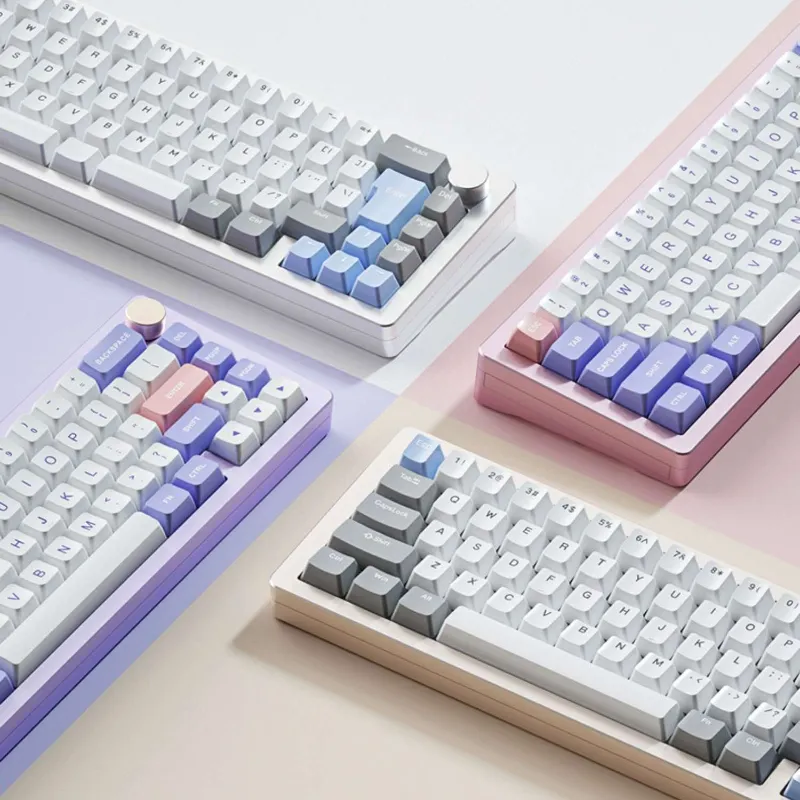
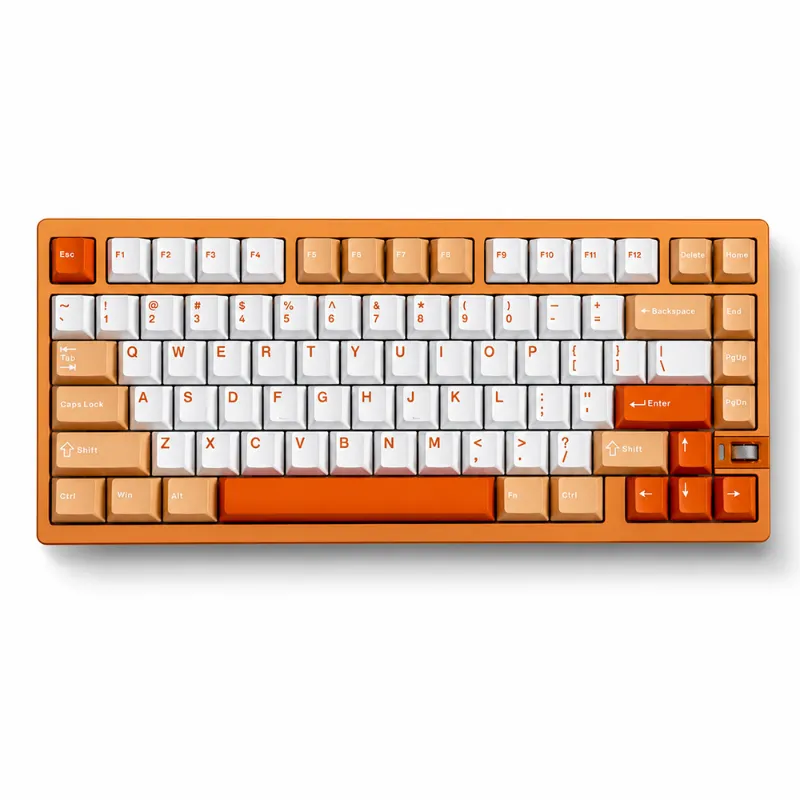
 Shopping at Weikav? See the discount code
5% OFF All Orders
Shopping at Weikav? See the discount code
5% OFF All Orders
More in this series
Weikav Star Awaken 16 80 Sound: What Shapes How It Sounds6 Aug 20263 minDo WoB Keycaps Yellow Over Time? Longevity and Care Guide6 Aug 20265 minStar80 vs Iskar65: Which Weikav Keyboard Should You Buy?6 Aug 20263 minHow to Lubricate and Mod Your Nut65 Mechanical Keyboard6 Aug 20265 minWeikav Baby Kangaroo Switches Review: Are They Worth It for Gaming and Typing?6 Aug 20264 min