 A BuzzTV Direct guide
How to Set Up Your BuzzTV Remote Control in Under 5 Minutes
Setting up your bt remote control with BuzzTV streaming devices takes less than five minutes when you follow the right pairing sequence.
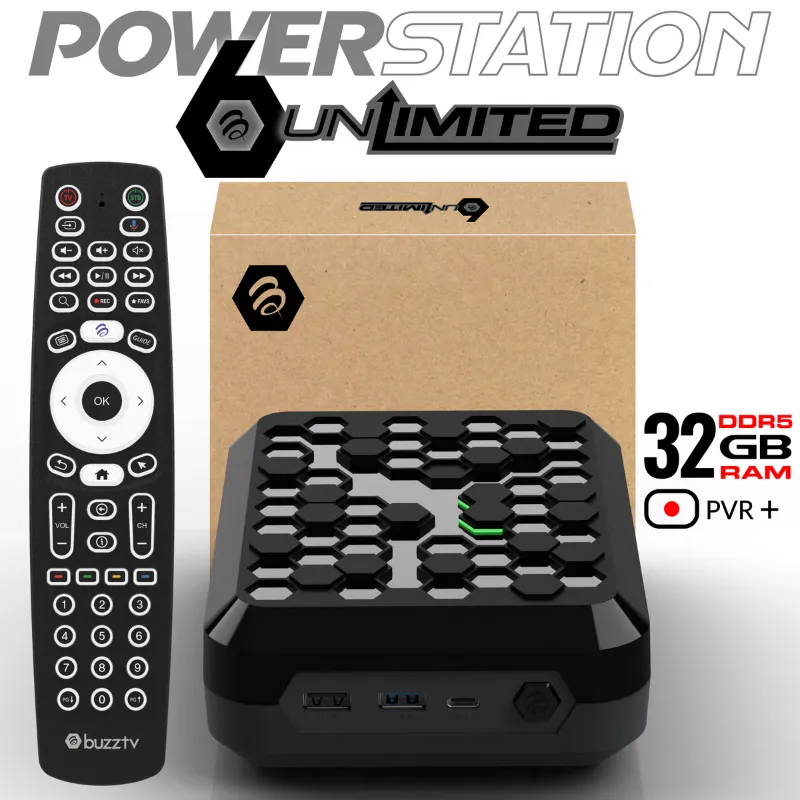
Setting up your bt remote control with BuzzTV streaming devices takes less than five minutes when you follow the right pairing sequence. Whether you’re unboxing a buzztv powerstation 6 or configuring a replacement bt remote control, the pairing process relies on Bluetooth connectivity and a few simple button combinations.
What You Need Before Pairing Your BT Remote Control
Before you start, gather these items to avoid interruptions:
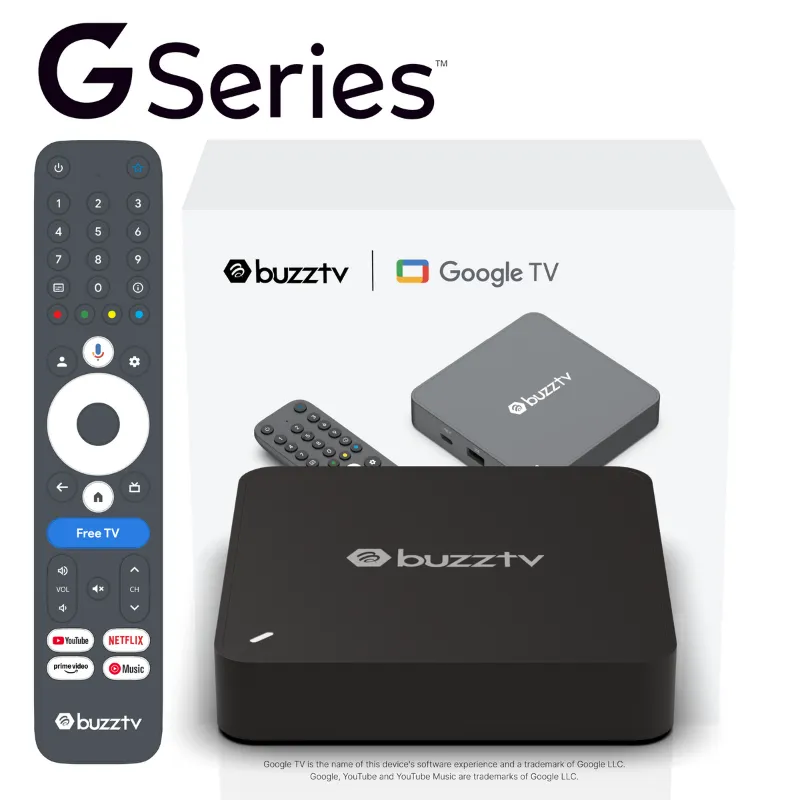
- Your BuzzTV streaming device (buzz box, buzztv p6, or buzztv powerstation 6 unlimited)
- Fresh AAA batteries for the remote (most BT remotes require two)
- A clear line of sight between the remote and the device (within three feet works best)
- Your TV powered on and set to the correct HDMI input
Make sure your BuzzTV device is plugged in and fully booted before attempting to pair. The Bluetooth radio needs to be active, which happens automatically during startup but may take 30 to 45 seconds after you see the home screen.
Step-by-Step BT Remote Control Pairing Process
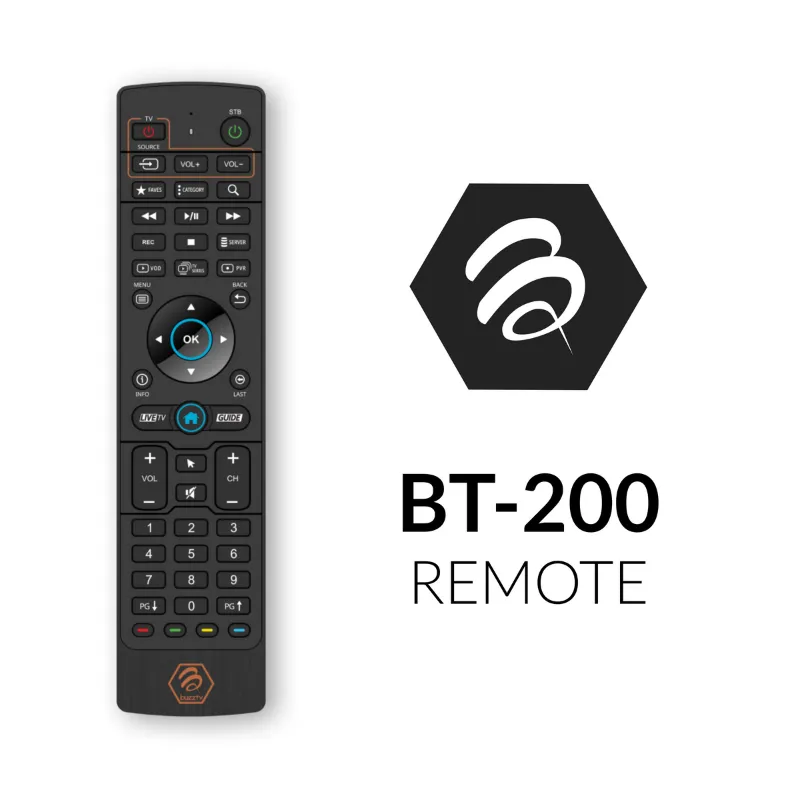
The standard pairing method works for the bt remote control tv and buzz tv remote models. Follow this sequence exactly:
- Insert batteries into the remote, observing correct polarity
- Stand within three feet of your BuzzTV device
- Press and hold the Home button and the Back button simultaneously for five seconds
- Watch for the LED indicator on the remote to flash rapidly (usually red or blue)
- Release both buttons when the LED behavior changes to a slower blink
- Wait 10 to 15 seconds for the device to detect and pair the remote
- Test basic navigation by pressing the directional pad
If pairing succeeds, the LED will stop flashing and you’ll see an on-screen confirmation message on some models. You can now navigate menus and control playback. For current device pricing and our exclusive discount code, check the latest offer.
Troubleshooting Common BT Remote Control Issues
When your bt remote control is not working as expected, try these fixes in order:
Remote won’t pair or LED doesn’t flash:
- Replace batteries with a known-good set (weak batteries cause intermittent pairing)
- Move closer to the device and eliminate obstacles between them
- Restart your BuzzTV box by unplugging it for 30 seconds, then try pairing again
Remote pairs but buttons don’t respond:
- Check if the remote is paired to a different nearby device and unpair it first
- Clear existing Bluetooth pairings on your BuzzTV device through Settings > Bluetooth > Forget Devices
- Attempt the pairing process again from scratch
Need a bt remote control replacement:
- Order a compatible bt remote control that matches your device generation
- Older buzz box tv models may require firmware updates to work with newer remotes
- Grab the discount code before ordering to save 10% on all remote accessories
If you’re exploring alternative control methods, the BT-Remote app offers smartphone-based control for iOS users, while Android users can try open-source options like Bluetooth Remote for basic navigation.
How to Reset Your TV Remote Control for BuzzTV Devices
Learning how to reset tv remote control settings fixes most persistent connectivity problems. BuzzTV remotes use a factory reset process that clears all pairing data:
- Remove the batteries from the remote
- Press every button on the remote at least once (this discharges residual power)
- Hold down the Power button for 20 seconds while batteries are still out
- Reinsert fresh batteries
- Immediately begin the pairing sequence (Home + Back for five seconds)
This hard reset clears corrupted pairing profiles and resolves issues where the remote connects but specific buttons fail. We’ve found this particularly helpful when switching a remote between multiple BuzzTV devices in the same household.
BT Remote Control App Alternatives and Advanced Features
While the physical buzz tv remote provides the most reliable experience, app-based control offers convenience when you can’t locate the remote. The bt remote control app approach works through your home WiFi network rather than direct Bluetooth pairing.
Setup requirements for app control:
- Your smartphone and BuzzTV device must be on the same WiFi network
- Enable “Remote Control” in your BuzzTV Settings > Device Preferences > Network & Internet
- Download a compatible remote app (availability varies by device model)
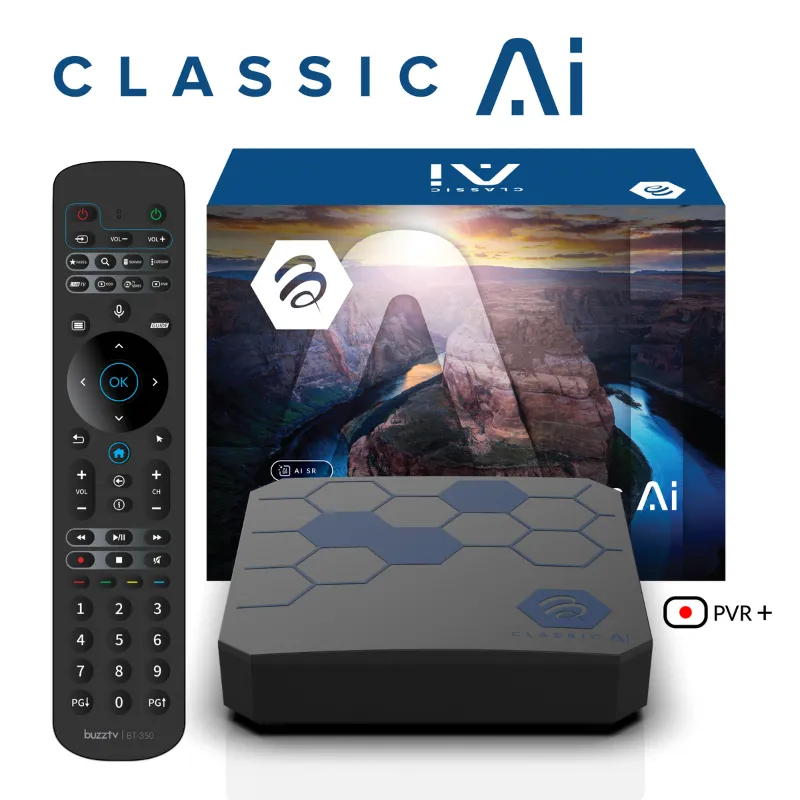
Keep in mind that app-based remotes typically lack voice control and may introduce slight input lag compared to Bluetooth hardware. For homes with multiple streaming devices like the buzz av alongside a buzztv powerstation 6 unlimited, physical remotes prevent the confusion of switching between app controls.
Maintaining Your BT Remote Control for Long-Term Performance
Proper care extends the life of your remote and reduces pairing issues. We recommend these maintenance habits:
- Replace batteries every six to eight months, even if the remote still functions (weak batteries cause range problems before they cause total failure)
- Clean the battery contacts with a cotton swab and rubbing alcohol if you notice corrosion
- Store the remote away from heat sources and direct sunlight, which degrades the Bluetooth antenna
- Keep the remote at least three feet from WiFi routers and cordless phones to minimize interference
Most BT remote models for BuzzTV devices use standard Bluetooth 4.0 or higher, which provides reliable connectivity up to 30 feet in open space. Walls, metal furniture, and other electronics reduce this range significantly, so positioning your streaming device in an open area improves remote responsiveness.
For the best experience pairing your remote with any BuzzTV streaming device, visit our discount page to access current deals on devices and accessories before you buy.
Questions
How do I pair a bt remote control to my BuzzTV device?
Press and hold the Home and Back buttons together for five seconds until the LED flashes rapidly. Release both buttons and wait 10 to 15 seconds for automatic pairing to complete.
Why is my bt remote control not working after changing batteries?
Weak or incorrectly installed batteries are the most common cause. Verify correct polarity, use fresh batteries, and perform a hard reset by removing batteries, pressing all buttons, then reinserting batteries and re-pairing.
Can I use a bt remote control replacement from a different BuzzTV model?
Most BuzzTV remotes are cross-compatible within the same generation, but older models may require a firmware update. Check your device model number before ordering a replacement to ensure compatibility.
How do I reset my BuzzTV remote when it won't pair?
Remove the batteries, press every button once, then hold the Power button for 20 seconds. Reinsert fresh batteries and immediately start the pairing process by holding Home and Back together.
What's the range of a BuzzTV bt remote control?
BuzzTV Bluetooth remotes work reliably up to 30 feet in open space, but walls and electronic interference reduce this range. Keep the remote within 10 to 15 feet of your device for best performance.
Do I need line of sight to use my BuzzTV remote?
No, Bluetooth remotes do not require line of sight like infrared remotes. However, pairing success improves when you're within three feet with a clear path during the initial setup process.
Products in this guide
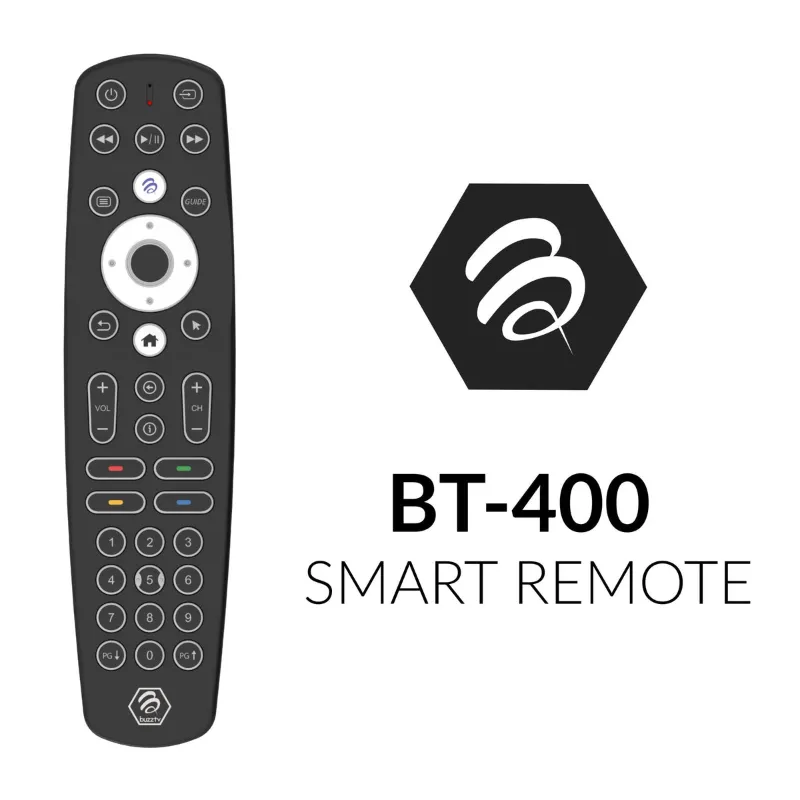
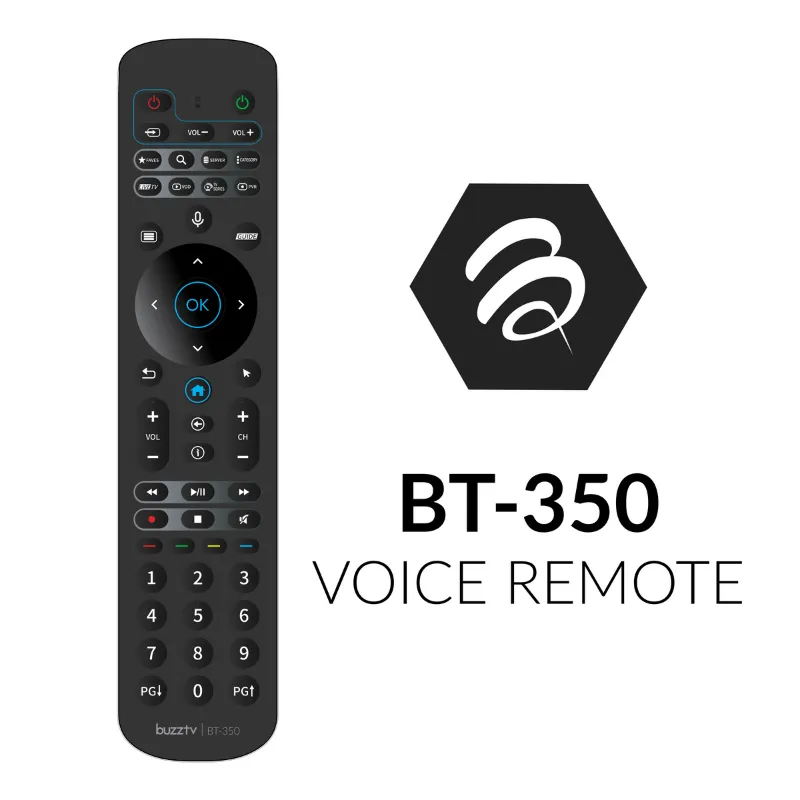 Shopping at BuzzTV Direct? See the discount code
10% OFF All Orders
Shopping at BuzzTV Direct? See the discount code
10% OFF All Orders
More in this series
BuzzTV P6 Setup Guide: Installing Apps and Optimizing Performance13 Aug 20265 minHow Long Do BuzzTV Streaming Devices Last With Daily Use?13 Aug 20265 minWhy Does My BuzzTV Remote Stop Responding and How to Fix It13 Aug 20264 minBuzzTV Powerstation 6 Unlimited Review: Is the Upgrade Worth It?13 Aug 20265 minBuzzTV Powerstation 6 vs Buzz Box: Which Streaming Device Should You Buy?13 Aug 20265 min