 A BuzzTV Direct guide
BuzzTV P6 Setup Guide: Installing Apps and Optimizing Performance
The BuzzTV PowerStation 6 delivers powerful streaming performance when configured correctly, and this guide walks you through app installation and optimization.
Getting Your BuzzTV PowerStation 6 Ready
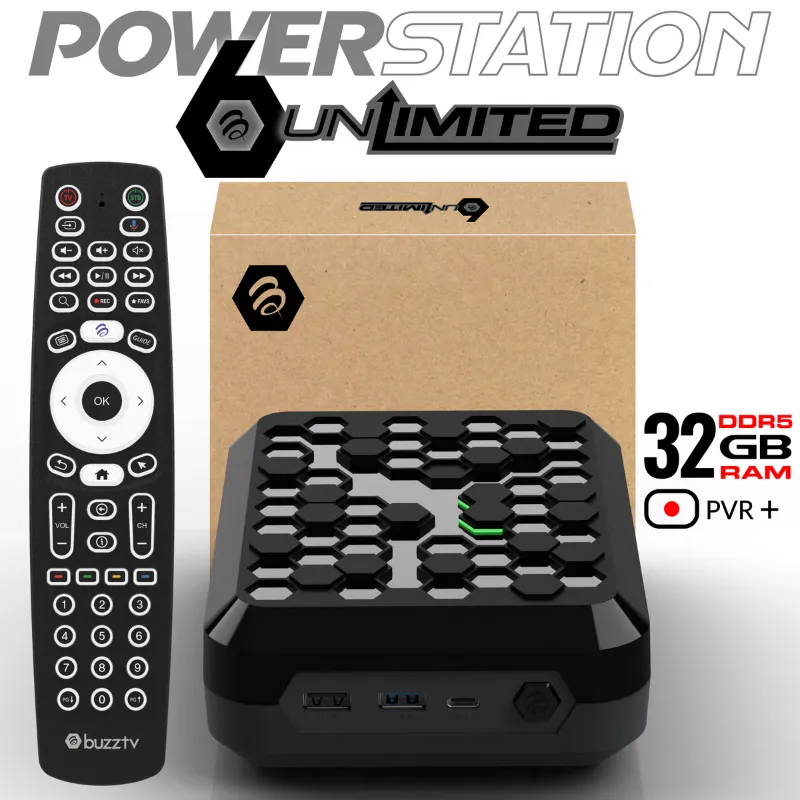
The buzztv powerstation 6 transforms your streaming experience with its robust hardware and Android TV interface, but proper setup ensures you get the most from this device. Whether you grabbed the standard buzztv p6 or the buzztv powerstation 6 unlimited version, these steps will have you streaming in minutes.
Initial Setup and Account Configuration
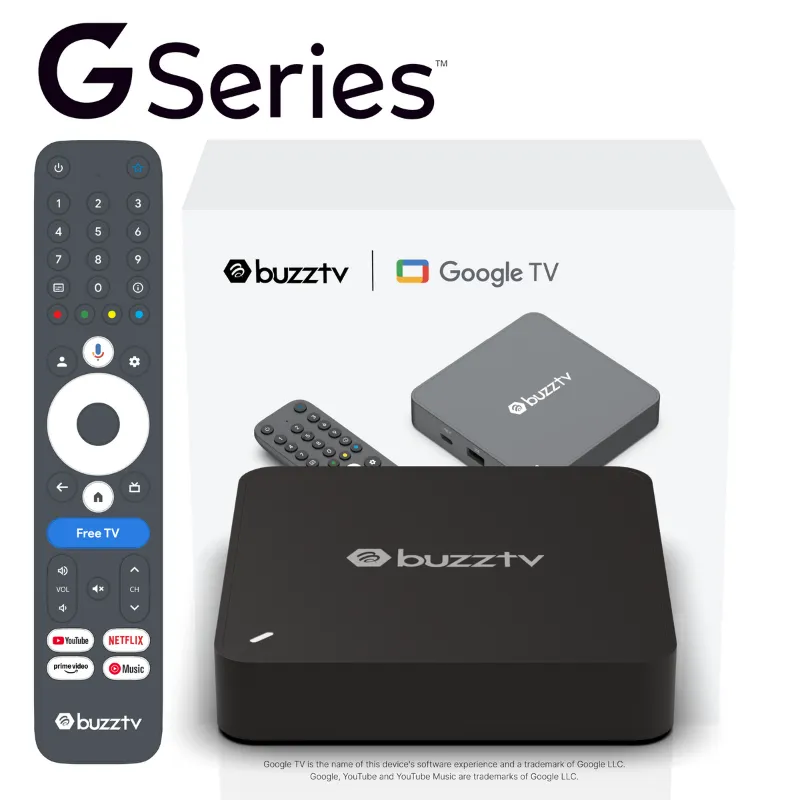
Before installing apps, complete the basic setup process on your device. Connect the buzz box tv to your display using the included HDMI cable and power it on with the bt remote control. Follow the on-screen prompts to select your language, connect to Wi-Fi, and sign in with your Google account.
Your Google account unlocks the full Google Play Store, which hosts thousands of streaming apps. We recommend using a dedicated account rather than your primary Gmail if you prefer to keep streaming activity separate. The setup wizard takes about five minutes, and you can skip optional services like Google Assistant initially if you want to dive straight into app installation.
Once you reach the home screen, navigate to Settings and confirm your network connection shows a strong signal. A wired Ethernet connection through the built-in port delivers more consistent performance than Wi-Fi for 4K streaming, especially if your router sits in another room.
Installing Essential Streaming Apps
The buzztv powerstation 6 ships with several pre-installed apps, but most users will want to add their preferred streaming services. Open the Google Play Store from the home screen and search for apps by name. Popular options include Netflix, Prime Video, Disney+, YouTube, and Plex.
Must-have apps for most users:
- Netflix: supports 4K HDR on compatible displays
- YouTube: takes full advantage of the device’s processing power for smooth playback
- Plex: excellent for organizing and streaming your personal media library
- VLC Media Player: handles virtually any video file format
- Kodi: powerful media center for advanced users
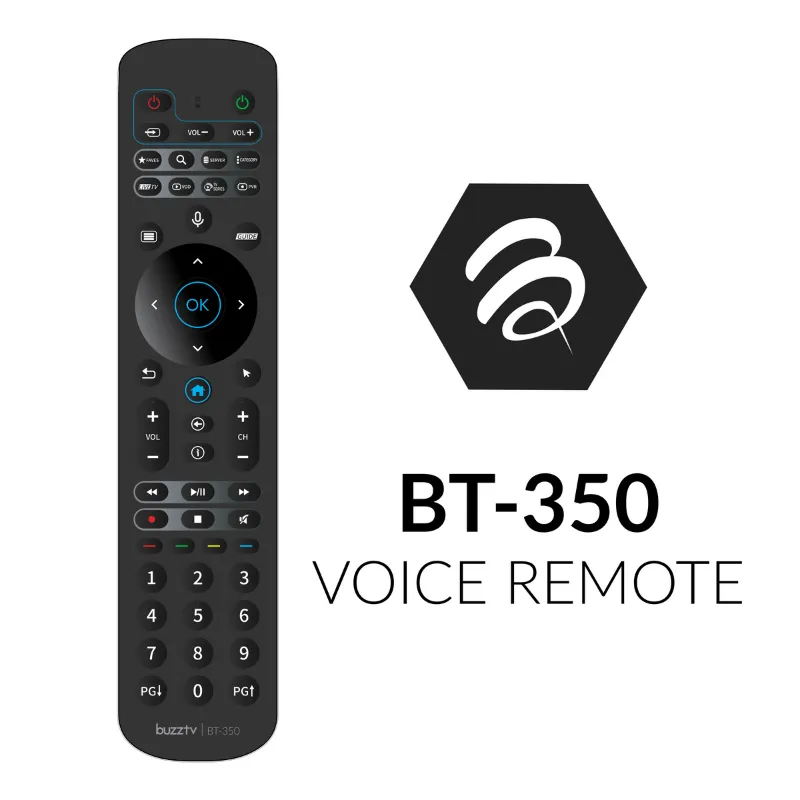
Install apps one at a time and launch each to verify it works before moving to the next. Some apps require you to sign in through a web browser or enter an activation code on another device. The buzz tv remote includes dedicated hotkeys that make navigating these apps faster once you learn the layout.
For apps not available in the Play Store, you can sideload APK files using a file manager like X-plore or by enabling installation from unknown sources in Settings. We only recommend sideloading from trusted sources, as unverified apps can introduce security risks or performance issues. Check the latest price if you’re considering adding this device to your setup.
Optimizing Performance Settings
The buzztv powerstation 6 includes 16GB RAM and powerful processing that handles demanding apps, but tweaking a few settings enhances responsiveness and picture quality. Navigate to Settings > Display & Sound to adjust resolution and refresh rate. Set these to match your TV’s native capabilities rather than leaving them on auto-detect, which can cause occasional flicker or black screens when switching apps.
Key performance tweaks:
- Set Match Content Frame Rate to ON for smoother playback in streaming apps
- Enable HDR (if your display supports it) in Display Settings
- Adjust Dolby Vision settings based on your TV’s compatibility
- Reduce or disable animations in Developer Options for snappier navigation
- Clear app cache monthly for apps you use frequently
Developer Options unlock deeper performance controls. Enable them by tapping Build Number seven times in Settings > About. Inside Developer Options, you can limit background processes to three, which frees up RAM for your active streaming app. We’ve found this particularly helpful when running Kodi alongside other services.
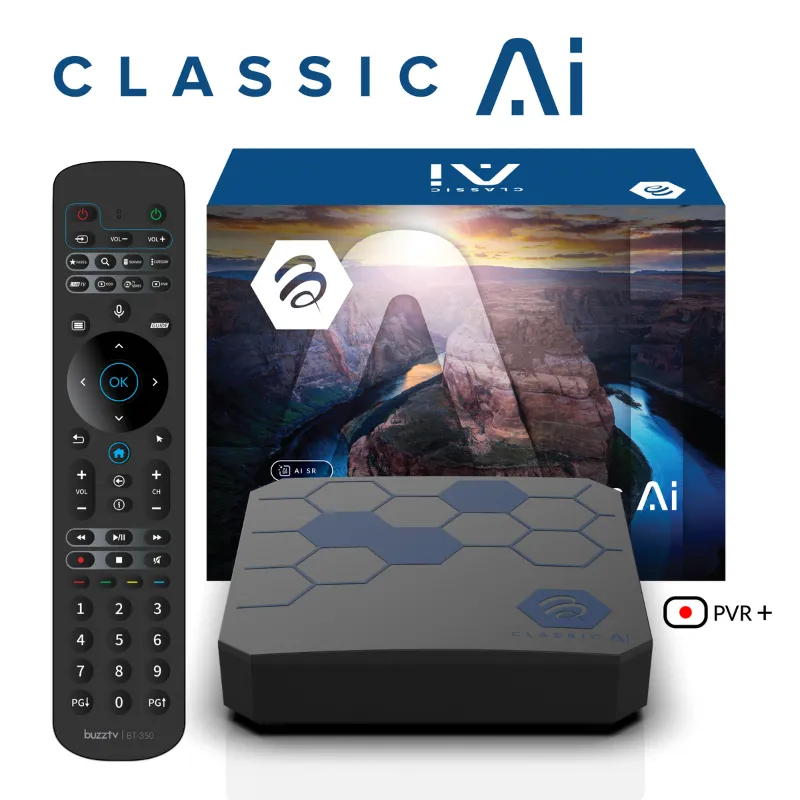
Storage management matters too. The device ships with ample internal storage, but installing dozens of apps fills it quickly. Uninstall apps you no longer use and move large media files to external USB storage. The buzz av ecosystem supports external drives through the USB 3.0 ports, perfect for 4K movie libraries.
Comparing the BuzzTV PowerStation 6 vs Other Streaming Boxes
Understanding where this device fits helps you set realistic performance expectations. The BuzzTV Powerstation P6 Review.. It’s not an Nvidia Shield offers an honest look at its capabilities compared to premium alternatives. While it handles most streaming tasks beautifully, gaming and AI upscaling remain stronger on Nvidia’s platform.
| Feature | BuzzTV PowerStation 6 | Nvidia Shield Pro | Fire TV Stick 4K Max |
|---|---|---|---|
| RAM | 16GB | 3GB | 2GB |
| 4K HDR Support | Yes | Yes | Yes |
| AI Upscaling | No | Yes | No |
| Google Play Store | Full Access | Full Access | Limited (Amazon Store) |
The buzztv powerstation 6 16gb ram configuration gives it a massive advantage in multitasking and keeping apps running smoothly in the background. You’ll notice faster app launches and smoother menu navigation compared to budget streamers. For current pricing and to grab the code, visit the discount page before placing your order.
Troubleshooting Common Setup Issues
Even with careful setup, you might encounter occasional hiccups. If apps crash or refuse to launch, force-stop them in Settings > Apps and clear their cache. Restarting the buzz box resolves most temporary glitches, and we recommend a full power cycle (unplug for 30 seconds) rather than just using the remote’s power button.
Video playback issues often trace back to HDMI handshake problems. Try a different HDMI cable or port on your TV, and confirm your cable supports HDMI 2.0 or higher for 4K content. Some users report better stability by disabling CEC control, which can cause conflicts between the streaming box and TV remote.
Audio sync problems occasionally pop up with certain apps. Adjust audio delay in the app’s settings if available, or use the built-in audio sync adjustment in Settings > Display & Sound. The BuzzTV PowerStation 6 Review – Most Powerful Android Box covers additional troubleshooting steps for advanced scenarios.
Network connectivity drops usually mean Wi-Fi interference or router issues rather than device problems. Switch to 5GHz Wi-Fi or a wired connection for bulletproof stability. We’ve also seen cases where VPN apps cause streaming services to buffer or block content, so disable them temporarily if you encounter playback errors.
Advanced Configuration for Power Users
Once basic setup is complete, explore advanced features that unlock the device’s full potential. The P6 PowerStation official page details specifications and firmware updates you should install for the latest features and security patches.
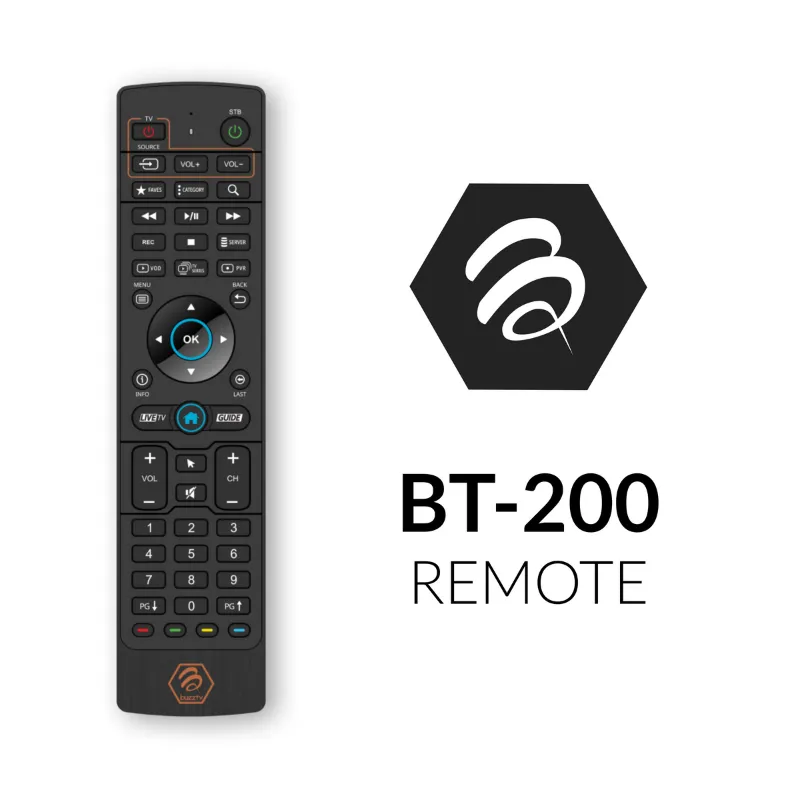
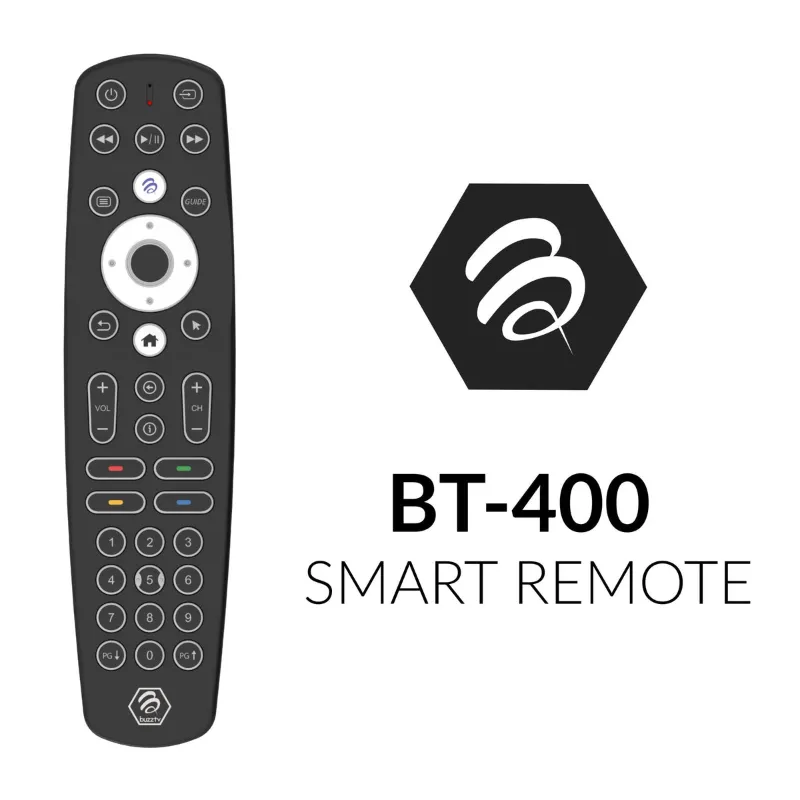
Set up automatic app updates in Play Store settings to keep everything current without manual intervention. Schedule updates for overnight hours to avoid interruptions during viewing. The bt remote control tv includes customizable buttons you can reprogram through third-party apps like Button Mapper, perfect for launching your most-used streaming service with a single press.
Create multiple user profiles if family members have different app preferences or parental control needs. Each profile maintains separate app installations, watch history, and recommendations. This keeps your carefully curated streaming setup from getting cluttered with kids’ apps or other household members’ preferences.
For maximum performance during movie night, enable Performance Mode (if available in your firmware version) and close background apps before starting playback. The 16GB RAM means you rarely need to worry about resource constraints, but closing unused services ensures every bit of processing power goes to your 4K HDR stream.
Questions
How do I install apps on the BuzzTV PowerStation 6?
Open the Google Play Store from the home screen, search for your desired app, and select Install. You can also sideload APK files by enabling installation from unknown sources in Settings, though we recommend sticking to Play Store apps for security.
Why is my streaming buffering on the BuzzTV P6?
Buffering usually indicates network issues rather than device limitations. Switch from Wi-Fi to a wired Ethernet connection, move closer to your router, or upgrade your internet speed. Also clear the cache in your streaming app's settings.
Can I use my TV remote with the BuzzTV PowerStation 6?
Yes, if your TV supports HDMI-CEC. Enable CEC control in Settings to control basic functions with your TV remote, though the included BT remote offers more precise navigation and dedicated streaming buttons.
What resolution should I set for optimal performance?
Set the display resolution to match your TV's native resolution (usually 4K at 60Hz). Enable Match Content Frame Rate in settings so the device automatically adjusts to each video's native frame rate for smoother playback.
How much storage does the BuzzTV PowerStation 6 have for apps?
The device includes internal storage for apps and system files, but you can expand capacity by connecting external USB drives for media libraries. Uninstall unused apps periodically to free up space.
Do I need a Google account to use the device?
Yes, a Google account is required to access the Google Play Store and download most streaming apps. You can create a free account during the initial setup process if you don't already have one.
Products in this guide
 Shopping at BuzzTV Direct? See the discount code
10% OFF All Orders
Shopping at BuzzTV Direct? See the discount code
10% OFF All Orders
More in this series
How Long Do BuzzTV Streaming Devices Last With Daily Use?13 Aug 20265 minWhy Does My BuzzTV Remote Stop Responding and How to Fix It13 Aug 20264 minBuzzTV Powerstation 6 Unlimited Review: Is the Upgrade Worth It?13 Aug 20265 minHow to Set Up Your BuzzTV Remote Control in Under 5 Minutes13 Aug 20264 minBuzzTV Powerstation 6 vs Buzz Box: Which Streaming Device Should You Buy?13 Aug 20265 min