 A SlimQ guide
Mac Mini M4 Storage Upgrade: Should You Buy 1TB or 2TB?
The mac mini m4 1tb/2tb ssd decision comes down to your workflow, budget, and whether you're willing to explore external or third-party storage alternatives.
Should You Choose the Mac Mini M4 1TB or 2TB Configuration?
The mac mini m4 1tb/2tb ssd choice is one of the biggest decisions you’ll make when configuring your new Mac Mini, and it’s also the most expensive upgrade Apple offers. We recommend 1TB for most users who keep large media libraries on external drives, but 2TB if you work with video editing, virtual machines, or large local datasets that demand fast internal access. Apple’s pricing makes both options steep, so understanding your actual storage needs and alternatives before checkout saves you hundreds of dollars.
The M4 Mac Mini ships with a base 256GB or 512GB configuration, but creative professionals and power users quickly outgrow those capacities. While Apple charges a premium for factory upgrades, the decision isn’t just about raw capacity, it’s about speed, convenience, and whether third-party solutions fit your workflow.
Mac Mini M4 Storage Performance: What You’re Actually Paying For
Apple’s internal SSD delivers read speeds exceeding 5,000 MB/s and write speeds around 4,000 MB/s in the M4 generation. This performance matters when you’re working with:
- 4K and 8K video timelines that require instant scrubbing and real-time effects
- Large Xcode projects with hundreds of dependencies and build artifacts
- Virtual machines running Windows or Linux alongside macOS
- Music production sessions with dozens of high-resolution sample libraries
- Photography catalogs holding tens of thousands of RAW files
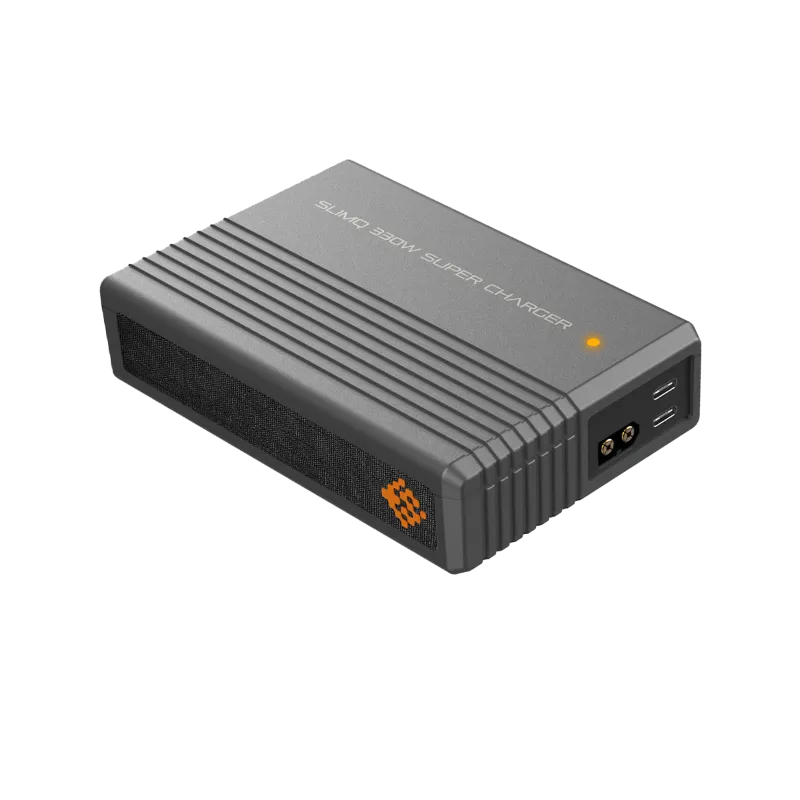
External Thunderbolt 4 drives reach similar speeds but add cable clutter and an extra device to your desk. USB-C external SSDs cap out around 1,000-2,000 MB/s depending on the drive and controller. For context, a slimq 65w usb c gan charger can power multiple peripherals while keeping your workspace clean, but even the fastest external storage introduces latency that internal SSDs avoid.
The M4’s unified memory architecture means your SSD also serves as swap space when RAM fills up. If you’re running memory-intensive tasks with the base 16GB or 24GB RAM configurations, a faster and larger internal drive prevents performance bottlenecks during heavy multitasking.
1TB vs 2TB: Breaking Down Real-World Use Cases
| Capacity | Best For | Typical Users |
|---|---|---|
| 1TB | General productivity, code, moderate photo/video work | Developers, designers, hobbyist creators |
| 2TB | Professional video editing, large sample libraries, multiple VMs | Video editors, music producers, data analysts |
Choose 1TB if you:
- Store most media on a NAS or external RAID
- Work primarily with cloud-based tools and subscriptions
- Edit 1080p video or occasional 4K projects
- Can manage storage with regular archiving habits
- Want to save $400-600 on the configuration
Choose 2TB if you:
- Edit multi-cam 4K or any 8K footage locally
- Run Parallels, VMware, or Docker containers regularly
- Use sample libraries for Logic Pro, Ableton, or Kontakt
- Need 500GB+ free space for scratch disks and cache
- Prefer keeping 2-3 years of projects instantly accessible
We’ve found that 1TB becomes tight once your system, applications, and active projects consume 400-500GB. The 2TB option gives you genuine breathing room, but Apple’s upgrade pricing makes it painful. Check the latest price through our discount code to see current offers.
Understanding Apple’s SSD Upgrade Pricing vs Alternatives
Apple charges $400 to jump from 512GB to 1TB, and another $600 from 1TB to 2TB. That’s $1,000 total for an additional 1.75TB compared to the base model. For perspective, a high-quality 2TB Thunderbolt 4 SSD costs $250-400, and recent guides like Don’t pay $800 for Apple’s 2TB SSD upgrade show the markup clearly.
Why the premium exists:
- Apple’s SSDs use custom controllers optimized for the M4’s architecture
- Factory installation ensures warranty coverage and seamless system integration
- The T2 security chip (or its M4 equivalent) encrypts the entire drive by hardware
- No tools, technical skill, or risk of damaging your new Mac
Third-party upgrade considerations:
Some adventurous users have successfully upgraded Mac Mini storage by replacing the internal SSD modules. Projects like Expand Mac mini and guides such as How I upgraded M4 Mac Mini to 2TB of storage document the process. However, this approach voids your warranty, requires specialized tools, and risks bricking a $600+ computer if you make a mistake during disassembly.
We don’t recommend DIY internal upgrades unless you’re comfortable with microelectronics and accept the warranty trade-off. For most buyers, choosing the right capacity at purchase or relying on external storage makes more sense.
Powering Your Mac Mini Setup Efficiently
The M4 Mac Mini ships with a compact built-in power supply, but your complete workspace likely includes external drives, monitors, and peripherals. A clean power solution prevents cable mess and ensures stable voltage for all your gear.
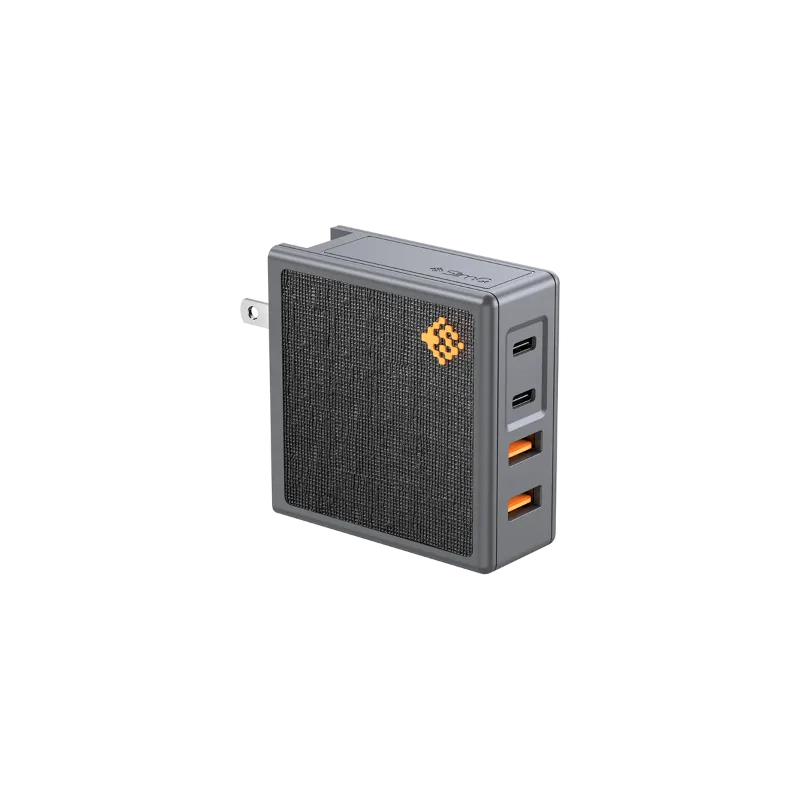
A 100w usb c charger or 140w usb c power adapter handles power-hungry devices like high-performance Thunderbolt docks or external GPU enclosures. For lighter setups with a single external SSD and a few accessories, a 65 watt usb c charger provides plenty of headroom while staying compact.
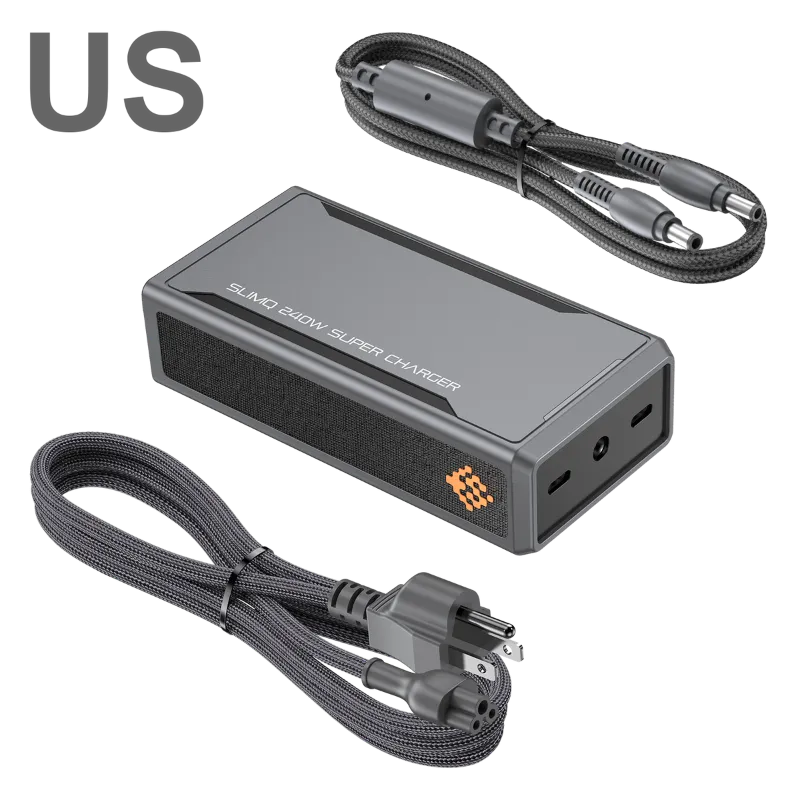
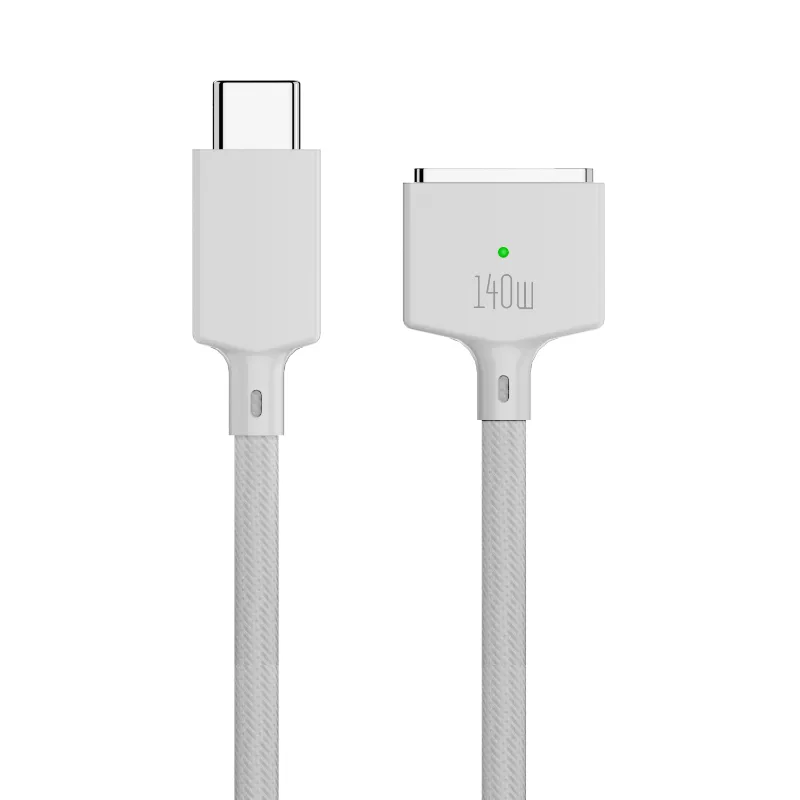
If you’re running a portable setup or need to power a MacBook alongside your Mini peripherals, a 240w usb c charger distributes power across multiple devices through intelligent allocation. Pair it with a usb-c to magsafe 3 cable if you’re also charging a MacBook Pro in the same workspace.
External Storage as a Hybrid Strategy
Many professionals adopt a hybrid approach: configure 1TB internal storage, then add a fast Thunderbolt 4 SSD for archival projects and media libraries. This strategy saves $400-600 at purchase while still delivering near-internal speeds for active work.
Ideal external storage use cases:
- Time Machine backups on a dedicated 2-4TB drive
- Video source footage that you transcode to optimized proxies on the internal drive
- Completed project archives that you access occasionally
- Sample libraries for music production, especially one-shot samples vs streamed instruments
- Bootable macOS clones for testing betas or troubleshooting
External drives do require you to remember to connect them, and they’re not ideal for applications that constantly read/write small files. Virtual machines, Docker containers, and Xcode derived data all suffer performance penalties on external storage.
Grab the code for 5% off power adapters and cables that keep your expanded setup running smoothly.
Making the Final Decision: 1TB or 2TB?
Start by auditing your current Mac’s storage usage in System Settings > General > Storage. Add 30-40% to account for growth over the Mac Mini’s 5-7 year lifespan. If that projection lands under 800GB, the 1TB model works with good housekeeping. If you’re pushing past 1.2TB, the 2TB configuration prevents constant storage anxiety.
Budget-conscious path: Buy the 1TB model and invest the $600 savings in a 2TB Thunderbolt 4 external SSD. You’ll have 3TB total capacity at roughly the same price as the 2TB internal-only config.
Performance-first path: Configure 2TB internal storage and accept the premium for maximum speed and convenience. This suits professionals who bill hourly and can’t afford workflow interruptions.
Future-proof consideration: Storage needs only grow. If you’re unsure, lean toward the larger capacity. Running out of space 18 months into ownership forces you into external drives anyway, negating the initial savings.
The 1TB model handles everything well with external overflow storage, but the 2TB option eliminates the mental overhead of managing capacity.
Questions
Can I upgrade the Mac Mini M4 SSD after purchase?
Technically yes, but it requires disassembling the Mac Mini and replacing proprietary SSD modules, which voids your warranty. Most users should configure the storage they need at purchase or use external drives instead.
Is 1TB enough for video editing on the Mac Mini M4?
1TB works for 1080p editing and moderate 4K projects if you store source footage on external drives and keep only active projects internal. Multi-cam 4K or 8K work demands 2TB to avoid constant storage management.
Do external SSDs match the Mac Mini's internal storage speed?
Thunderbolt 4 SSDs approach internal speeds at 3,000-4,000 MB/s, while USB-C drives typically deliver 1,000-2,000 MB/s. For large sequential files like video, the difference is minimal, but applications and virtual machines suffer on external drives.
How much does Apple charge to upgrade from 1TB to 2TB?
Apple charges $600 to upgrade from 1TB to 2TB when configuring your Mac Mini M4. That premium buys you integrated storage with full warranty coverage, but a 2TB external Thunderbolt SSD costs $250-400.
What happens when the Mac Mini internal drive fills up?
macOS slows down significantly once free space drops below 10-15% because the system needs room for virtual memory and cache files. You'll see performance warnings and may need to offload files to external storage immediately.
Should I buy 2TB internal or 1TB plus external storage?
Buy 2TB internal if you run virtual machines, large databases, or professional video work that demands maximum speed. Choose 1TB plus external if you can keep archives, backups, and media libraries on separate drives without workflow disruption.
Products in this guide
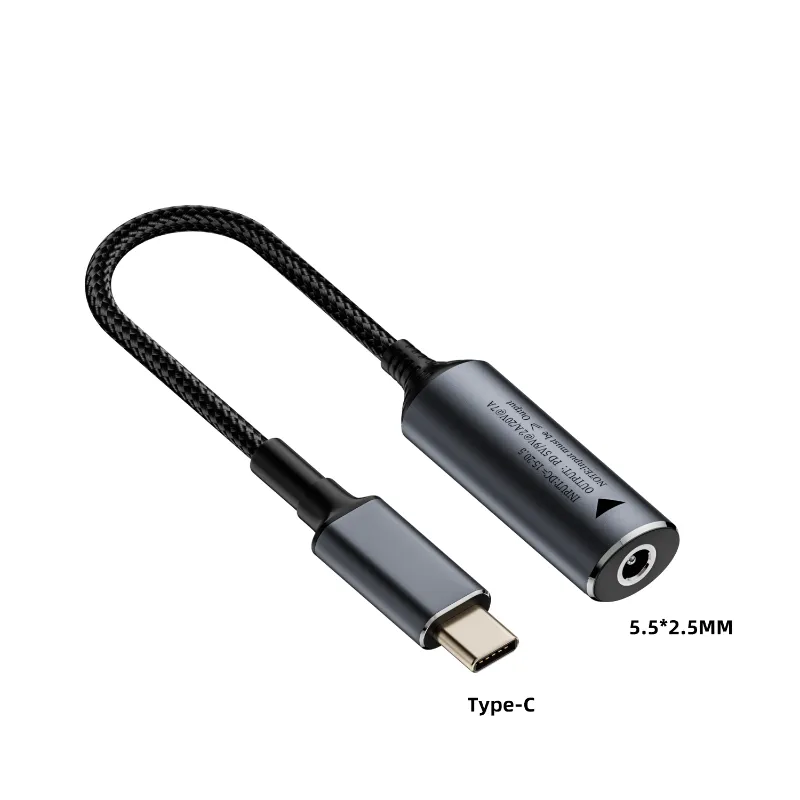
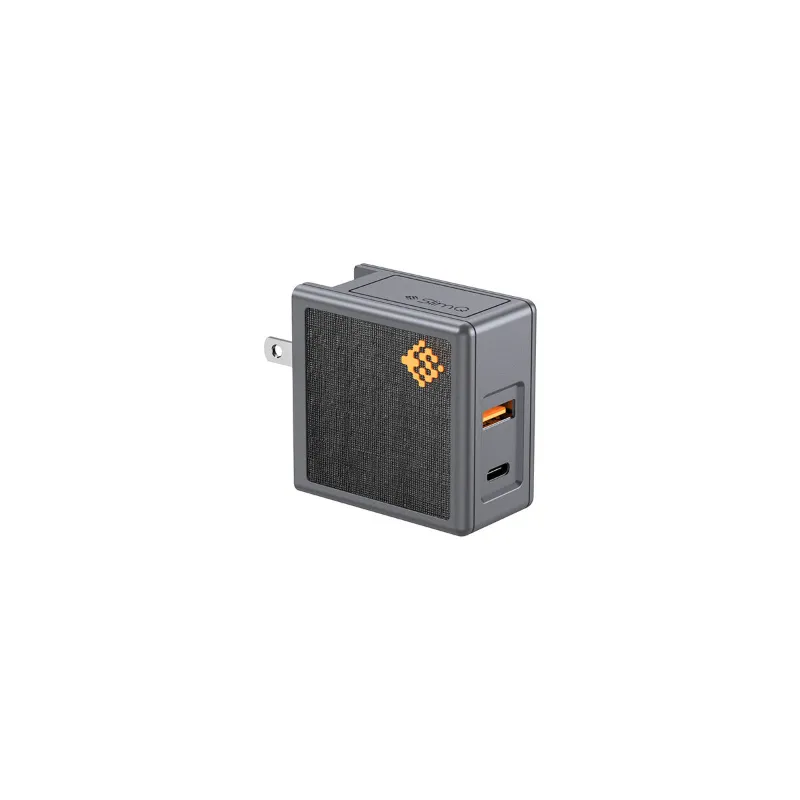
 Shopping at SlimQ? See the discount code
5% OFF All Orders
Shopping at SlimQ? See the discount code
5% OFF All Orders
More in this series
Can a 100W USB-C Charger Fast Charge Multiple Devices at Once?13 Aug 20265 minUSB-C to MagSafe 3 Cable Buying Guide: What to Look for Beyond Apple’s Original13 Aug 20264 minDo GaN Chargers Run Cooler Than Silicon Chargers?13 Aug 20263 minSlimQ 65W vs 240W USB-C Charger: Which One Do You Need?13 Aug 20264 minHow to Choose the Right Wattage USB-C Charger for Your MacBook Pro13 Aug 20264 min