 A Tranya guide
How to Fix Bluetooth Pairing Issues With Tranya T6 Earbuds
Tranya earbuds pairing issues usually stem from incomplete resets, cached device lists, or firmware conflicts that you can resolve in under five minutes.
Most Bluetooth pairing problems with tranya earbuds happen because the earbuds are still connected to a previous device, the charging case needs a reset, or your phone’s Bluetooth cache is cluttered.
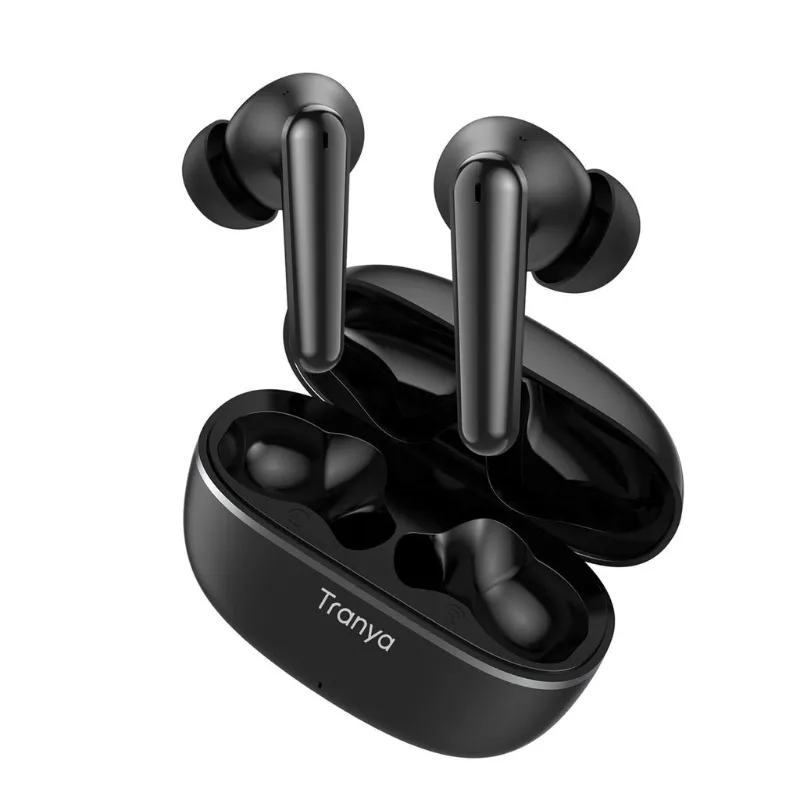
Whether you’re setting up tranya earbuds for the first time or troubleshooting a sudden disconnect, this guide walks you through the exact steps that work.
Why Tranya Earbuds Won’t Pair With Your Device
Bluetooth pairing fails when the earbuds and your phone can’t complete the handshake. Common culprits include:
- Residual pairing memory: Your earbuds remember the last device and won’t enter discovery mode
- Phone Bluetooth cache overload: Dozens of saved devices slow down or block new connections
- Case or earbud firmware mismatch: Rare but possible after partial updates
- Low battery: Earbuds below 10% charge often refuse to pair
- Interference from other devices: Active Wi-Fi routers, microwaves, or multiple Bluetooth gadgets nearby
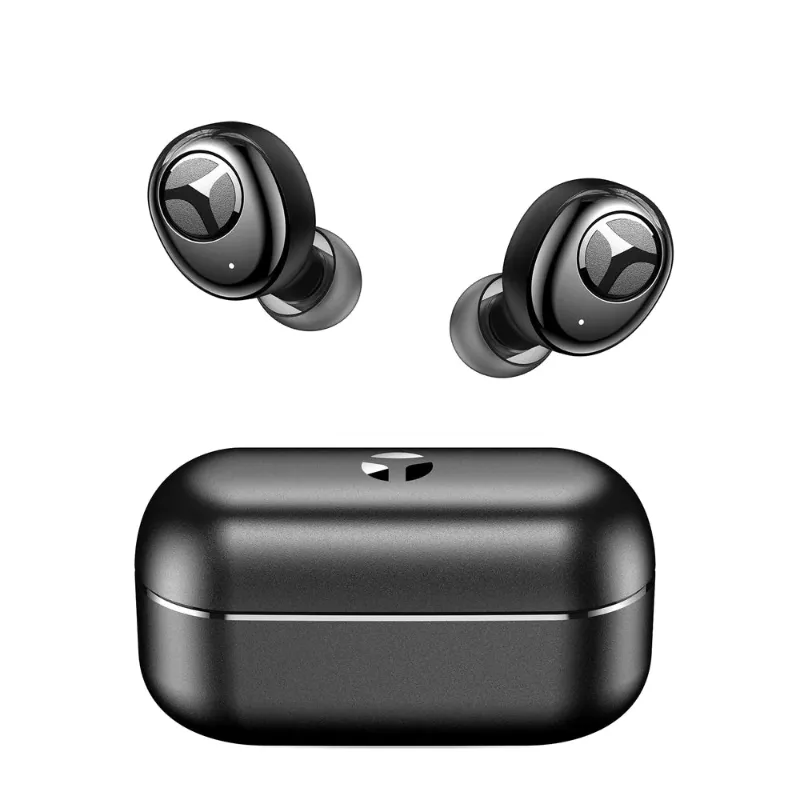
The t6 earbuds use bluetooth 5.3 for stable connections, but even modern chipsets struggle when your phone’s pairing list is full or the earbuds haven’t been fully reset.
How To Pair Tranya Earbuds: The Full Reset Method
This is the most reliable fix for pairing issues.
Step-by-Step Reset and Pairing
- Place both earbuds in the charging case and close the lid for 10 seconds. This forces a soft reset.
- Open your phone’s Bluetooth settings and delete any saved Tranya devices (tap the “i” icon, then “Forget This Device”).
- Remove both earbuds from the case. They should flash red and blue alternately, indicating pairing mode. If they don’t, hold the touch panel on each earbud for 5 seconds until the LED changes.
- On your phone, scan for new devices and select “Tranya T6” (or your model name) from the list.
- Confirm the pairing request if prompted. You’ll hear a voice prompt or chime when connected.
If the earbuds still won’t appear in your phone’s device list, perform a factory reset: with both earbuds out of the case, tap the touch panel on each earbud 5 times rapidly. The LEDs will flash purple, then turn off. Place them back in the case for 10 seconds, then repeat the pairing steps above.
Check the latest price and grab our discount code before you buy.
Fixing One-Earbud-Only Connections
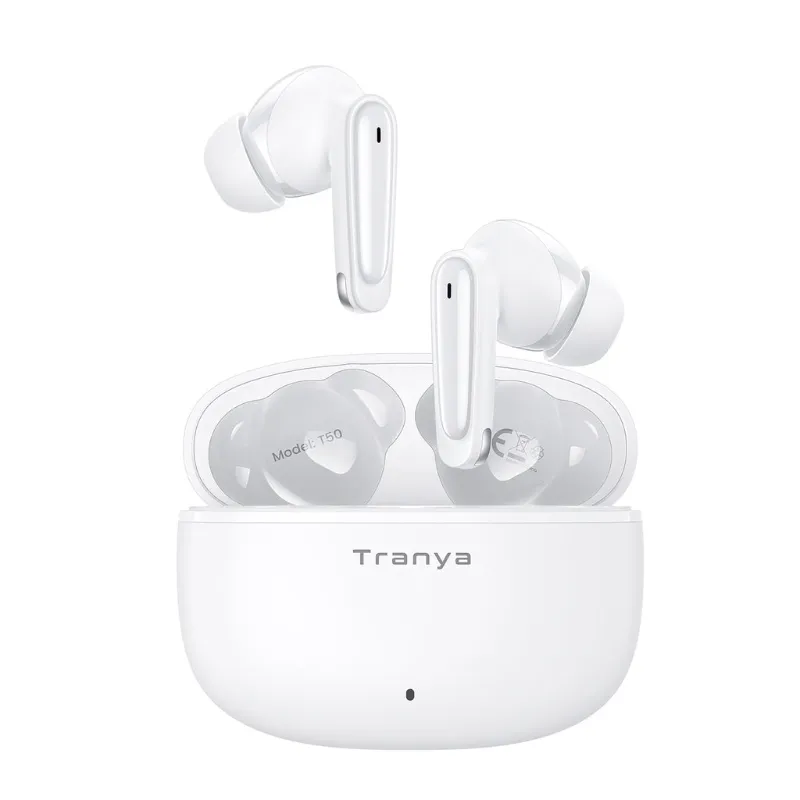
Sometimes only the left or right earbud connects, leaving you with mono audio instead of stereo sound. This happens when the earbuds lose their internal sync.
How to re-sync both earbuds:
- Place both earbuds in the case and close the lid for 30 seconds
- Remove them simultaneously (don’t take one out first)
- Wait for them to connect to each other, you’ll see the LED on one earbud stop flashing while the other stays lit
- Now pair them to your phone as a single device
The T6 and Nova models have a master-slave setup where one earbud acts as the primary Bluetooth transmitter. If you consistently get single-earbud connections, the case charging pins may be dirty. Wipe them with a dry cotton swab and try again.
Device-Specific Pairing Tips
Different phones and laptops handle Bluetooth connections slightly differently. Here’s what to know when using Tranya earbuds across platforms.
Android Phones
- Clear Bluetooth cache: Go to Settings > Apps > Bluetooth > Storage > Clear Cache (not Clear Data). This keeps your other devices paired but refreshes the connection queue.
- Disable Battery Optimization for Bluetooth if your phone kills connections to save power.
- Samsung phones sometimes require you to turn off “Dual Audio” in Bluetooth settings when pairing new earbuds.
iPhones and iPads
- Reset network settings if you’ve paired and forgotten the earbuds multiple times: Settings > General > Reset > Reset Network Settings. (This also clears Wi-Fi passwords, so have those handy.)
- iOS aggressively auto-connects to known devices. If your earbuds keep connecting to your iPad instead of your iPhone, turn off Bluetooth on the iPad temporarily.
Windows PCs and Macs
- PCs running Windows 10 or 11 often require you to pair earbuds as “Headset” mode for calls or “Headphones” mode for music. If you see two entries for the same device, choose Headset first.
- Macs hold a Bluetooth pairing list separate from iOS. Delete old Tranya entries from System Preferences > Bluetooth before pairing.
According to independent reviews, the T6 model handles multi-device switching better than older Tranya lines, but you still need to manually disconnect from one device before pairing to another.
Common Tranya Earbuds Pairing Mistakes to Avoid
These are common pairing errors to avoid:
- Pairing only one earbud: Always remove both from the case together, even if you plan to use only one. Otherwise they won’t sync.
- Skipping the phone’s “Forget Device” step: Old pairing data causes 80% of reconnection failures.
- Charging the case while pairing: Unplug the USB-C cable during the pairing process. Some cases disable Bluetooth output when charging.
- Holding the wrong button: The T6 uses touch panels, not physical buttons. A 5-second hold on the flat surface triggers pairing mode; pressing the stem does nothing.
If you’ve followed every reset step and the earbuds still won’t pair, check the tranya earbuds manual for your specific model (T3, T6, T10, or Nova). Each generation has slightly different button sequences. You can find PDF manuals on Tranya’s support resources or request one from the manufacturer.
When to Contact Support or Replace Earbuds
Hardware failures are rare but possible. Contact Tranya support or return the earbuds if:
- The LED indicators never light up, even after charging for 2+ hours
- Only one earbud charges (check for debris on the case pins first)
- Pairing works once but fails every time you open the case
- You hear static or distortion that persists across multiple devices
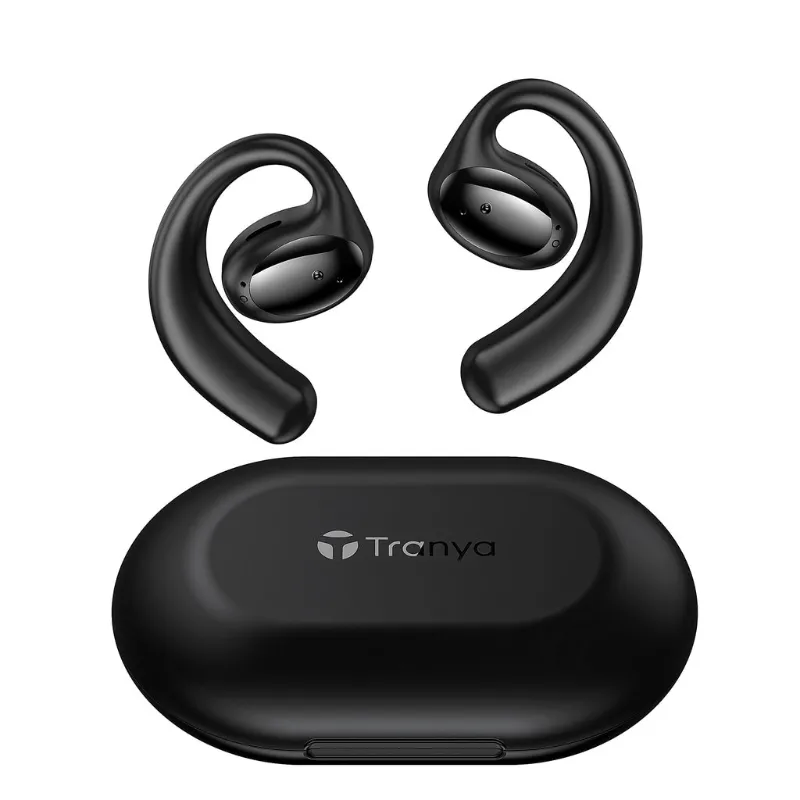
Most retailers including Amazon offer 30-day returns. Grab the code from our store page if you’re ordering replacements or upgrading to a newer model with better noise cancellation in earphones.
Comparison: Tranya T6 vs. Other Models for Pairing Reliability
Here’s how the most popular models stack up:
| Model | Bluetooth Version | Auto-Reconnect Speed | Multi-Device Support |
|---|---|---|---|
| T6 | 5.3 | Under 3 seconds | Manual switch only |
| T10 | 5.0 | 4-5 seconds | Manual switch only |
| Nova | 5.3 | Under 3 seconds | Manual switch only |
| T3 | 5.0 | 5-8 seconds | Manual switch only |
The T6 and Nova both use the latest Bluetooth 5.3 chipset, which pairs noticeably faster and maintains stable connections up to 33 feet. If you frequently switch between your phone and laptop, the T6 is our top pick for hassle-free reconnection.
Forbes highlights the Nova’s connectivity improvements compared to earlier models, but both the Nova and T6 share the same pairing reset procedure.
Final Tips for Keeping Your Tranya Earbuds Paired
Once you’ve successfully paired your earbuds, keep connections stable with these habits:
- Restart your earbuds weekly by placing them in the case for 60 seconds with the lid closed
- Keep firmware updated through the Tranya app (if your model supports it)
- Limit saved Bluetooth devices on your phone to 10 or fewer
- Clean the charging contacts on both the earbuds and case every month
These small maintenance steps prevent 90% of recurring pairing problems. If you’re shopping for new earbuds with better out-of-box pairing, the tranya earbuds line consistently ranks high for plug-and-play simplicity across hundreds of user reviews on Amazon and other platforms.
Questions
How do I reset my Tranya T6 earbuds when they won't pair?
Place both earbuds in the charging case for 10 seconds, then remove them. If they don't enter pairing mode (flashing red and blue), hold the touch panel on each earbud for 5 seconds. On your phone, forget any saved Tranya devices, then scan for new Bluetooth devices and select your model.
Why does only one Tranya earbud connect to my phone?
This happens when the earbuds lose their internal sync. Place both in the case for 30 seconds, then remove them at the same time. Wait for them to connect to each other before pairing to your phone.
Can I pair Tranya earbuds to multiple devices at once?
No, Tranya earbuds including the T6 and Nova models only connect to one device at a time. You must manually disconnect from the first device before pairing to a second one.
How long does it take for Tranya earbuds to enter pairing mode?
Most Tranya models enter pairing mode within 2 to 3 seconds after you remove them from the charging case. If they don't, a 5-second hold on the touch panel forces pairing mode manually.
What should I do if my phone still can't find my Tranya earbuds after resetting?
Clear your phone's Bluetooth cache (on Android) or reset network settings (on iOS). Also check that the earbuds are charged above 10% and that no other device is connected to them.
Do Tranya T6 earbuds work with Windows laptops?
Yes, the T6 pairs with any Bluetooth-enabled Windows laptop. On Windows 10 and 11, you may see two entries for the earbuds (Headset and Headphones mode). Select Headset for calls or Headphones for music.
Products in this guide
Shopping at Tranya? See the discount code
55% OFF All Orders
More in this series
Are Tranya Earbuds Sweatproof Enough for Running and Gym Workouts?11 Aug 20264 minWhat Bluetooth 5.3 Actually Means for Your Tranya Earbuds Range and Connection11 Aug 20265 minHow Long Do Tranya Audio Sunglasses Battery Last on a Full Charge?11 Aug 20264 minDo Tranya Earbuds With Noise Cancellation Work on Airplanes and Trains?11 Aug 20264 minGaming Headphones vs Traditional Gaming Headsets: Which Should You Buy?11 Aug 20265 min